
Design workflows
The Arazzo file view
See all the workflows of an Arazzo file at once, run them one after another, add a workflow and rename or delete the file.
An Arazzo file can hold several workflows. The file view shows them together, with the result of their last run, and lets you run all of them with one click. Use it when you want to check a whole file before you share it, or after you change a contract.
Example: pokemon.arazzo.yaml
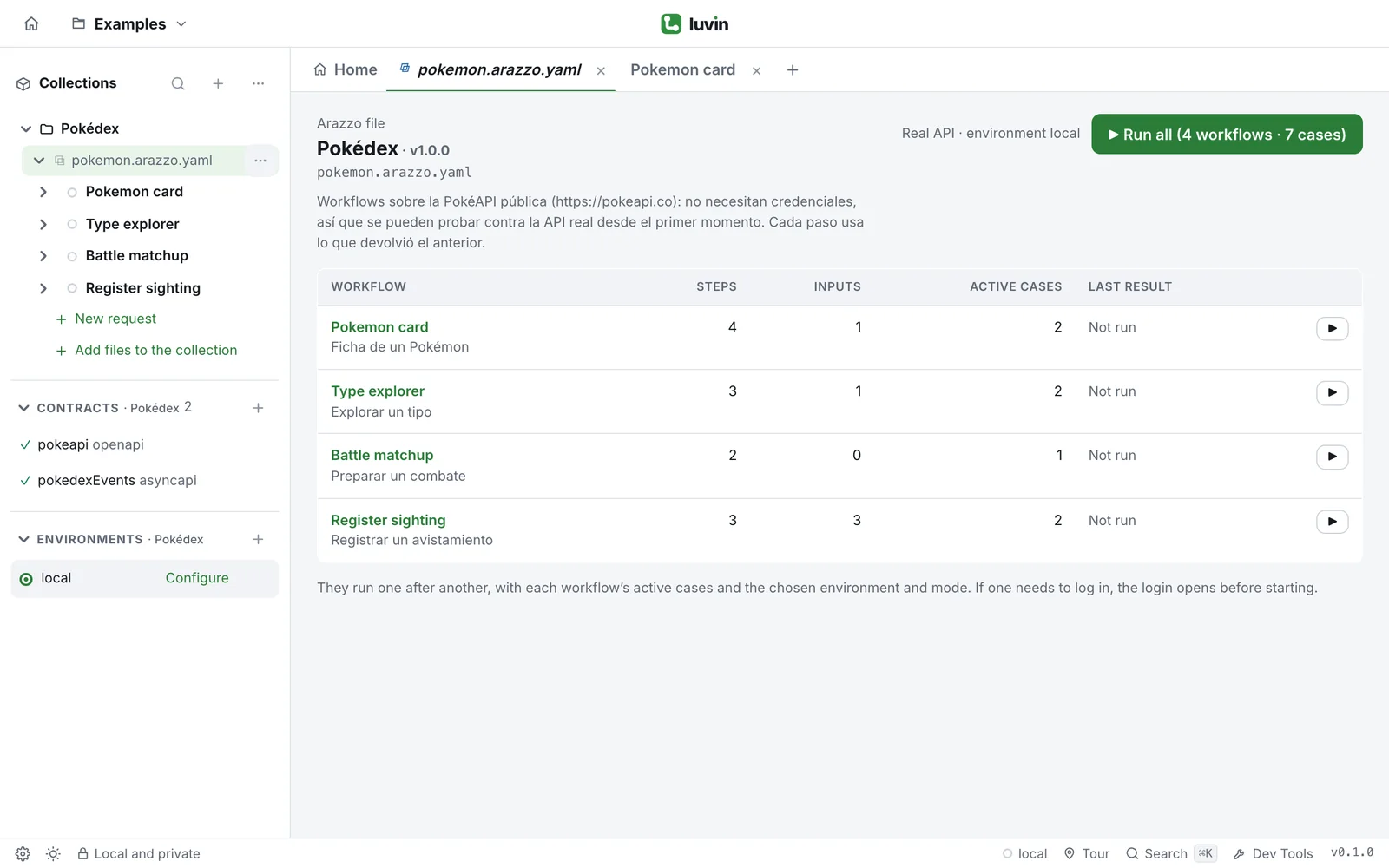
Section titled “Example: pokemon.arazzo.yaml”The file view of the Pokédex example lists its four workflows.
| Workflow | Steps | Inputs |
|---|---|---|
| Pokemon card | 4 | 1 |
| Type explorer | 3 | 1 |
| Battle matchup | 2 | 0 |
| Register sighting | 3 | 3 |
The button at the top right says ▶ Run all, with the number of workflows and active cases.
Open the file view
Section titled “Open the file view”- In the sidebar, find the Arazzo file under your collection. It has a ⧉ icon and the name of the file, for example
pokemon.arazzo.yaml. - Click the file row.
The file opens in its own tab, and its workflows unfold under it in the sidebar. The arrow at the left of the row only folds or unfolds the workflows. It does not open the view.
What the view shows
Section titled “What the view shows”At the top you see the label Arazzo file, the title of the file (the info.title of the Arazzo, or the file name if it has none), its version, the file name and its description.
Below the title there is one line that says how the workflows will run, for example Simulated · environment local. It shows the mode (Real API or Simulated) and the environment that are active now. They are the ones you chose in the run bar. See Run.
Then comes a table with one row per workflow:
| Column | What it shows |
|---|---|
| Workflow | The name of the workflow. Click it to open the workflow. If it has errors, a red badge says how many (2 error(s)). Its summary is below the name. |
| Steps | How many steps it has. |
| Inputs | How many inputs it declares. |
| Active cases | How many cases would run now. A case is counted only if it is switched on and can run in the current mode. |
| Last result | The verdicts of the last run: ✓ Passed, ✕ Failed, ! Warning and ? Inconclusive, each with its count. A workflow that has not run says Not run. |
When at least one case has run, a line above the table adds them up: Last run: 12 cases, followed by one badge per verdict.
Run all the workflows
Section titled “Run all the workflows”The button at the top right says ▶ Run all (4 workflows · 12 cases). The numbers are the workflows that have active cases and the active cases they have.
- Click ▶ Run all.
- Luvin runs the workflows one after another, in the order of the table. Each one uses its active cases, the environment and the mode shown under the title.
- The row that is running says Running. The other rows fill in as each workflow ends.
- To stop, click Cancel. The workflow that is running is cancelled and the next ones do not start.
The shortcut ⌘ + Enter (Ctrl + Enter) does the same while the file view is open.
If no workflow has active cases, the button is off and says No workflow has active cases to run. Open a workflow and check its Cases.
To run only one, click ▶ at the end of its row (Run only this workflow). The button is off while something is running.
Steps that change data
Section titled “Steps that change data”Against the Real API, some steps send POST, PUT, PATCH or DELETE calls. Before the first call, Luvin asks you to confirm: Some steps modify data. It tells you which workflows have them and which environment they will hit. Click Run anyway to go on, or Cancel.
In Simulated mode this question does not appear, because nothing leaves your computer. See Simulation.
Workflows that need to log in
Section titled “Workflows that need to log in”If a workflow uses an API that needs you to sign in, and you run it against the real API, the login opens before that workflow starts. If the login fails, the run stops and the message names the workflow. See Authorization of a workflow.
Where to read the results
Section titled “Where to read the results”The table only gives a count per verdict. To see each case and each step, open the workflow and read its results. See Results.
Add a workflow to the file
Section titled “Add a workflow to the file”- When the file has no workflow, the view says This file has no workflows yet. Click Create one.
- When it has workflows, open the + (Create or import) next to the tabs and choose New workflow in this file, or click + Workflow in the Design tab.
The new workflow opens in the Design tab. See Create a workflow.
Rename or delete the file
Section titled “Rename or delete the file”These actions are in the ⋯ menu of the file row, in the sidebar. The menu appears when you work in a workspace. Without a workspace there is no ⋯ on the file.
Rename
Section titled “Rename”- Open the ⋯ menu of the file and choose Rename. The name becomes a text field.
- Type the new name and press Enter. Press Esc to cancel.
If you do not type an extension, Luvin keeps the one the file had, for example .arazzo.yaml. The workflows inside do not change.
Delete
Section titled “Delete”- Open the ⋯ menu of the file and choose Delete file….
- Read the question: Delete “pokemon.arazzo.yaml” and its cases? Contracts stay. This can’t be undone.
- Click Delete, or Cancel to keep the file.
Luvin deletes the Arazzo file and the inputs and cases saved for it. The contracts stay in the collection.