
Design workflows
Workflows that use other workflows
Call a workflow as a step, or make a workflow depend on another one, and read its outputs.
A workflow can use another workflow of the same file in two ways. It can call it as one step, or it can depend on it, which means the other workflow runs first and this one reads what it returned. Use this to avoid building the same chain twice, for example “log in” or “create a customer”.
The example: Battle matchup
Section titled “The example: Battle matchup”In the Pokédex example, Type explorer takes a type such as fire, finds the first Pokémon of that type and returns pokemon, strongAgainst and isLegendary. Battle matchup depends on it: it uses the type that Type explorer is strong against to look for a rival.
In the file, this is one line, dependsOn, and a value that reads an output:
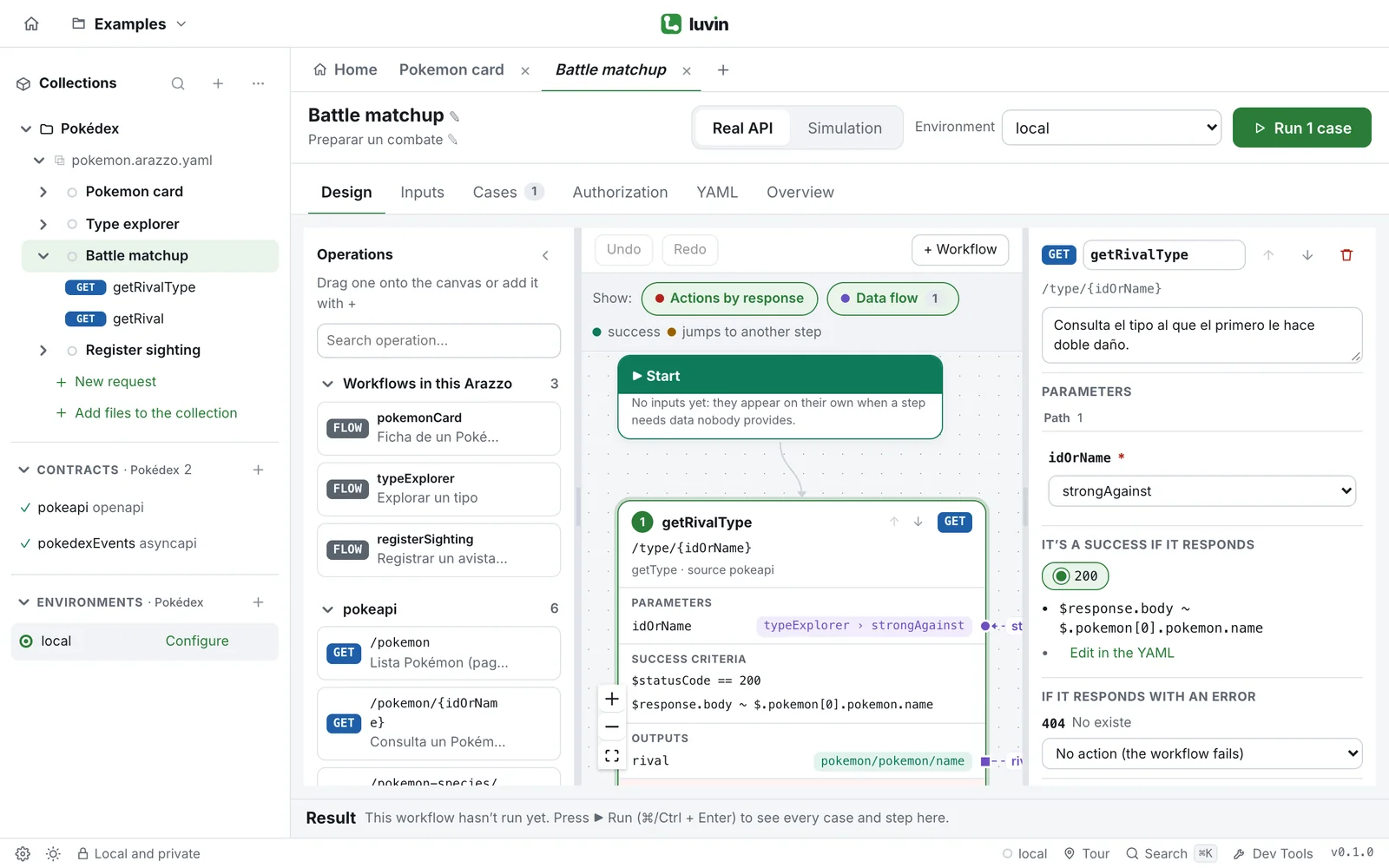
- workflowId: battleMatchup dependsOn: [typeExplorer] steps: - stepId: getRivalType operationId: $sourceDescriptions.pokeapi.getType parameters: - name: idOrName in: path value: $workflows.typeExplorer.outputs.strongAgainstA runnable version: One workflow logs in, others reuse its token.
Make a workflow depend on another one
Section titled “Make a workflow depend on another one”- Open the workflow that needs the data, and go to the Design tab.
- Click the Start card. Its panel opens on the right.
- Under Depends on, open Add a workflow… and choose a workflow.
A card Depends on appears above Start. It lists each workflow and its outputs. If a workflow has no outputs, the card says no declared outputs: open that workflow and add outputs on its End of workflow card. See Outputs.
The panel says This Arazzo has no other workflows. when the file has only one workflow. Add another with + Workflow. See Create a workflow.
To stop depending on a workflow, click the bin next to its name in the same panel.
Use its outputs
Section titled “Use its outputs”The outputs of the workflows you depend on are available to every step, as $workflows.<workflow>.outputs.<name>. There are two ways to connect one:
- In the step panel, open Source for a parameter. Each dependency has a group, Workflow “Type explorer” (depends on), with its outputs.
- Drag from the dot of an output in the Depends on card to a parameter of a step. Connect data between steps explains both ways.
Call a workflow as a step
Section titled “Call a workflow as a step”- In the Operations palette, open Workflows in this Arazzo. It lists the other workflows of the file, each marked FLOW.
- Drag one onto the canvas, or click + on its row.
The step is named after the workflow. Luvin does the wiring for you:
- Each required input of the called workflow becomes a parameter of the step, taken from an earlier step or from an input of this workflow, as for any other step. The panel lists them under Workflow inputs.
- Every output of the called workflow becomes an output of the step, so the next steps can read it.
The step panel shows calls workflow typeExplorer under the name. If the workflow is not in the file, it adds missing.
Use a workflow of another Arazzo file
Section titled “Use a workflow of another Arazzo file”The workflow you need can be in a different Arazzo file of the same collection, for example a login that every file reuses. Luvin runs it as if it were in this file.
- Open the Design tab of the workflow, and click the Start card.
- Under Depends on, open Add a workflow…. The list has a group In this file and one group per other Arazzo file, In auth.arazzo.yaml for example.
- Choose the workflow of the other file.
Luvin adds the other file to sourceDescriptions as a source of type: arazzo, once, and writes the reference. The Depends on card shows the name of the workflow and its file.
To call it as a step instead, open the Operations palette. The group From other Arazzo files lists those workflows, each marked FLOW. Drag one onto the canvas. Luvin adds the source the same way.
sourceDescriptions: - { name: dummyjson, url: ./dummyjson.openapi.yaml, type: openapi } - { name: auth, url: ./auth.arazzo.yaml, type: arazzo }workflows: - workflowId: myProfile summary: Read my profile after logging in (another document) dependsOn: [$sourceDescriptions.auth.login] steps: - stepId: getMe operationId: getMe parameters: - { name: Authorization, in: header, value: 'Bearer {$workflows.login.outputs.token}' } - workflowId: loginAsStep steps: - stepId: auth workflowId: $sourceDescriptions.auth.login outputs: { token: $outputs.token }The workflows of an arazzo source are named $sourceDescriptions.<source>.<workflowId>. You can use that name in:
| Where | What Luvin does |
|---|---|
dependsOn of a workflow |
Runs it first, once, with the workflows it depends on in its own file. Read its outputs as $workflows.<workflowId>.outputs.<name>, with the workflow id only. |
workflowId of a step |
Calls it at that point. Read its outputs as $outputs.<name> in the step’s outputs. |
workflowId of a goto or retry action |
Runs it when the action fires. See Success and errors. |
A workflow called as a step uses its own default or example value for every input the step does not pass.
Runnable example: Use a workflow from another Arazzo file.
Which one to use
Section titled “Which one to use”| Call as a step | Depends on | |
|---|---|---|
| When it runs | At that point of the steps, in every case. | Once, before the cases of the run. |
| Inputs | You connect them as parameters of the step. | The values of that workflow’s own Inputs tab. |
| Where you read the outputs | The outputs of the step. | $workflows.<workflow>.outputs.<name> |
| If it fails | The step fails, and the reason names the step where the other workflow stopped. | The cases do not run. Each ends as inconclusive, with the reason: The workflow could not be prepared: the workflow “…” it depends on failed. |
What runs first
Section titled “What runs first”When you press Run, Luvin runs the workflows you depend on, in the order they need, before the cases. A workflow that depends on others runs after them. In Simulation they are simulated too, and against the Real API they call the API. The results open with a Preparation block that shows them. See Results.
Set the inputs of a dependency in its own Inputs tab. Type explorer has the input type with the default fire, and Battle matchup has no inputs of its own.
Limits
Section titled “Limits”- Other files must be in the collection. If the file of an
arazzosource is not loaded, or the workflow does not exist in it, the analysis says so and the cases end as inconclusive. - No circles, also across files. If A depends on B and B on A, Luvin does not run them and says so with a message like The workflows depend on each other in a circle.
- Five levels. Workflows called as steps can be nested up to five levels. Beyond that the step fails with Too many levels of nested sub-workflows.
- A missing workflow is an error. If a workflow depends on one that does not exist, the card shows missing and the cases end as inconclusive with the reason.