
Design workflows
Organize a workflow
Reorder, rename and delete steps, undo and redo changes, and delete a workflow you no longer need.
Once a workflow has steps, you will want to move some, rename others and remove the ones you do not need. This page shows how, and what Luvin does with the data that other steps took from them.
Example: move a step above the one it reads
Section titled “Example: move a step above the one it reads”In Pokemon card, getSpecies reads $steps.getPokemon.outputs.id. Drag getSpecies above getPokemon.
- Drag the
getSpeciescard up and drop it abovegetPokemon. - A bar appears: Check the order: “getSpecies” uses data from “getPokemon”, which now runs after it.
- Click Undo in the bar. The steps go back to their places.
Reorder steps
Section titled “Reorder steps”Steps run from top to bottom, in the order they appear. There are three ways to move one.
| How | Steps |
|---|---|
| Drag | Drag the card up or down on the canvas and drop it between two other cards. |
| Arrows on the card | Point at the card and click ↑ or ↓. |
| Arrows in the panel | Click the step, then Move up or Move down at the top of its panel. |
The arrow that would move the first step up, or the last step down, is off.
Only the vertical position counts. Moving a card sideways changes the drawing, not the order, and Reset layout puts the drawing back.
When the new order breaks a connection
Section titled “When the new order breaks a connection”A step can only use data from steps that run before it. If you move a step above one it takes data from, a bar appears: Check the order: and the detail, for example “getBenefits” uses data from “getCards”, which now runs after it. Luvin does not change the connections. Click Undo in the bar, or move the other step too. The YAML tab and the step’s panel also show the error Uses an output of “getCards”, which runs later.
Rename a step
Section titled “Rename a step”- Click the step.
- Click its name at the top of the panel.
- Type the new name and press Enter, or click outside.
A name can have letters, numbers, - and _, without spaces, and it cannot repeat in the workflow. If it does not fit these rules, Luvin shows an error above the canvas and keeps the old name.
Renaming is safe. Luvin updates every place that points to the step: the values that read its outputs ($steps.name.outputs…), the actions that jump to it and the dependsOn of other steps.
To rename the whole workflow, see Create a workflow.
Delete a step
Section titled “Delete a step”- Click the step.
- Press Delete or Backspace, or click the bin (Remove the step) at the top of its panel.
The step disappears from the canvas and from the file.
Other steps may have used its data. In that case Luvin keeps their references and shows a bar: Other steps used what you removed and lost that data: and the names of those steps. The references now point to nothing, so each of those steps shows an error such as Uses $steps.getPokemon.outputs.id, but step “getPokemon” does not exist. Give those values another source (see Connect data between steps), or click Undo to bring the step back.
Undo and redo
Section titled “Undo and redo”Above the canvas, Undo and Redo step back and forward through the changes you made in the Design tab: adding, moving, renaming and deleting steps, connections, values and outputs.
| Action | macOS | Windows and Linux |
|---|---|---|
| Undo | ⌘ + Z | Ctrl + Z |
| Redo | ⇧ + ⌘ + Z | Ctrl + Shift + Z |
The shortcuts do not work while the cursor is in a text field. Luvin remembers up to the last 100 changes. A button is off when there is nothing to undo or redo.
Delete a workflow
Section titled “Delete a workflow”A workflow is deleted from the sidebar, with everything that hangs from it: its steps, its inputs, its cases and its results.
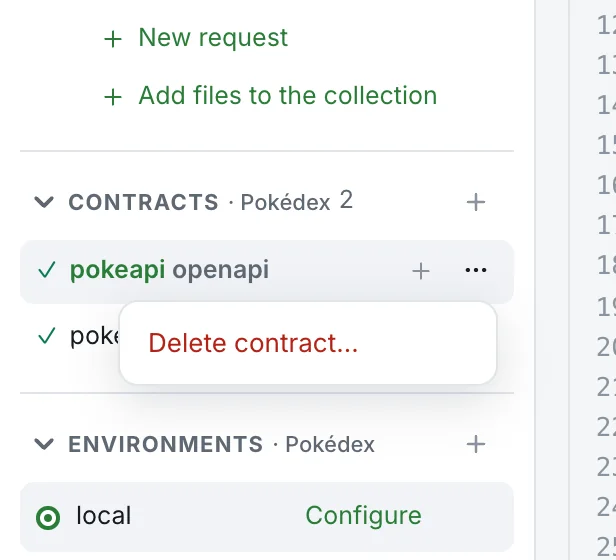
- In the sidebar, point at the workflow row and click ⋯.
- Choose Delete workflow…. A confirmation appears under the row.
- Click Delete, or Cancel to keep it.
The confirmation says Delete the workflow “Type explorer” with its steps, inputs and cases? If other workflows of the file use it, it adds who: Used by: Battle matchup. They will show errors until you adjust them. Luvin removes the workflow from the dependsOn of the others. A step that calls it, or a value that reads its outputs, stays as it was and shows an error until you fix it.
The last workflow of a file
Section titled “The last workflow of a file”An Arazzo file needs at least one workflow, so the last one cannot be deleted alone. What you see depends on where you work:
| Where | What the confirmation says | What happens |
|---|---|---|
| In a workspace | “Name” is the only workflow in file.arazzo.yaml: the file and its cases will be deleted. This can’t be undone. | Delete deletes the whole file. The contracts stay. |
| Without a workspace | “Name” is the only workflow in file.arazzo.yaml, and an Arazzo needs at least one. | Only Close. Add another workflow first. |