
Test workflows
Run
Run the cases of a workflow against the real API or in simulation, run a single case, confirm steps that modify data and stop a run.
Running a workflow runs its selected cases, one after another, and gives each one a verdict. You choose where they run, against which environment, and press Run.
Example: run Pokemon card
Section titled “Example: run Pokemon card”The Pokédex example needs no credentials, so you can run it right away.
- Open Pokemon card. In the Cases tab, its two cases are ticked.
- In the run bar, choose Simulation. The button reads Run 2 cases.
- Press Run. The results open at the bottom: Running case 2 of 2, then a verdict for each case.
- Switch to Real API and press Run again. The run pauses to ask you to choose from a list. See Choose an item from a list.
The run bar
Section titled “The run bar”The run bar is at the top of an open workflow, above its tabs. The workflow name is on the left and the run controls are on the right.
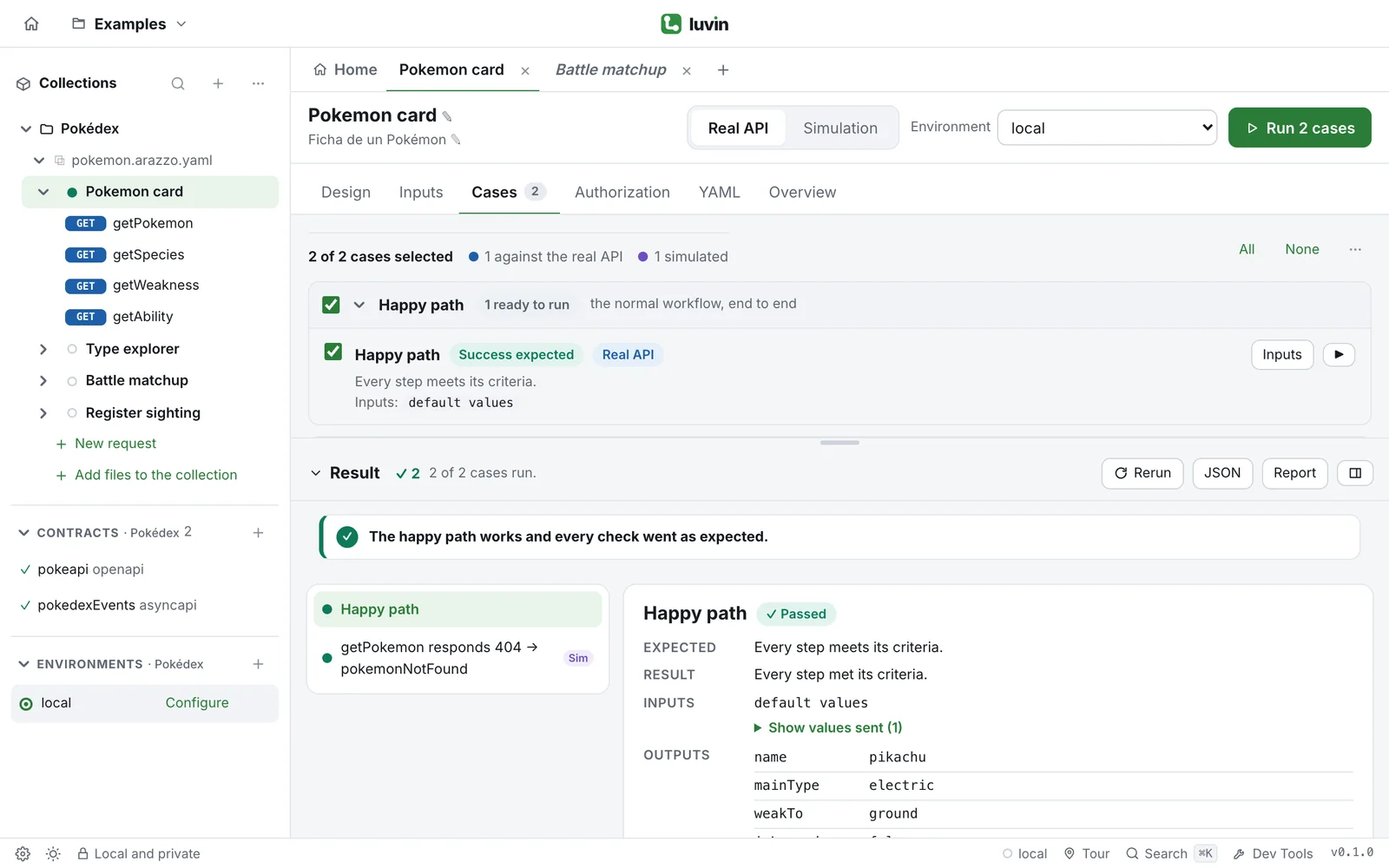
| Control | What it does |
|---|---|
| Real API / Simulation | Where the cases run. Real API sends the requests to the base URLs of the environment. Simulation answers from the contract, with no network calls. See Simulation. |
| Environment | The environment whose base URLs, variables and credentials are used. Configure environment…, at the end of the list, opens it. |
| Run | Runs the selected cases that are ready. Its label says how many: Run 3 cases, Run 1 case. With none ready it says Run and cannot be pressed. |
Run the cases
Section titled “Run the cases”- Open the workflow.
- In the Cases tab, tick the cases you want. See Cases.
- In the run bar, choose Real API or Simulation.
- Choose the Environment.
- Press Run. You can also press ⌘ + Enter on macOS, or Ctrl + Enter on Windows and Linux.
The results open at the bottom. While the run is in progress they show which case is running, for example Running case 2 of 5, and each case gets its verdict as it ends.
Run one case
Section titled “Run one case”- In the Cases tab, find the case.
- Press ▶ on its row. Its tooltip says Run only this case.
The case runs even if it is not ticked. The results then show that case only. If ▶ cannot be pressed, the case cannot run: rest the pointer on the button to read why.
Steps that modify data
Section titled “Steps that modify data”A step that uses POST, PUT, PATCH or DELETE creates, changes or deletes data. When a case goes against the real API and the workflow has such steps, Run first shows a notice: These steps modify data in the “…” environment, with the method and URL of each step.
| Button | What it does |
|---|---|
| Run anyway | Runs the cases. Luvin does not ask again until you switch environment or change a base URL. |
| Use simulation | Switches to Simulation and runs there. Nothing is sent to the API. |
| Cancel | Closes the notice without running. |
Read the environment name in the notice before you confirm.
Other notices before a run
Section titled “Other notices before a run”- Credentials are missing in “…”: calls that need them will answer 401. Fill in opens the environment.
- This workflow signs in with OAuth 2.0 to: … Press Sign in, or press Run and the sign-in opens first. If you cancel it, the workflow does not run. See OAuth 2.0.
- N messaging step(s) are simulated, next to the workflow name. Messaging steps are simulated even against the real API. See Simulation.
Stop a run
Section titled “Stop a run”While cases are running, the Run button becomes Cancel. The results show a Cancel button too. The run stops at the current step, and the cases that had not started stay Pending.
When a workflow depends on another
Section titled “When a workflow depends on another”Some workflows need another one to run first: for example, Battle matchup in the Pokédex runs after Type explorer and uses its outputs.
- The workflows it depends on run first, in order, once per run, before the cases.
- Each one uses its own default values, from its own Inputs tab.
- In Simulation they are simulated too.
- The results show them under Preparation. Click one to see its steps.
- If one of them fails, the cases cannot be tested. Each case ends as Inconclusive and says which workflow failed.
See Dependencies and the recipe One workflow logs in, others reuse its token.