
Environments
Environments
What an environment is, how to create, rename, color and delete one, and how to choose the active environment.
An environment holds what changes between the places where your API runs, such as local and production. You need one as soon as you run a workflow or send a request against a real API.
Each environment is one small file. The same request, {{baseUrl}}/customers, goes to a different place in each:
name: localcolor: greenservers: baseUrl: http://localhost:8080{{baseUrl}}/customers becomes http://localhost:8080/customers.
name: productioncolor: redservers: baseUrl: https://api.shop.test{{baseUrl}}/customers becomes https://api.shop.test/customers.
What an environment holds
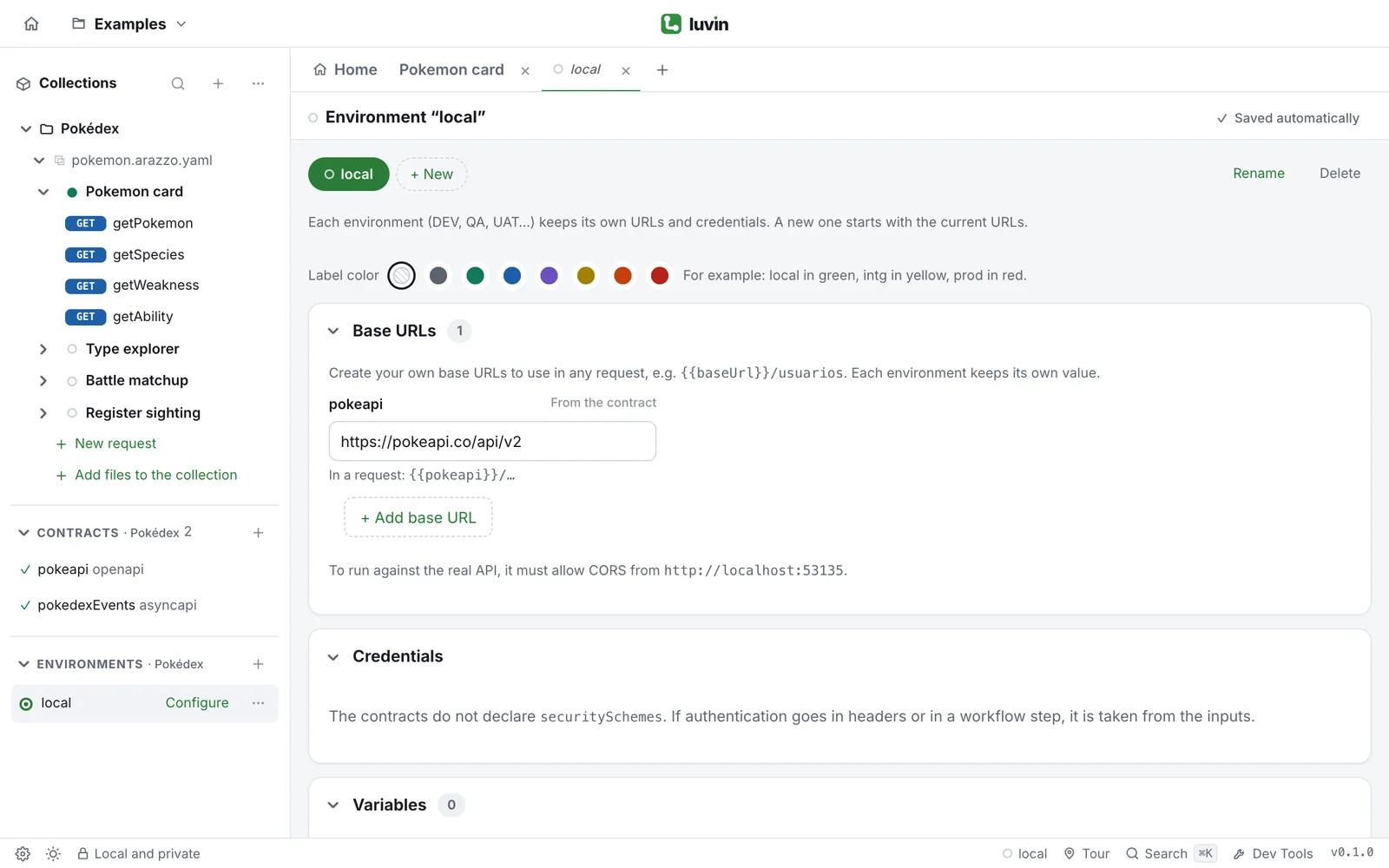
Section titled “What an environment holds”| Part | What it is |
|---|---|
| Base URLs | The address of each API in this environment, for example https://api.shop.test. |
| Credentials | The values the contracts ask for: a token, a user and password, an API key. |
| Variables | Values you reuse as {{name}}, such as a client ID. |
| Secrets | Variables for keys and tokens. Their values never go into the workspace files. |
| Label color | A color to tell environments apart at a glance. |
Environments belong to the open collection. Each collection has its own list and always has at least one.
Where environments are
Section titled “Where environments are”| Place | What you find |
|---|---|
| Sidebar | The Environments section, at the bottom, with the open collection’s name. The active one has its dot filled in |
| Run bar of a workflow | The Environment selector, next to Real API and Simulation |
| Bottom bar | The active environment’s name, on the right. Click it to open the environment |
Choose the active environment
Section titled “Choose the active environment”The active environment is the one Luvin uses for every run, every request and Try it out in a contract.
- In the sidebar, under Environments, click an environment.
- It becomes active and opens in a tab titled Environment “name”.
To switch without leaving a workflow, use the Environment selector in the run bar. Its last option, Configure environment…, opens the active environment. Luvin remembers the active environment of each collection on this computer.
Create an environment
Section titled “Create an environment”- In the sidebar, click + (New environment) in Environments. Inside an open environment you can also click + New.
- A new environment called New environment is added and becomes active.
- Type its name and press Enter.
The new environment is a copy of the active one: same base URLs and variables. For secrets it copies only the names. Credentials are not copied. You only change what differs.
Rename an environment
Section titled “Rename an environment”- Open the environment.
- Double-click its name in the row of environments at the top, or click Rename.
- Type the new name and press Enter. Press Esc to cancel.
Give it a color
Section titled “Give it a color”- Open the environment.
- Next to Label color, click a color: gray, green, blue, purple, yellow, orange or red. The first option removes the color.
The color shows in the sidebar, in the Environment selector and in the bottom bar. A common choice: local in green, integration in yellow, production in red.
Delete an environment
Section titled “Delete an environment”- Hover the environment and open its ⋯ menu.
- Choose Delete environment….
- Confirm with Delete.
- Open the environment.
- Click Delete, on the right of the row of environments.
- Confirm with Delete.
Deleting an environment also deletes its credentials and secrets from this computer.