
Design workflows
Design a workflow
What a workflow is, the parts of the Design tab and where to find each task in this section.
A workflow is a chain of API calls where each step can use data from the previous ones. You build it in the Design tab by dragging operations onto a canvas, and Luvin writes the file for you.
Example: Pokemon card
Section titled “Example: Pokemon card”Pokemon card has four steps. The first gets a Pokémon from the input pokemon. The other three use what it returned: its id, its main type and its first ability.
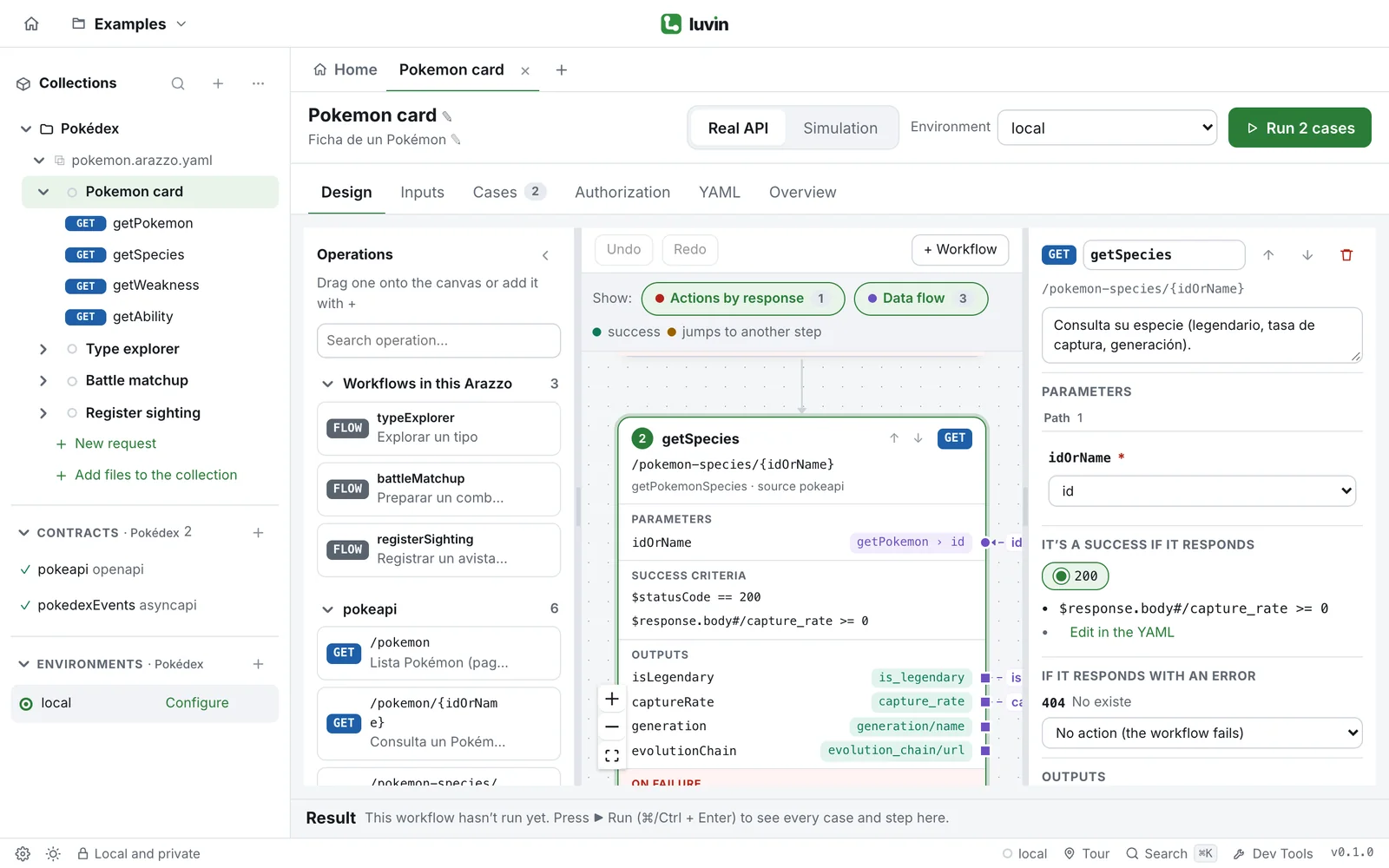
The canvas shows Start with the input pokemon, then four cards joined by arrows, then End of workflow. The second card, getSpecies, shows the parameter idOrName with the source getPokemon › id.
- stepId: getPokemon operationId: $sourceDescriptions.pokeapi.getPokemon parameters: - name: idOrName in: path value: $inputs.pokemon outputs: id: $response.body#/id mainType: $response.body#/types/0/type/name- stepId: getSpecies operationId: $sourceDescriptions.pokeapi.getPokemonSpecies parameters: - name: idOrName in: path value: $steps.getPokemon.outputs.idWhat a workflow is made of
Section titled “What a workflow is made of”| Part | What it is |
|---|---|
| Step | One call: an operation of a contract, a saved request, a message or another workflow. |
| Input | A value the workflow asks for when it runs, for example the name of a Pokémon. |
| Output | A value a step takes from its response so the next steps can use it. |
| Success criterion | The rule that says a step went well, for example “it responds 200”. |
| Action | What happens when a step answers with an error: end, retry or go to another step. |
A contract is the OpenAPI or AsyncAPI file that describes an API. The glossary has every term.
Open the Design tab
Section titled “Open the Design tab”- In the sidebar, click a workflow.
- Click the Design tab.
The canvas shows the workflow from top to bottom. Design is the tab a workflow opens on, except in the Simple interface, which opens on Overview.
The parts of the Design tab
Section titled “The parts of the Design tab”| Area | Where | What it is for |
|---|---|---|
| Operations palette | Left | Everything you can add: the operations of each contract, Collection requests, Reusables and Workflows in this Arazzo. Search, drag or press +. The arrow in its header hides it. |
| Canvas | Centre | The workflow as cards joined by arrows: Start with the inputs, one card per step, and End of workflow with the outputs. |
| Step panel | Right | Opens when you click a card. Here you edit parameters, body, success, errors and outputs. Click an empty spot of the canvas to close it. |
| Toolbar | Above the canvas | Undo, Redo and + Workflow. |
Drag the dividers between the three areas to resize them. Double-click a divider to go back to the original size.
What a step card shows
Section titled “What a step card shows”- Its position in the run and its name. Point at the card to see the arrows ↑ and ↓ that move it.
- modifies data when the operation is a POST, PUT, PATCH or DELETE.
- The method and path of the operation, and the contract it comes from.
- Parameters: each value and where it comes from.
pokemonis an input,getPokemon › idis an output of another step, and anything else is a fixed value. - Success criteria and Outputs.
- On failure: what happens on each error.
Show: the two layers
Section titled “Show: the two layers”Above the canvas, Show: has two switches.
| Switch | What it does |
|---|---|
| Actions by response | Adds the On failure section to each card and draws the jumps to other steps. The number is how many actions the workflow defines. |
| Data flow | The number is how many connections carry data from one step to another. In the diagram of the Overview tab it shows or hides those lines. In Design the data lines are always drawn, because that is where you edit them. |
To the right, the legend explains the dots: green is success and orange is jumps to another step.
Move around the canvas
Section titled “Move around the canvas”- Drag the background to move. Use the buttons in the corner to zoom in, zoom out and fit the whole workflow in view.
- Drag a card or the vertical part of a line to tidy the drawing. Reset layout appears above the canvas and puts everything back.
In this section
Section titled “In this section”| To do this | Read |
|---|---|
| Start a new workflow | Create a workflow |
| Add calls | Add steps |
| Pass data from one step to the next | Connect data between steps |
| Fill in what a call sends | Parameters and body |
| Keep values from a response | Outputs |
| Decide what counts as success and what to do on errors | Success and errors |
| Define something once and use it in several steps | Reusables |
| Use one workflow from another | Workflows that use other workflows |
| Send and receive messages | Messaging steps |
| Work without contracts | Build from saved requests |
| Reorder, rename, delete, undo | Organize a workflow |
| Edit the file by hand | The YAML tab |