
Workspaces
Workspaces and collections
What a workspace and a collection are, how they fit together on disk, how Luvin saves your work, and a map of this section.
A workspace is the folder that holds all your work. Inside it, each collection is a subfolder for one topic: a partner, a product, a family of APIs. You need a workspace as soon as you want Luvin to keep what you build.
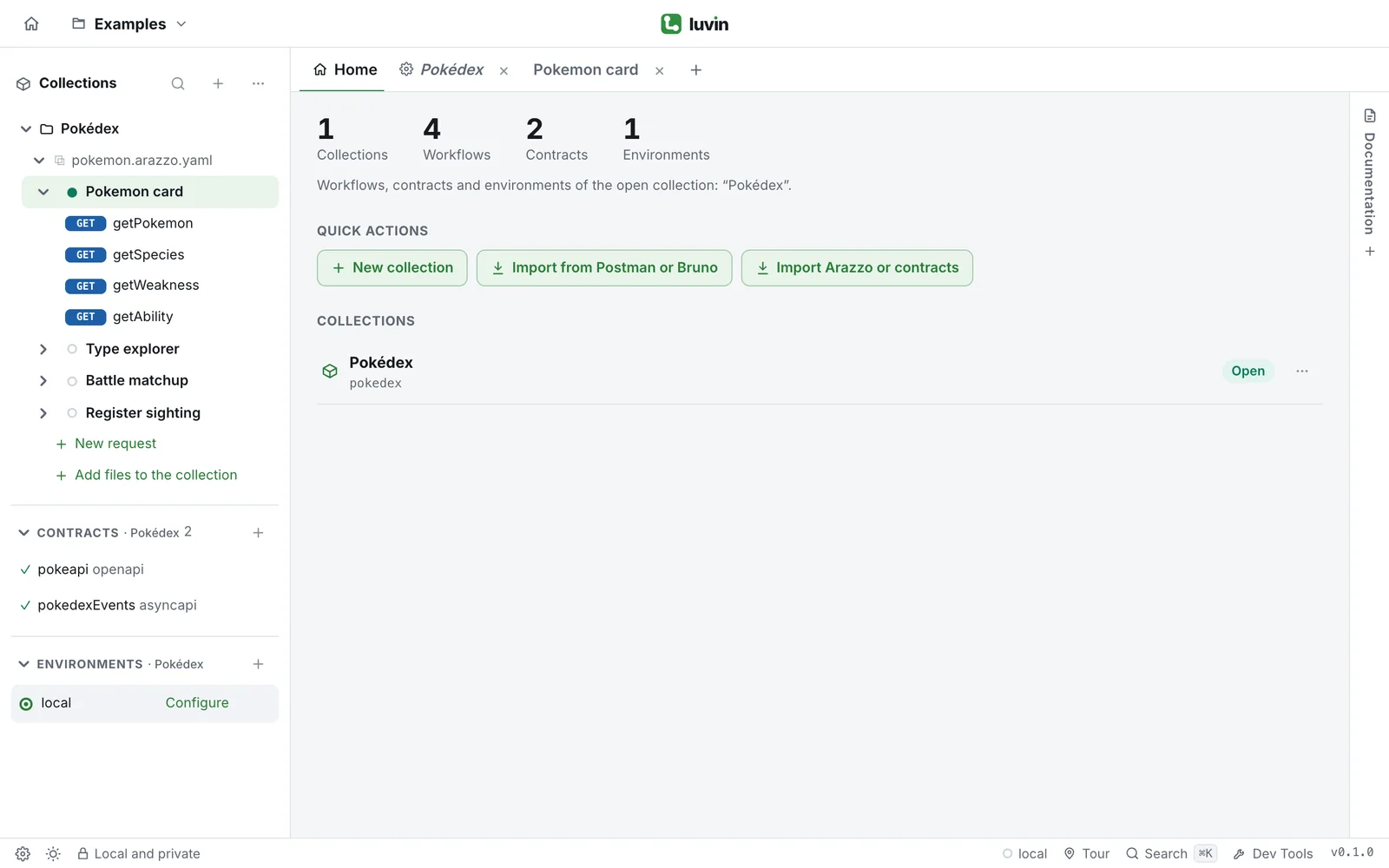
The hierarchy
Section titled “The hierarchy”Directorymy-workspace/ the workspace
- luvin.yaml the list of collections
- README.md the workspace documentation (optional)
Directorypokedex/ a collection
- collection.yaml its name, version and authorization
- README.md the collection documentation (optional)
- pokeapi.openapi.yaml a contract
- pokemon.arazzo.yaml an Arazzo file with workflows
Directoryenvironments/
- local.yaml an environment
Directoryscenarios/ the inputs and cases of each Arazzo file
- …
Directoryrequests/ the saved requests
- …
Directorypartners/ another collection
- …
Everything is a plain text file, so you can keep the workspace in git. What is on disk explains each file.
Workspace and collection
Section titled “Workspace and collection”| Workspace | Collection | |
|---|---|---|
| What it is | The folder that holds collections. | A subfolder for one topic. |
| File that describes it | luvin.yaml |
collection.yaml |
| What it holds | The list of collections and an optional README. | Contracts, Arazzo files, environments, cases, requests, an authorization and an optional README. |
| How many | You work in one at a time. | One or many per workspace. One is open at a time. |
Each has its own documentation, a README.md. See Write documentation.
How Luvin saves your work
Section titled “How Luvin saves your work”You never press Save. About half a second after your last change, Luvin writes only the files that changed. The top bar shows the state:
| You see | It means |
|---|---|
| Saving… | Luvin is writing files. |
| ✓ Saved | Everything is on disk. |
| Save failed | Something could not be written. Hover the badge to read the reason. |
In the editors (an environment, a request) the same state appears as Unsaved changes…, Saving…, Saved and then Saved automatically. If it fails you see Could not save and Retry. ⌘S (Ctrl+S) saves right now.
Luvin also saves before it switches collection or closes the workspace. Saving never deletes an Arazzo file or a contract. Environments and requests that you delete in the app are deleted from disk.