
Design workflows
Reusables
Save an error action or a parameter once, apply it in other steps, detach it from a step or delete it.
A reusable is an error action or a parameter that you define once and use in several steps. Change it in one place and every step that uses it changes. Use reusables for the things that repeat: “on a 401, end the workflow”, or a header every call needs.
In the Arazzo file, reusables live in a section called components. The PayPal example uses them. Its error actions unauthorized (end the workflow on a 401) and notApproved (end on a 422) are used by several steps. Its parameters requestId (the PayPal-Request-Id header) and fullResponse (the Prefer header) are used by the steps that create or capture an order.
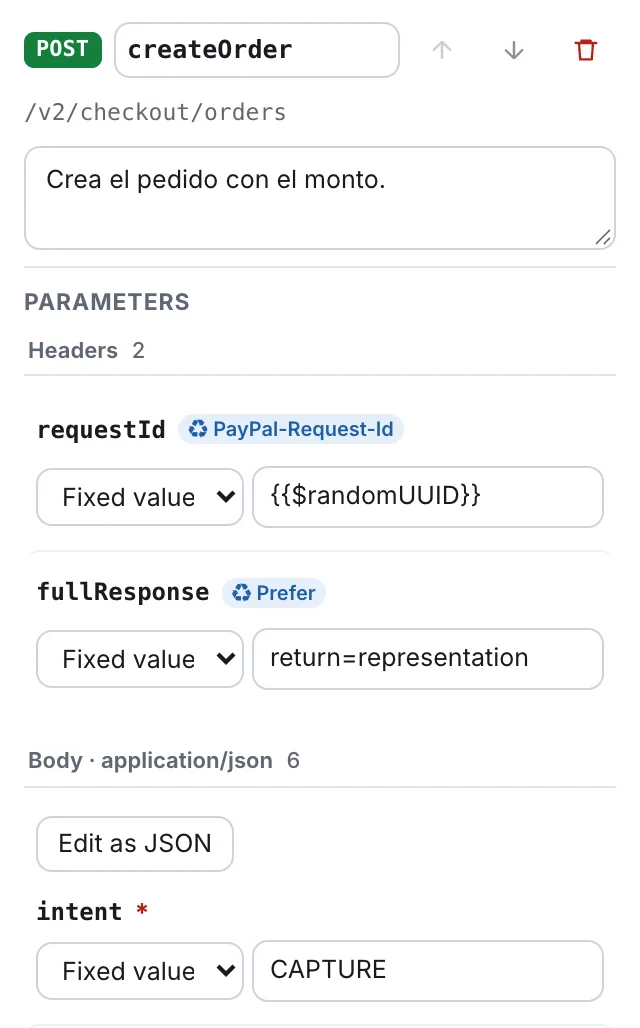
Example: PayPal
Section titled “Example: PayPal”The PayPal file defines its reusables once, in components. Create order then applies them with reference.
In the step panel of createOrder, the headers PayPal-Request-Id and Prefer show a ♻ badge and Detach. Under If it responds with an error, the 400 and 401 rows show ♻ invalidRequest and ♻ unauthorized.
components: failureActions: unauthorized: name: unauthorized type: end criteria: - condition: $statusCode == 401# ...- stepId: createOrder parameters: - reference: $components.parameters.requestId - reference: $components.parameters.fullResponse onFailure: - reference: $components.failureActions.invalidRequest - reference: $components.failureActions.unauthorizedSave an error action as a reusable
Section titled “Save an error action as a reusable”You need a step with an action already set for an error. See Success and errors.
- In the Design tab, click the step.
- Under If it responds with an error, find the status that has the action, for example 404.
- Click ♻ (Save as reusable) on that row.
- Type a name. The box suggests one, for example
on404. - Click Save. Cancel closes the box.
The step keeps working as before. The row now shows a ♻ badge with the name, and a Detach link. If the name is already taken, Luvin adds a number (on4042). Letters, numbers, - and _ are kept; anything else is removed.
Save a parameter as a reusable
Section titled “Save a parameter as a reusable”- Click the step.
- Under Parameters, find a parameter that has a value, for example a fixed header.
- Click ♻ (Save as reusable) on its row.
- Type a name and click Save.
The button does not appear on a parameter without a value, or on one that comes from the workflow inputs. The row now shows a ♻ badge with the name of the parameter and Detach.
Apply a reusable in another step
Section titled “Apply a reusable in another step”The reusables of the file are in the Reusables group of the Operations palette. The group only appears when the file has at least one. Each row shows its name, what it does and how many steps use it, for example 1 use(s).
You can apply one in three ways:
| How | What happens |
|---|---|
| In the step panel, open the action list of an error status and choose Reusables › ♻ name | The step uses the reusable for that status. The list only offers reusables that handle that status. |
| Drag the row from the palette onto a step card | The reusable is added to that step. |
| Click the step, then + on the row of the reusable | The same, on the selected step. The button is off while no step is selected. |
Edit a reusable
Section titled “Edit a reusable”- Click its row in the palette, or the ♻ badge in a step.
- Change it in the panel. At the top there is a tag, error action or parameter, and the Reusable name.
- To go back to the step, click ← Back to the step.
| Reusable | What you can change |
|---|---|
| Error action | If it responds (the status code), Then (End the workflow, Retry (up to 3 times) or Go to “step”). With retry, two more fields: retryLimit and retryAfter (s). |
| Parameter | Parameter name, in (path, query, header or cookie) and Value. |
Every change applies to all the steps that use it. The section Used in lists them. If you rename the reusable, Luvin updates every step that uses it.
Detach it from a step
Section titled “Detach it from a step”Detach when one step needs a different behaviour and the others do not.
- Click the step.
- Click Detach next to the ♻ badge.
The step keeps its own copy of the action or parameter, and the reusable stays in the file. An action that was named unauthorized goes back to the name of its status, for example on401. Choosing another action in the error list detaches it too.
Delete a reusable
Section titled “Delete a reusable”- Click the reusable in the palette to open its panel.
- Click the bin at the top.
The bin is off while any step uses it. Its tooltip says Used in 2 step(s): remove it from there first. Detach it from each step first, or choose another action there. When no step uses it, the bin deletes it from the file.