
Design workflows
Add steps
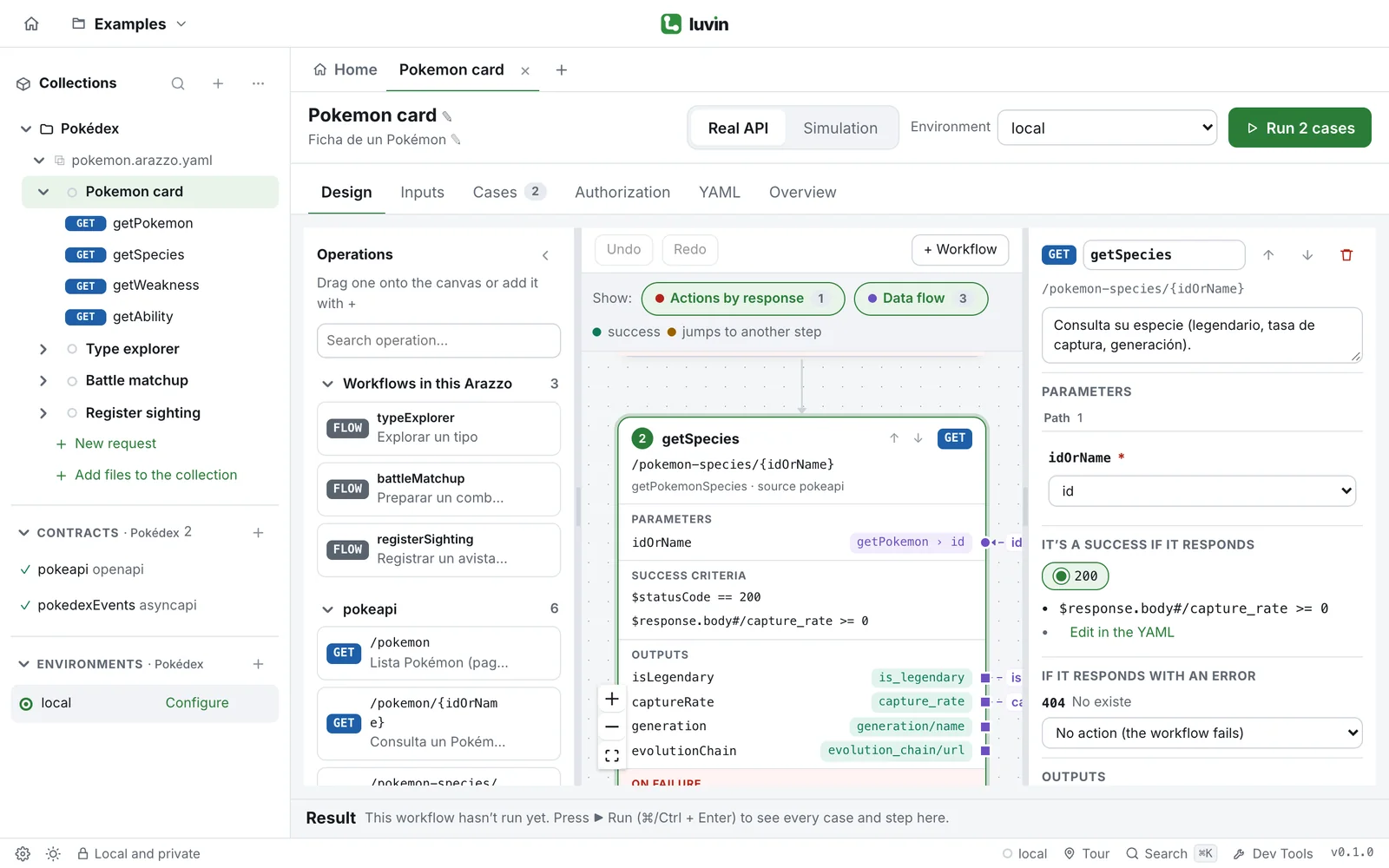
Add operations from the palette to the canvas, and see what Luvin fills in for each new step.
A step is one call in the workflow. You add steps from the Operations palette, on the left of the Design tab. Each operation you add becomes a step that is already filled in from its contract.
Example: add getPokemon
Section titled “Example: add getPokemon”Drag GET /pokemon/{idOrName} from the palette onto the empty canvas.
The canvas gets the card getPokemon, with a GET method and the path /pokemon/{idOrName}. Its panel opens on the right. Start now lists the input idOrName, and the parameter reads it.
- stepId: getPokemon operationId: $sourceDescriptions.pokeapi.getPokemon parameters: - name: idOrName in: path value: $inputs.idOrName successCriteria: - condition: $statusCode == 200Before you start
Section titled “Before you start”The palette lists the operations of the OpenAPI contracts in your collection. If it says The collection has no OpenAPI contracts. Add one to see its operations here., do one of these first:
- Add a contract. See Contracts.
- Use the requests you already have instead. See Build from saved requests.
Find an operation
Section titled “Find an operation”The palette has one group per contract, named after it, with the number of operations it has. Each row shows the method, the path and the summary of the operation.
- Click a group’s name to fold or unfold it.
- Type in Search operation… to filter. The search looks at the path, the operation id, the summary and the tags.
Add it to the workflow
Section titled “Add it to the workflow”| How | Where the step goes |
|---|---|
| Drag the operation onto the canvas | Below the step you drop it under. Dropped above the first step, it becomes the first one. |
| Click + on its row | At the end of the workflow. |
After you add it, the new step is selected, its panel opens on the right and the canvas scrolls to keep it in view.
What a new step gets automatically
Section titled “What a new step gets automatically”Luvin reads the contract and fills in the step by rules. Nothing is guessed by AI.
| Part | What Luvin puts |
|---|---|
| Name | The operation id of the contract, for example getPokemon. Without an operation id, it is built from the method and the path, for example getPokemonById. If the name is taken, a number is added: getPokemon2. |
| Description | The summary of the operation, or its method and path if it has none. |
| Success criterion | The lowest 2xx status the contract documents for the operation, for example 201 for a “create”. If the contract documents no 2xx, 200. |
| Required parameters | Each one gets a source: a previous step, an input the workflow already has, or a new input created for it. Optional parameters are left out. |
| Body | Each required field gets a source the same way. If the contract marks no field as required, every simple field outside lists becomes an optional input with the contract’s example (up to 25 fields; beyond that, none). |
Two things are not added for you:
- Outputs, apart from the ones the connections need. See Outputs.
- Actions on errors. The step panel lists each documented error so you choose. See Success and errors.
An example
Section titled “An example”Start with an empty workflow in the Pokédex collection.
- Drag
GET /pokemon/{idOrName}onto the canvas. You get the stepgetPokemon. Nothing providesidOrNameyet, so Start now lists a new input,idOrName, and the step uses it. - Drag
GET /pokemon-species/{idOrName}below it. You get the stepgetPokemonSpecies. ItsidOrNameshows? getPokemon › id: Luvin connected it to theidthe first step returns, andgetPokemonnow has an output calledid.
The ? means Luvin is less sure about that connection. Connect data between steps explains the rules and how to change a source.
Other things you can add
Section titled “Other things you can add”The palette has three more groups when they apply. They are added the same way: drag, or +.
| Group | What it adds | Read |
|---|---|---|
| Collection requests | A saved request, sent exactly as it is. | Build from saved requests |
| Workflows in this Arazzo | Another workflow of the same file, called as one step. | Workflows that use other workflows |
| Reusables | An error action or a parameter saved to use in several steps. It is applied to a step, not added as one. | Reusables |
Operations of AsyncAPI contracts are not in the palette. Messaging steps explains how to add them.
The question about required fields
Section titled “The question about required fields”A saved request has no contract that says which of its fields the API requires. The first time you add a request to a workflow, a dialog asks What does the API require in «…»? with every field of the request.
- Tick the fields the API requires. Mark all and None change them all at once. Path parameters are always required.
- Click Save, or Not now to decide later.
Your answer is saved in the request and applies to every workflow that uses it. Operations from a contract never show this dialog: the contract already says what is required.
If the canvas says the workflow is missing data
Section titled “If the canvas says the workflow is missing data”A bar titled This workflow is missing data appears when a step uses an input the workflow does not declare, or when the contract asks for data a step does not send. This happens, for example, after a contract changes.
Click Complete. Luvin declares the missing inputs or connects the data to an earlier step, without redoing the steps. Undo reverts it.