
Design workflows
Success and errors
Set what counts as a successful step and what the workflow does on each documented error, end, retry or jump.
Every step needs two decisions: which response means it went well, and what to do when the API answers with an error. Luvin sets the first from the contract and leaves the second to you. Both are in the step panel.
Example: a Pokémon that does not exist
Section titled “Example: a Pokémon that does not exist”In Pokemon card, the first step ends the workflow when the API answers 404, so “the Pokémon does not exist” is a known outcome and not a crash.
In the step panel of getPokemon, It’s a success if it responds has 200 selected. Under If it responds with an error, the list next to 404 reads End the workflow. On the canvas, with Actions by response on, the card shows the row 404 → pokemonNotFound end ✕.
- stepId: getPokemon successCriteria: - condition: $statusCode == 200 - context: $response.body condition: $.abilities[?(@.is_hidden == false)] type: jsonpath onFailure: - name: pokemonNotFound type: end criteria: - condition: $statusCode == 404What counts as success
Section titled “What counts as success”- In the Design tab, click a step.
- Find It’s a success if it responds. It has one option per 2xx status the contract documents for the operation.
- Click the status you expect.
A new step starts with the lowest documented 2xx, or 200 if the contract documents none. In the file this is written as $statusCode == 200. Any other response makes the step fail.
More than the status
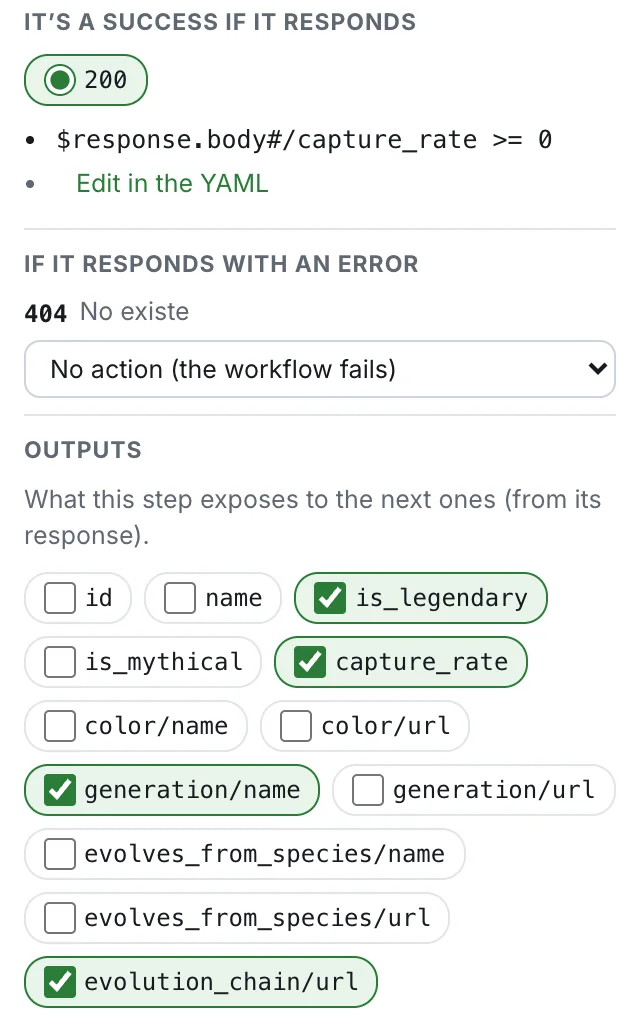
Section titled “More than the status”A step can also check the content of the response. These extra criteria are written in the YAML tab. The panel lists them below the statuses with the link Edit in the YAML, and the card shows them under Success criteria. All the criteria must hold at once.
In Pokemon card, the step getSpecies checks the status and a field:
successCriteria: - condition: $statusCode == 200 - condition: $response.body#/capture_rate >= 0See JSONPath and regex criteria for runnable examples.
What happens on each error
Section titled “What happens on each error”If it responds with an error lists every error status the contract documents for the operation, with the contract’s description. Each one has a list of actions.
| Action | What the workflow does |
|---|---|
| No action (the workflow fails) | The default. The step fails and the workflow stops with a generic failure. |
| End the workflow | Stops at this step as a known outcome, for example “the Pokémon does not exist”. |
| Retry (up to 3 times) | Calls the step again, up to 3 times, waiting 1 second before each try. If it still fails, the workflow fails. |
| Go to “step” | Jumps to another step of the workflow and continues from there. |
- Open the list next to the status, for example 404.
- Choose the action.
Luvin writes it in the file with the name on404:
onFailure: - name: on404 type: end criteria: - condition: $statusCode == 404Every action you set also gives you a test: Luvin generates a case that simulates that response and checks that the action fires. See Cases.
Two more things can show in this section:
- A Reusables group at the top of the list, when a saved action handles that status. Choosing it applies the reusable.
- The line There are 2 error action(s) with custom criteria. with Edit in the YAML. Those actions do not depend on a single status, for example they depend on a field of the response. The panel does not edit them.
Runnable examples: Retry, jump and end on errors and Prove the API rejects bad data.
Retries and slow calls
Section titled “Retries and slow calls”What a retry does
Section titled “What a retry does”When a step does not succeed and its action is Retry, Luvin sends the step again. Each try appears in the results as, for example, Retry 1 of 3 (action “on429”). If the last try fails too, the results say The 3 retries were exhausted and the step fails.
| Setting | Behaviour |
|---|---|
| How many times | retryLimit. If an action has none, Luvin retries once. |
| How long to wait | retryAfter, in seconds, between tries. |
| Real API limit | Max 10 s Luvin never waits more than 10 seconds between two tries, even if retryAfter is larger. |
| Simulation | It does not wait at all. |
| Where the wait comes from | Only from retryAfter. Luvin does not read a Retry-After header of the response. |
Run another step or workflow before the retry
Section titled “Run another step or workflow before the retry”A retry action can also name something to run first. Luvin runs it once, then calls the failed step again. Use it to renew a token: the call answers 401, a login runs, the call is tried again.
onFailure: - name: loginAndRetry type: retry stepId: login retryLimit: 2 criteria: - condition: $statusCode == 401Luvin runs the step login of the same workflow. The step must exist: if not, the analysis says Action “loginAndRetry” (retry) points to the non-existent step “login”.
onFailure: - name: renewToken type: retry workflowId: $sourceDescriptions.auth.login retryLimit: 2 criteria: - condition: $statusCode == 401Luvin runs the workflow, in this file or in another Arazzo file, and stores its outputs so the retried step can read them.
In the results, the try shows as Retry 1 of 2: runs step “login” first (action “loginAndRetry”). The step or workflow that runs first counts toward retryLimit, and Luvin waits retryAfter before each retry.
Runnable example: Log in again and retry.
Cut a slow call with timeout
Section titled “Cut a slow call with timeout”A step can carry a timeout, in milliseconds. If the API does not answer in that time, Luvin cuts the call and the step fails with The API did not answer within 3000 ms (step timeout). The step panel has no field for it. Write it in the YAML tab, inside the step:
steps: - stepId: getOrder operationId: $sourceDescriptions.shop.getOrder timeout: 3000See Failure reasons for how to read the message. For a step that waits for a message, timeout means something else: see Messaging steps.
See the actions on the canvas
Section titled “See the actions on the canvas”Turn on Actions by response, next to Show: above the canvas. Each card gets a section, On failure, with one row per response:
| Row | Meaning |
|---|---|
404 → pokemonNotFound end ✕ |
On a 404, the action pokemonNotFound ends the workflow. |
429 → on429 retries ×3 |
On a 429, the step is tried again up to 3 times. |
409 → on409 go to getOrder |
On a 409, the run jumps to the step getOrder. |
500 → no action fails |
The contract documents a 500 and nothing handles it. |
A jump is also drawn as an orange dashed line that leaves the row, runs along the left of the cards and enters the target step. Its label is the status and the name of the action. In the legend, the orange dot is jumps to another step. To move a jump line away from other lines, drag its vertical part to the side; the pointer shows Drag to move the line. Data lines move the same way.
Turn the switch off to hide the section and the jump lines when you want to read only the data.
Check that every response is handled
Section titled “Check that every response is handled”The Overview tab of the workflow has a section, Response coverage, that compares the contract with the workflow.
- Open the Overview tab.
- Open Response coverage. Its badge reads, for example, 5/7 handled.
The table has one row per step and documented status:
| Handling in the Arazzo | Meaning |
|---|---|
| ✓ Success | The status is the one the step expects. |
| ✓ Action | An action handles it. The name of the action follows. |
| ✕ Unhandled | Nothing handles it. If the API answers this, the workflow fails with a generic error. |
You do not have to handle everything. Handle the errors your application treats differently, such as “not found” or “not approved”.