
Design workflows
The YAML tab
Read and edit the Arazzo file behind a workflow, with validation as you type, autocomplete and a list of problems.
Every workflow you design is stored in an Arazzo file. The YAML tab shows that file as text and lets you edit it. Use it for what the canvas does not edit, to check what Luvin wrote, or to fix a file you received.
Arazzo is an open standard of the OpenAPI Initiative for describing sequences of API calls. YAML is a text format where indentation shows the structure.
Example: a value that points to a step
Section titled “Example: a value that points to a step”In the YAML tab, type $steps. after value: in getSpecies. The editor suggests the steps, then the outputs of the one you pick.
parameters: - name: idOrName value: $steps.getPokemon.outputs.idChange getPokemon to getPokemn. The line is underlined and Problems lists:
Uses $steps.getPokemn.outputs.id, but step "getPokemn" does not exist.The YAML is the source of truth
Section titled “The YAML is the source of truth”The canvas and the YAML are two views of the same file. Each change you make on the canvas is written in the YAML, and each change you type in the YAML shows on the canvas. Nothing is kept apart, so what you write by hand is kept.
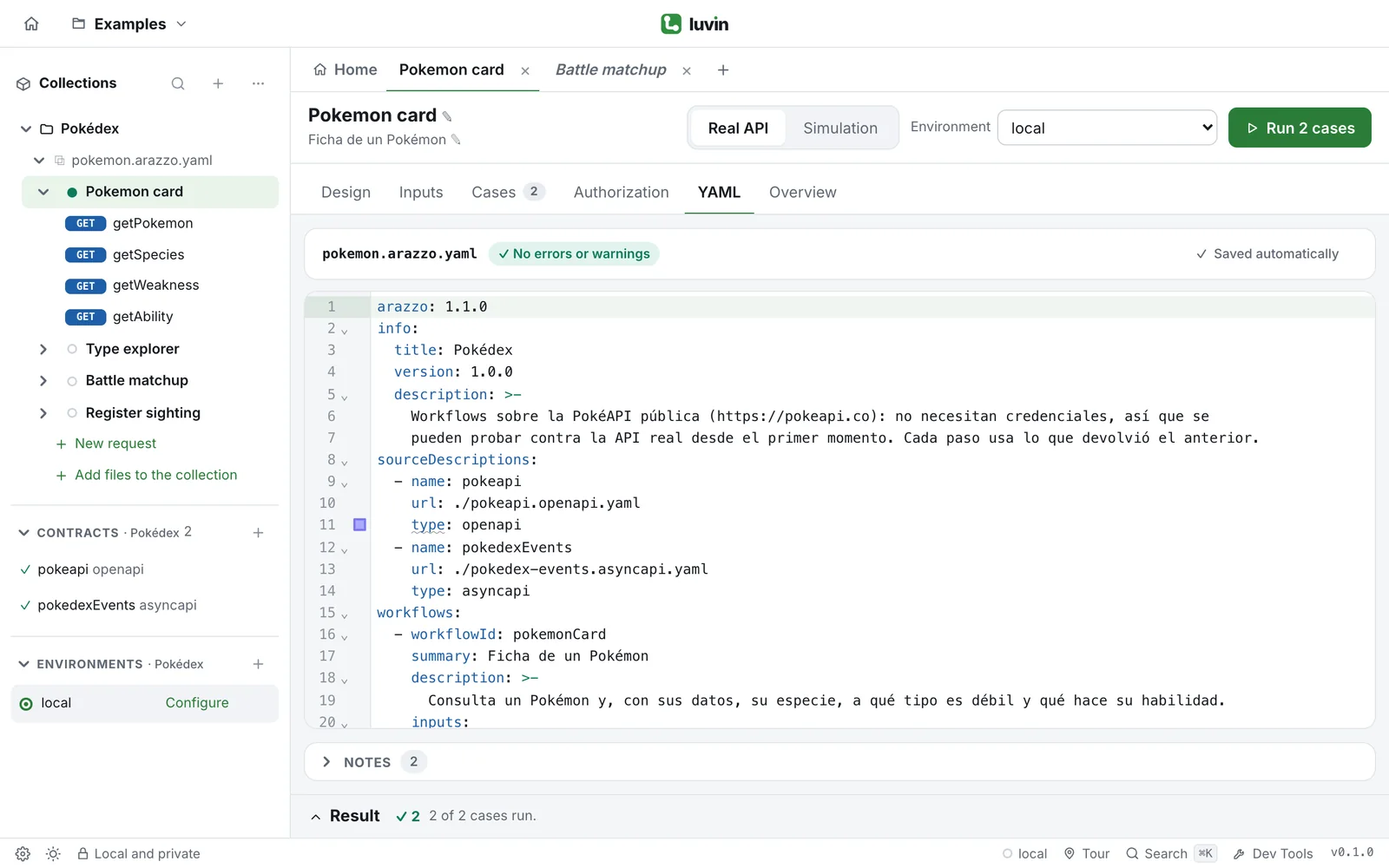
- Open a workflow and click the YAML tab.
- Edit the text.
The tab shows the whole file, not only the workflow you had open: every workflow of the file, its contracts (sourceDescriptions) and its reusables (components). The name of the file is above the text.
Validation as you type
Section titled “Validation as you type”A moment after you stop typing, Luvin reads the file again and checks it. The bar above the text shows the result:
| Badge | Meaning |
|---|---|
| No errors or warnings | The file is fine. |
| 2 error(s) / 1 warning(s) | There are problems. Each one is underlined in the text. |
| Invalid YAML | The text cannot be read, for example because of a wrong indentation. |
While the YAML is invalid, the canvas cannot show it. The Design tab says The YAML can’t be read and offers View the YAML. Fix the line and the canvas comes back.
When there is something to report, a list appears under the text, called Problems. Click a problem and the cursor goes to the place in the text. When the list has only information, it is called Notes and starts folded. A note is not a mistake, for example Receive step without “timeout”.
Autocomplete
Section titled “Autocomplete”While you type, the editor suggests values. Press Enter to accept one.
| When you type | It suggests |
|---|---|
$ |
The expressions Luvin understands: $inputs, $steps, $workflows, $sourceDescriptions, $components, $statusCode, $response.body, $message.payload and more. |
$steps. |
The steps of the workflow you are in, and then the outputs of the one you chose. |
$inputs. |
The inputs of that workflow. |
operationId: |
The operations of the loaded contracts, with their method and path. |
channelPath: |
The channels of the loaded AsyncAPI contracts. |
workflowId: in a step |
The other workflows of the file. |
stepId: in a jump (goto) |
The steps of the workflow. |
action:, in:, type: |
The valid values, such as send, receive, header, end, retry. |
What the analysis checks
Section titled “What the analysis checks”Luvin resolves each step to its OpenAPI operation or AsyncAPI channel and checks it against the contract. Among other things it flags:
- Operations or channels that do not exist in the contracts.
- Required parameters or bodies that a step never sends.
- References to a step, an output or an input that does not exist, or to an output of a step that runs later.
- Duplicate
workflowIdorstepId. - An action that jumps to a step that does not exist.
- Success criteria that expect a response the contract does not document.
- Workflows that depend on one that does not exist.
Each message says what is wrong and where. For the answers a workflow handles, see Response coverage in the Overview tab, explained in Success and errors.
In a workspace, the file saves on its own and the bar shows the save state. Outside a workspace the bar shows Changes not saved to a file, with Save file, which saves or downloads the file, and Discard changes, which goes back to the file as it was when you opened the editor.
When to use the YAML
Section titled “When to use the YAML”The canvas covers the common work. Prefer the YAML for:
- Criteria that look inside the response, such as
$response.body#/capture_rate >= 0. - Actions that depend on a field of the response, not only on the status.
- Messaging steps. See Messaging steps.
- Several changes at once: renaming, copying steps from another file, or moving a block.
- Reading exactly what Luvin wrote, or fixing a file someone else wrote.
When a step uses something the canvas does not edit, its panel says so and offers Edit in the YAML.
Take the file to other tools
Section titled “Take the file to other tools”The file is a standard Arazzo 1.0 or 1.1 file. Any tool that reads Arazzo can use it, for example in a CI job. Luvin adds a few fields starting with x-, which the standard allows and other tools ignore. For example, x-luvin-name keeps a workflow name with capitals or accents. The inputs and cases are kept in a separate file in scenarios/.
The file is in the folder of your collection, next to its contracts. See What is on disk. For what Luvin supports of Arazzo, see Specification support.