
Contracts
Contracts
What a contract is, why Luvin needs it, and how to add, attach, download and delete contracts in the sidebar.
A contract is a file that describes an API: which calls it has, what each one receives and what it answers. Luvin reads two kinds, OpenAPI (REST APIs) and AsyncAPI (messages and events). Without a contract, Luvin does not know which operations exist, so you cannot design a workflow from them.
Example: one operation of the PokéAPI contract
Section titled “Example: one operation of the PokéAPI contract”This is a trimmed fragment of the bundled examples/pokemon/pokeapi.openapi.yaml:
servers: - url: https://pokeapi.co/api/v2paths: /pokemon/{idOrName}: get: operationId: getPokemon summary: Consulta un Pokémon parameters: - $ref: '#/components/parameters/IdOrName' responses: '200': content: application/json: example: id: 25 name: pikachu types: - slot: 1 type: { name: electric } '404': $ref: '#/components/responses/NotFound'This one operation is what Luvin needs to design, run and simulate a call:
| In the contract | What Luvin does with it |
|---|---|
operationId: getPokemon |
Shows it in the Design tab, ready to drag onto the canvas |
parameters |
Asks for idOrName in the step and generates cases from its type |
example of the 200 response |
Is the answer in Simulation |
404 response |
Lets you build a case that expects that error |
Why Luvin uses contracts
Section titled “Why Luvin uses contracts”- The Design tab lists the operations of your contracts. You drag them onto the canvas to build a workflow.
- Luvin wires the data between steps from the fields the contract declares.
- It generates test cases from the required fields and the types.
- In Simulation, it answers with the examples of the contract.
- After each run, it checks that the real response matches the contract.
The Contracts list
Section titled “The Contracts list”In the sidebar, the Contracts section lists the contracts of the open collection. Next to its name you see how many there are. When some did not load, you see loaded/total instead, for example 2/3.
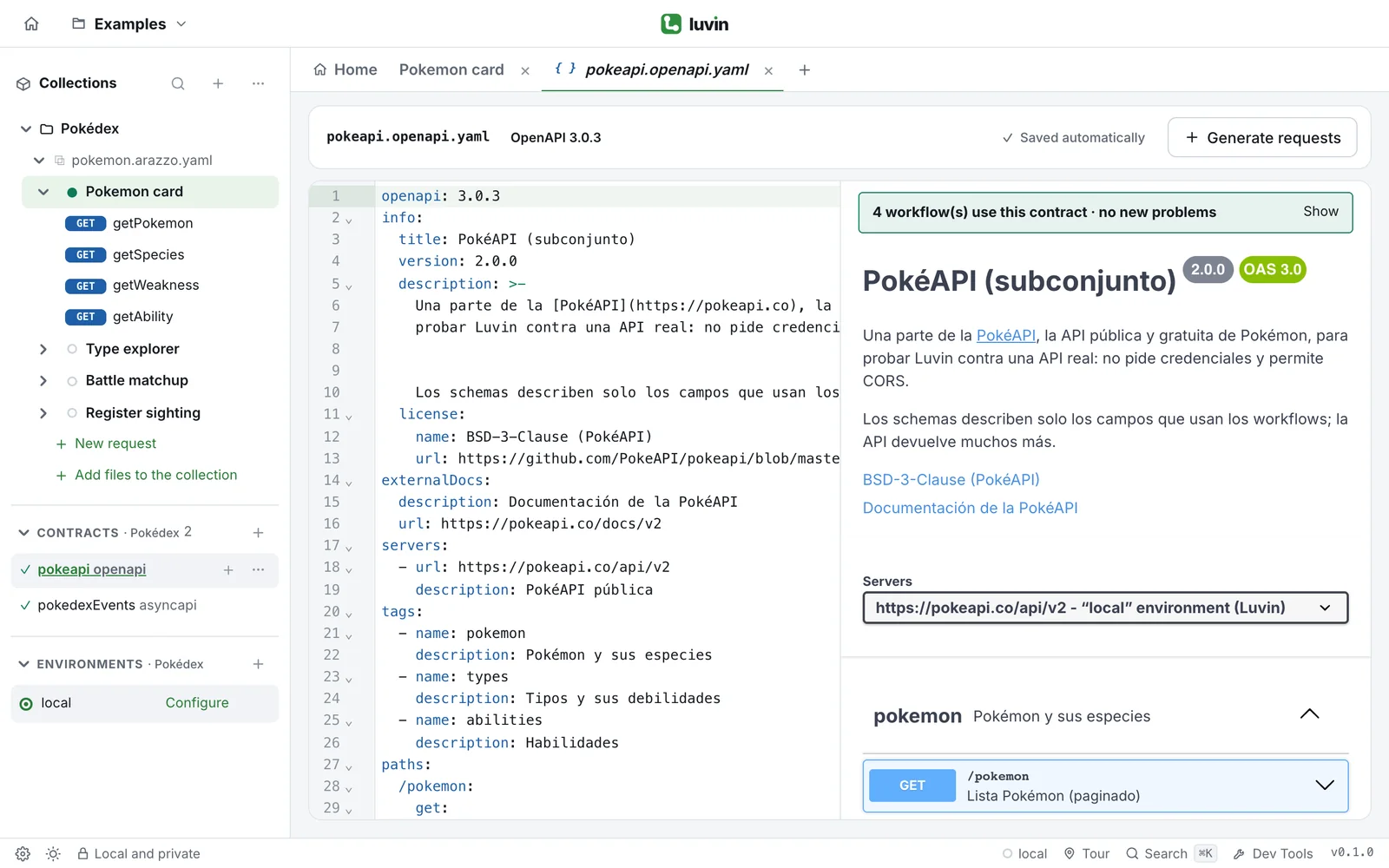
Each row starts with a mark:
| Mark | Meaning |
|---|---|
| ✓ | The contract is loaded and ready to use. |
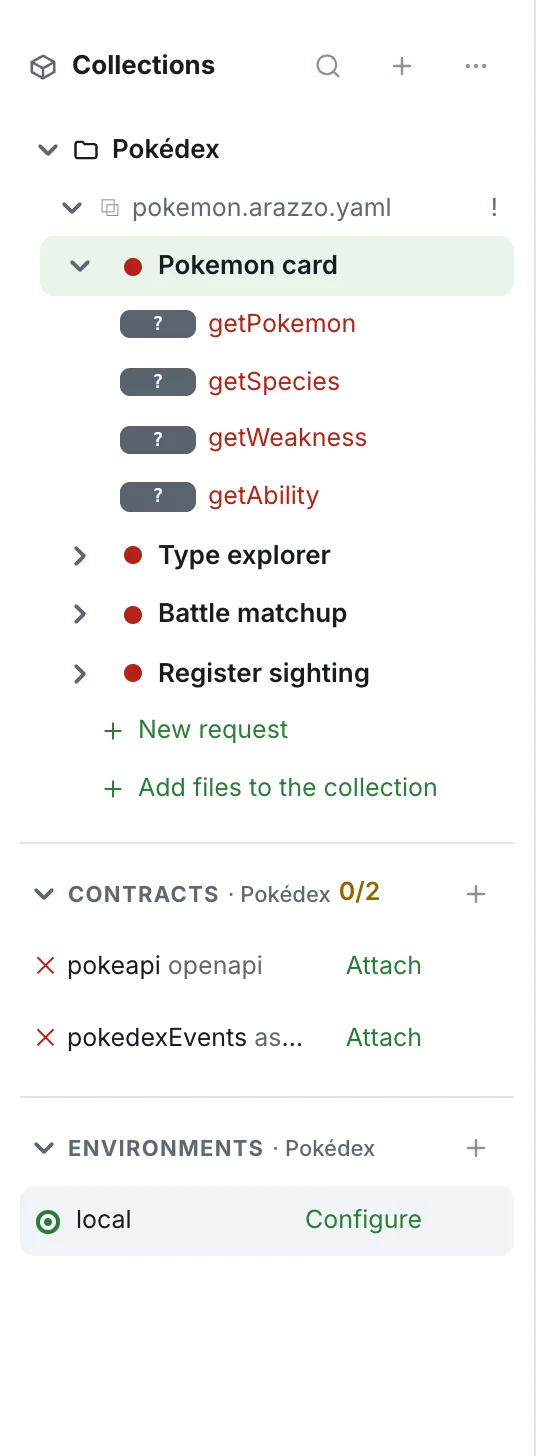
| ✕ | It is not loaded: the file is missing, it cannot be read, or it points to other files that are missing. Move the mouse over the row to read the reason. |
| ○ | The file is in the collection, but no workflow uses it yet. |
Next to the name you see the type: openapi or asyncapi. Click the name to open the contract in the editor. See Edit a contract.
The rows of loaded OpenAPI contracts have a + button that generates requests. See Generate requests from a contract.
Add a contract
Section titled “Add a contract”There are four ways. In all of them you need an open collection.
Create a new one
Section titled “Create a new one”- In the Contracts section, click the + (Add contract).
- Choose New OpenAPI contract or New AsyncAPI contract.
The contract opens in the editor with a small valid example: an OpenAPI with a /health operation, or an AsyncAPI with one event. The file is called nuevo-contrato.openapi.yaml or nuevos-eventos.asyncapi.yaml. Edit it to describe your API.
Import files
Section titled “Import files”- Click the + and choose Import contract….
- Pick one or more
.yaml,.ymlor.jsonfiles.
The first file opens in the editor. You can also use Import Arazzo or contracts on the home screen.
Drag and drop
Section titled “Drag and drop”Drag the files from your computer onto the Luvin window. The window says Drop to add to «collection». Release them and you see Added N file(s) to the collection. Only .yaml, .yml and .json files are added.
You can drop a contract together with the files its $ref points to. See Remote contracts and references.
Open a folder
Section titled “Open a folder”Opening a workspace or folder loads the YAML and JSON files it contains, including its contracts.
A contract that did not load
Section titled “A contract that did not load”A workflow can ask for a contract that is not in the collection, for example because it points to a URL. That row shows ✕ and one or two buttons:
| Button | What it does |
|---|---|
| Attach | Opens a file picker. Choose the contract file and Luvin links it to that row. |
| Download | Downloads the contract from its URL. It appears only when the address starts with http:// or https://. |
If you choose a file of the wrong type, the row shows “name” does not look like an OpenAPI document. (or AsyncAPI). See Remote contracts and references for downloads.
Delete a contract
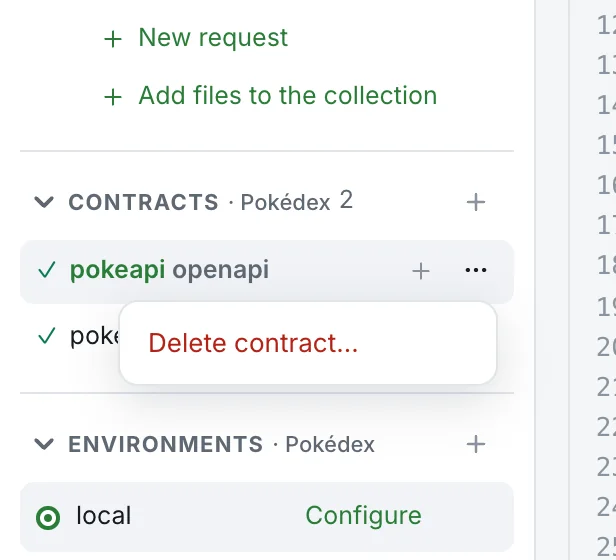
Section titled “Delete a contract”- Open the ⋯ menu of the row.
- Choose Delete contract…. For a contract that never loaded, the option is Remove contract….
What happens next depends on the contract:
| Case | What Luvin says and does |
|---|---|
| No workflow uses it | Delete the contract “name”? Its file is deleted. This can’t be undone. The file is deleted. If a workflow file only declared it without using it, that declaration is removed. |
| A workflow uses it | “name” is used in: workflow names. Those steps will have no contract until you attach another one. Delete its file? This can’t be undone. If you confirm, the file is deleted. The steps stay in the workflows and show an error until you attach another contract. |
| It never loaded and no step uses it | “name” has no file and no step uses it. Remove it from the workflows? Remove takes it out of the workflows. |
| It never loaded and a step uses it | “name” is used in: workflow names. Attach its file, or delete the steps that use it to remove it. There is nothing to delete: use Attach, or delete the steps. |
Luvin asks before each deletion, with a Delete or Remove button and Cancel.