
Design workflows
Outputs
Choose which values a step keeps from its response, how lists work, and what the workflow returns at the end.
An output is a value a step takes from its response and gives a name to, so the next steps can use it. In the Pokédex, the step getPokemon has the outputs id, name and mainType, and the following steps read them. This page shows how to add outputs to a step and to the workflow.
Example: the outputs of getPokemon
Section titled “Example: the outputs of getPokemon”In Pokemon card, getPokemon keeps five values. Later steps read id, mainType and firstAbility.
Under Outputs in the step panel, the fields id, name, types/type/name, abilities/ability/name and base_experience are ticked. On the card, each output has a dot you can drag to a later parameter.
outputs: id: $response.body#/id name: $response.body#/name mainType: $response.body#/types/0/type/name firstAbility: $response.body#/abilities/0/ability/name baseExperience: $response.body#/base_experienceWhen you need to add one
Section titled “When you need to add one”Often you do not. When you connect a parameter to a field of an earlier response, Luvin adds the output to that step for you. See Connect data between steps.
Add one by hand when you want the workflow to return the value at the end, or to have it ready before you add the step that will use it.
Tick the fields a step exposes
Section titled “Tick the fields a step exposes”- In the Design tab, click the step.
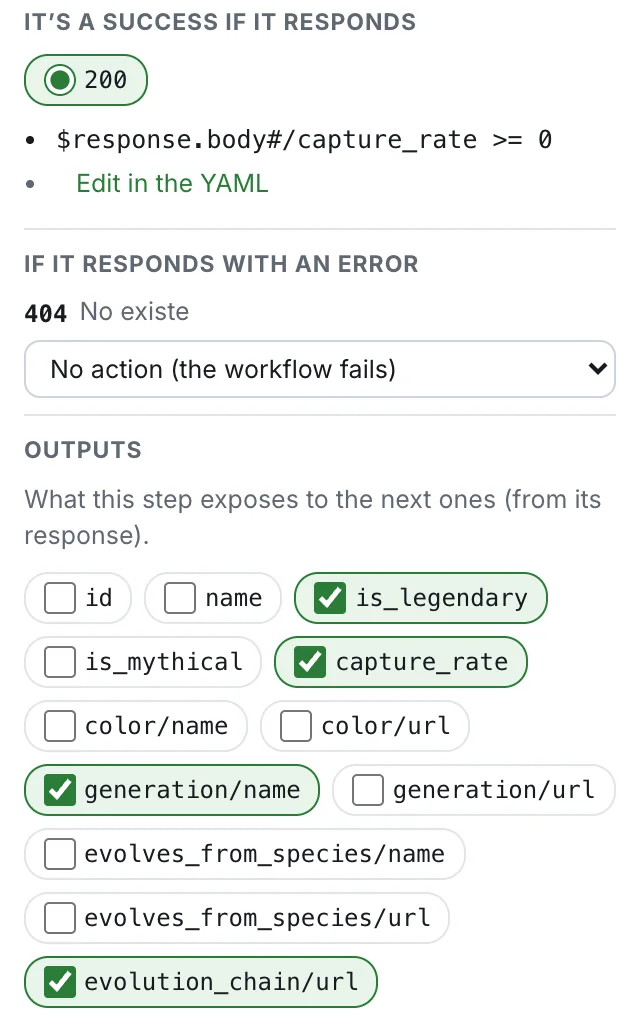
- Go to Outputs, at the bottom of the panel. It says What this step exposes to the next ones (from its response).
- Tick a field.
The output appears on the card, under Outputs, with a dot on its right that you can drag to a parameter of a later step. Untick the field to remove the output.
The panel lists the fields of the success response the contract documents: lists first, then simple values such as texts, numbers and yes/no. The name of the output comes from the path of the field:
| Field | Output name |
|---|---|
id |
id |
customer/id |
customerId |
types/type/name |
typesTypeName |
If the panel says The contract doesn’t document the response: add outputs in the YAML., Luvin has no fields to offer. Write the output by hand as shown below.
Fields that are lists
Section titled “Fields that are lists”Responses often contain lists: the cards of a customer, the items of an order. The panel offers three kinds of fields for them.
| What you tick | Tag | What the output holds |
|---|---|---|
The list itself, for example cards |
whole list | All the items. |
A field of the items, for example cards/bank |
None | The value of one item. You choose which item when you run. |
One value of a list of simple values, for example tags |
one item | One of the values. You choose which when you run. |
Fields of list items are shown without a position: cards/bank, not cards/0/bank. When a step has outputs of this kind, the panel adds a note, These outputs come from one item of “cards”: you choose which one when you run., with the button Expose the whole “cards” list in case you want all the items instead.
The choice happens during the run: Luvin pauses and shows what came back. See Choose an item from a list.
Outputs written in the YAML
Section titled “Outputs written in the YAML”The panel covers fields picked by their path. An output can also be a search inside the response, written in the YAML tab. In Pokemon card, the step getAbility keeps the English description of an ability with a JSONPath search:
outputs: effect: context: $response.body selector: $.effect_entries[?(@.language.name == 'en')].short_effect type: jsonpathAn output like this appears in the panel below the fields, with its name, its expression and Delete. It works like any other output: later steps can use it, and it has a dot on the card.
What the workflow returns
Section titled “What the workflow returns”A workflow has its own outputs: what it returns when it ends. Other workflows that depend on it read them, and so does the report. You set them on the End of workflow card, the last one on the canvas.
- Click End of workflow. The panel shows Workflow outputs.
- Tick what the workflow should return. You can choose among the outputs of its steps (shown as
getPokemon › name), the outputs of the workflows it depends on, and its inputs (shown asinput · pokemon). - Each one you tick appears in the list below with a name. To change the name, click it, type and press Enter. The bin removes it.
You can also drag from the dot of any output to the End of workflow card.
If the panel says Nothing to expose yet: declare outputs on the steps., add outputs to a step first.
For example, Pokemon card returns six values taken from its four steps, among them name and mainType from getPokemon and weakTo from getWeakness. On the canvas, a dashed line goes from each of those outputs to End of workflow.