
Test workflows
Cases
What a case is, the cases Luvin generates for a workflow, which ones are simulated and how to choose the ones that run.
A case is one run of a workflow with given inputs and an expected result. Luvin generates the cases from the contracts and the design, so you start with a test plan without writing anything. Open the Cases tab to see them, choose which ones run and add your own.
Example: the cases of Pokemon card
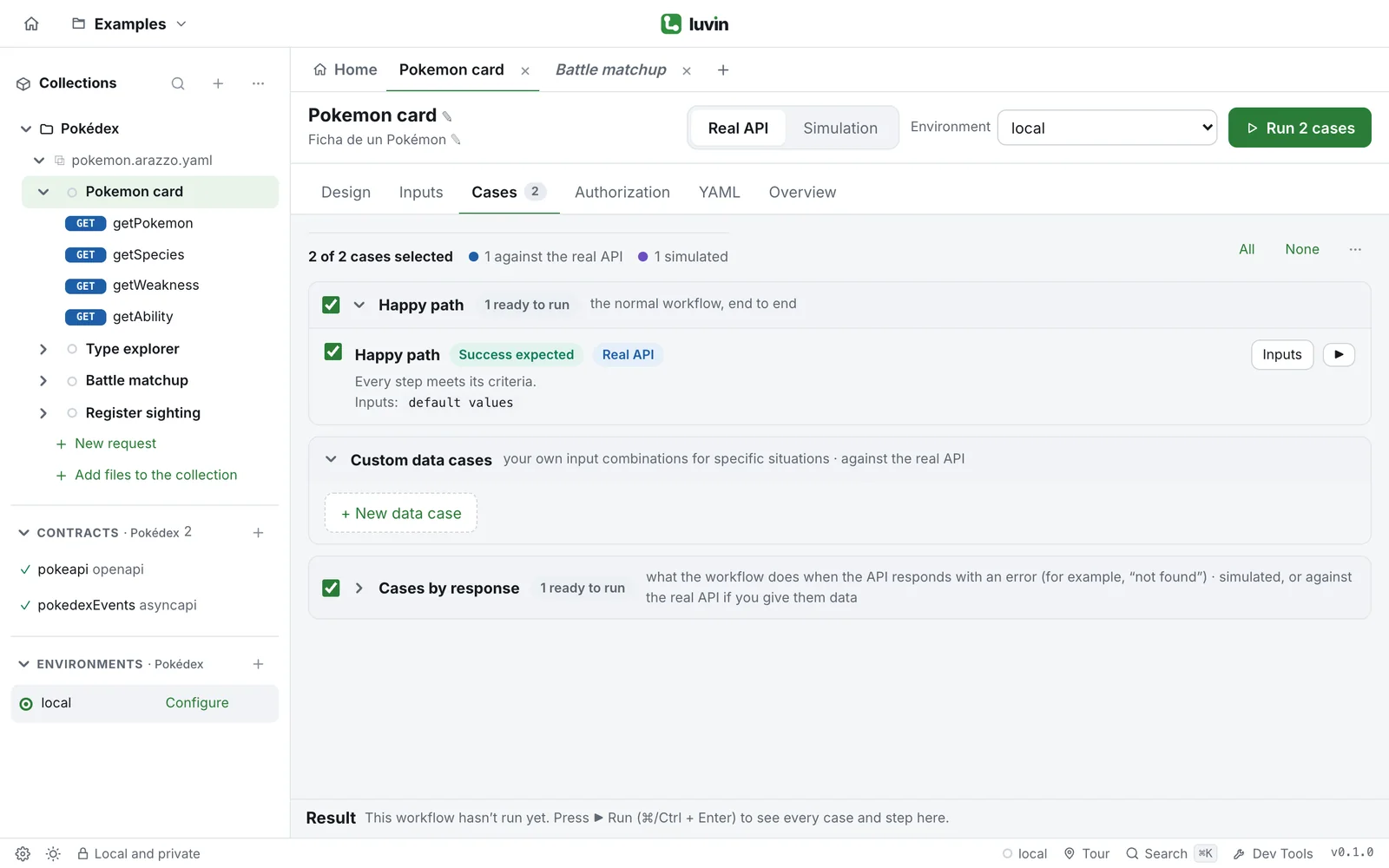
Section titled “Example: the cases of Pokemon card”Pokemon card gets two cases, because its only input, pokemon, goes in the path and has no list of allowed values.
| Group | Case | Expects |
|---|---|---|
| Happy path | Happy path | Success expected |
| Cases by response | getPokemon responds 404 → pokemonNotFound |
Success expected, Simulated |
onFailure: - name: pokemonNotFound type: end criteria: - condition: $statusCode == 404Every action with criteria becomes a response case. The step answers 404 and Luvin checks that pokemonNotFound fires.
Type explorer, whose input type only allows a list of values, also gets "type" with a value outside the enum.
The Cases tab
Section titled “The Cases tab”The line at the top says what the Run button will do: how many cases are selected, how many go against the real API, how many are simulated and how many will not run.
Below it, the cases are in groups. Click a group to open or close it.
| Group | What it holds | Where it runs |
|---|---|---|
| Happy path | The normal workflow, end to end. | Real API or simulation, as you choose in the run bar |
| Custom data cases | The cases you add with your own inputs. See Custom data cases. | Real API only |
| Data validation | What happens when an input is missing or wrong. | Real API only |
| Security | What happens without credentials. | Real API only |
| Cases by response | What the workflow does when a step answers a given response or receives a given message. | Simulated, or the real API if you give them data |
Each case shows:
- its name and what it expects (Success expected or Rejection expected),
- whether it will be Simulated or go to the Real API,
- a sentence with the expected result,
- the inputs it runs with (
default values, or what it changes).
The cases Luvin generates
Section titled “The cases Luvin generates”| Case | What it does | Why |
|---|---|---|
| Happy path | Runs every step with the default inputs. Every step must meet its success criteria. | Proves the chain works from start to end. |
| Without the required input “…” | Leaves out one required input. The first step that uses it must reject the request. | Checks that the API validates what it says is required. |
| “…” with … | Sends a wrong value in one input: a value outside the allowed options, text instead of a number, text instead of yes/no, or a value that breaks the pattern. | Checks that the API rejects bad data. |
| Without credentials | Runs without sending credentials. The first protected step must answer 401 or 403. | Checks that protected operations are protected. |
| … responds 404 → … | A response case: one for each success or failure action that has criteria. The step answers the response that triggers the action. | Checks that the right action fires: end, retry or go to another step. |
| …: a message arrives … → … and …: no message arrives → … | Message cases, for a step that receives a message: one message for each action, and no message before the timeout. | Checks what the workflow does with each message, and without one. |
Some cases are left out on purpose:
- An input that goes in the path gets no “missing” case. Without it the URL points to another resource (
/pokemon/instead of/pokemon/pikachu), which usually exists. - An invalid-value case exists only for inputs with allowed options, a number or yes/no type, or a pattern.
- Without credentials exists only if a contract protects at least one step.
Choose which cases run
Section titled “Choose which cases run”- Tick or untick the checkbox of a case.
- The checkbox in a group header ticks or unticks the whole group.
- All and None, at the top right, tick or untick every case.
The number on the Cases tab is how many cases are ready to run. The Run button shows the same number. To run one case on its own, press ▶ on its row. See Run.
Ready to run
Section titled “Ready to run”Each group says how many of its cases are ready to run. A selected case that cannot run shows Will not run and the reason:
| Reason | What to do |
|---|---|
| Needs the real API: the simulation does not validate the data sent. | It is a Data validation or Security case. Switch the run bar to Real API. |
| Custom data cases only make sense against the real API. | Switch the run bar to Real API. |
| To test it against the real API, change in the case inputs the values that cause this response. | It is a response case set to Real API with no input changed. Change its inputs or set it back to Simulated. See Adjust a case. |
Cases that cannot run are skipped. The others run.