
Design workflows
Parameters and body
Edit what a step sends, from its path, query and header parameters to the fields of its request body.
A step sends two kinds of data: parameters (in the path, the query or the headers) and, for some operations, a request body. You edit both in the step panel, under Parameters.
Example: the body of Create order
Section titled “Example: the body of Create order”In the PayPal example, Create order sends a body built from three inputs. The same body appears as fields in the panel and as requestBody in the file.
Under Body application/json, each field has a Source list. purchase_units/amount/currency_code reads the input currency, purchase_units/amount/value reads amount, and purchase_units/description reads description. Fields inside lists are edited with Edit as JSON.
- stepId: createOrder operationId: $sourceDescriptions.paypal.createOrder requestBody: contentType: application/json payload: intent: CAPTURE purchase_units: - amount: currency_code: $inputs.currency value: $inputs.amount description: $inputs.descriptionOpen the step panel
Section titled “Open the step panel”- In the Design tab, click a step on the canvas.
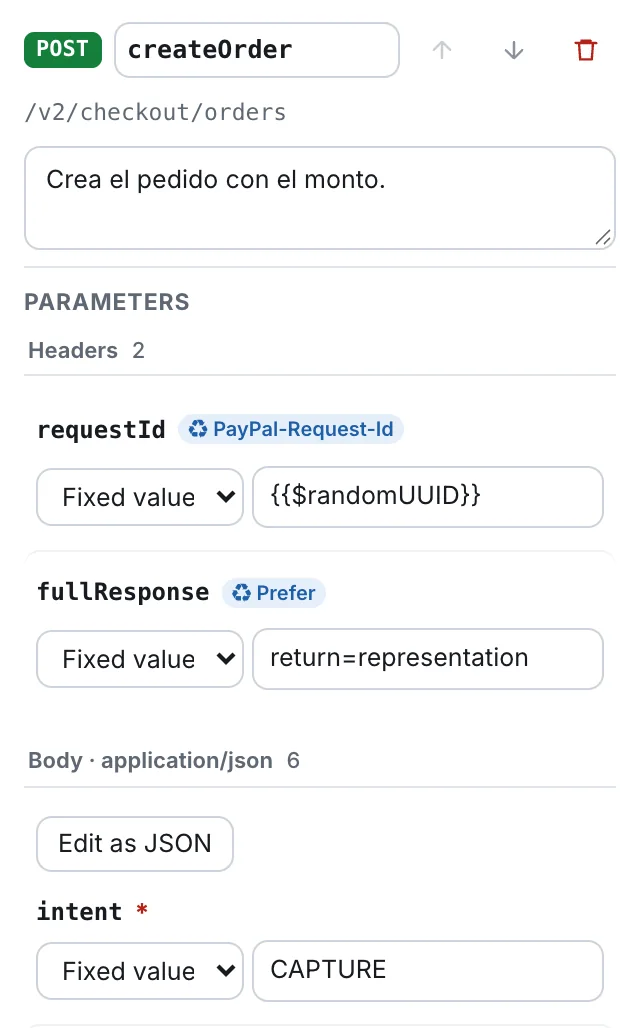
The panel opens on the right. At the top it has the name of the step, its path and a box for its description: What this step does (for whoever reads the workflow).
Edit a parameter
Section titled “Edit a parameter”Parameters are grouped by where they travel: Path, Query, Headers and Cookies. The number next to each title is how many parameters the group has.
Each parameter is a row with its name and a list, Source, that says where its value comes from. Connect data between steps explains every option of that list.
| Mark | Meaning |
|---|---|
* |
The contract requires this value. |
| extra | The contract does not declare it. Someone added it by hand, for example in the YAML. |
| ♻ | It comes from a reusable. |
If the operation has no parameters and no body, the panel says This operation takes no parameters.
For query parameters in action, see Query parameters and paging.
Send an optional parameter
Section titled “Send an optional parameter”Optional parameters are not sent until you give them a source. They stay folded on one line: Optional, not sent: limit, offset.
- Click Edit on that line. A row appears for each optional parameter.
- In the row you want, open Source and choose where the value comes from, for example Fixed value… and then
20. - Click Hide the ones not sent to fold the rest again.
To stop sending it, choose Don’t send in its Source list.
Fill in the request body
Section titled “Fill in the request body”When the operation takes a body, a last group appears: Body, followed by its format, for example application/json.
- The group lists every field the contract declares, required and optional.
- A field inside an object is shown with its path:
amount/value. - Each field has the same Source list as a parameter. Optional fields without a value fold away.
- A fixed value you type in a number field is sent as a number.
trueorfalsein a yes/no field is sent as a boolean.
Three buttons above the fields work on the whole body:
| Button | What it does | When it appears |
|---|---|---|
| Fill with the example | Puts the contract’s example value in the empty fields. You can change them afterwards. | The contract has an example for the body or for its empty fields. |
| Create inputs | Creates one workflow input per empty field, with the contract’s example as its value, and connects it. If an input with that name exists, it is used. You fill the inputs in the Inputs tab and cases can vary them. | Some field of the contract is empty. |
| Edit as JSON | Opens the whole body as text. | Always. |
Edit the body as JSON
Section titled “Edit the body as JSON”Use it for lists, nested objects or fields the contract does not declare.
- Click Edit as JSON. A text box opens.
- Edit the JSON.
- Click Apply, or press ⌘ + Enter (Ctrl + Enter on Windows and Linux). Cancel closes the box without changes.
The box starts from what the step already has. If the body is empty, it starts from the contract’s example or, when there is none, from every field of the contract with its example value. In that case the box says Starts from the contract’s fields; nothing is saved until you press Apply.
To take a value from somewhere else, write the reference as a text:
| You write | The step sends |
|---|---|
"$inputs.amount" |
The input amount of the workflow. |
"$steps.createOrder.outputs.orderId" |
The output orderId of the step createOrder. |
This is the body of Create order in the PayPal example:
{ "intent": "CAPTURE", "purchase_units": [ { "amount": { "currency_code": "$inputs.currency", "value": "$inputs.amount" }, "description": "$inputs.description" } ]}If the text is not valid JSON, the box shows The JSON isn’t valid: with the reason, and nothing changes. To remove the body, empty the box and click Apply.
To build a body from random data, see Generated data in the body.
Turn a fixed value into an input
Section titled “Turn a fixed value into an input”A fixed value is always the same. Turn it into an input when you want cases to try other values: empty, invalid, other data.
- On the canvas, point at the fixed value on the step’s card. → input appears next to it.
- Click → input.
The workflow gets a new input with the current value as its value, so it runs as before, and the step now reads the input.
To do several at once, use the Start card: Choose variable data… when the workflow has no inputs, or + Turn another fixed value into an input when it has some. A dialog, Data to vary per case, lists every fixed value. Tick the ones you want and click Turn into inputs. If the same value is used in several steps, a single input feeds them all.