
Design workflows
Connect data between steps
How Luvin decides where each value comes from, what the ? mark means and how to change a source yourself.
Every step needs values: an id in the path, a field in the body. Connecting data means saying where each value comes from. Luvin does it when you add a step. Read this page to review its choices and change them.
Example: the species of a Pokémon
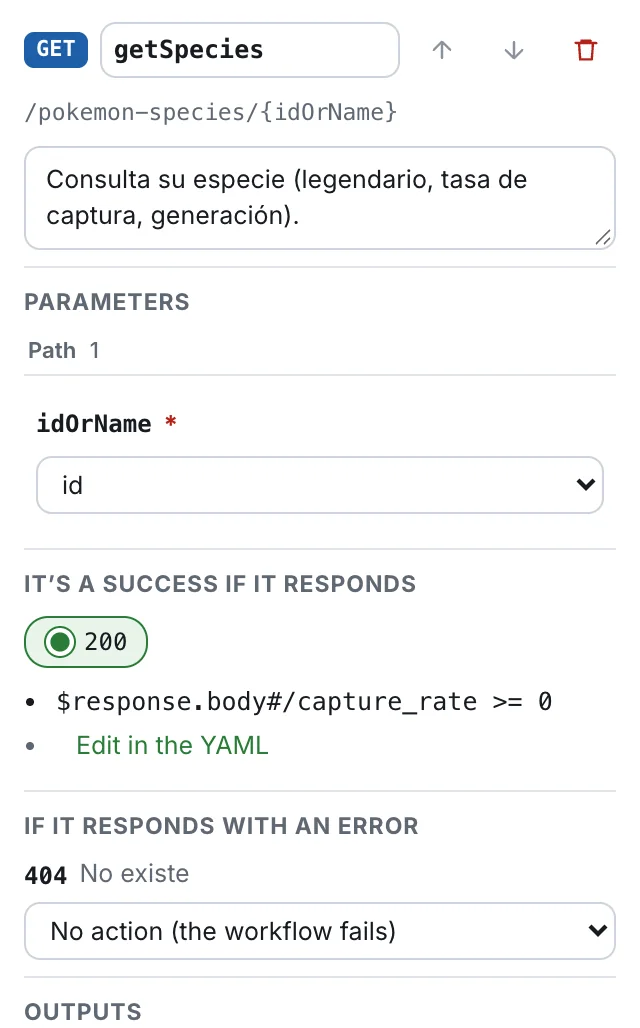
Section titled “Example: the species of a Pokémon”In Pokemon card, the step getSpecies needs the idOrName of the path. It takes the id that getPokemon returned.
In the step panel, under Parameters and Path, the row idOrName has a Source list that reads getPokemon › id. On the card, the same value shows getPokemon › id, and a dashed line joins it to the output of the first card.
- stepId: getSpecies operationId: $sourceDescriptions.pokeapi.getPokemonSpecies parameters: - name: idOrName in: path value: $steps.getPokemon.outputs.id- stepId: getPokemon # ... outputs: id: $response.body#/idThe line value: is the source. The line id: is the output that Luvin added to getPokemon so the next steps can read it.
The rules Luvin follows
Section titled “The rules Luvin follows”For each required value of a new step, Luvin looks at the earlier steps, the closest one first, and uses the first rule that matches. No AI is involved.
| # | Rule | Example |
|---|---|---|
| 1 | An earlier step already has an output with the same name. | orderId takes the output orderId of “create order”. |
| 2 | An earlier step returns a field with the same name. | email takes the email of the response. |
| 3 | A composed name matches. | customerId takes the field customer/id, or the id returned by a step that is about “customer”, such as createCustomer. |
| 4 | A path parameter that looks like an identifier takes the id of the step right before it. |
The idOrName of /pokemon-species/{idOrName} takes the id returned by getPokemon. |
| 5 | The workflow has an input with the same name. | currency takes the input currency. |
If no rule matches, Luvin creates a new input with that name. An input is a value the workflow asks for when it runs.
- Names are compared without capitals or separators:
customer_idandcustomerIdare the same. - Types must fit: texts and numbers are interchangeable, anything else has to be the same type.
- When the source is a field of a response, Luvin also adds an output to that earlier step.
The ? mark
Section titled “The ? mark”Rule 4 is the only one Luvin is less sure about. A value connected by it shows a ? in front on the card, for example ? getPokemon › id.
The mark goes away when you choose the source yourself. It is a reminder while you design and is not saved in the file.
Change where a value comes from
Section titled “Change where a value comes from”- Click the step on the canvas. Its panel opens on the right.
- Under Parameters, find the value. Values are grouped as Path, Query, Headers and Body.
- Open the list below its name (Source) and choose an option.
| Option | What it does |
|---|---|
| No source (missing) or Don’t send | Removes the value. The first appears on required values, the second on optional ones. A required value with no source shows no source on the card. |
$inputs.name, under Inputs |
Uses an input the workflow already has. |
| New input “name” | Creates a required input with the name of the value and uses it. |
| An output, under the name of an earlier step | Uses a value that step already exposes. |
| field (from the response), under an earlier step | Uses a field of that step’s response. Luvin adds the output for you. |
| field (from a list: you choose which at run time) | The same, for a field that belongs to the items of a list. See below. |
| An output, under Workflow “name” (depends on) | Uses an output of a workflow this one depends on. |
| Fixed value… | Shows a box, Type the value. The step always sends what you type. |
The list only offers steps that run before this one.
Connect by dragging
Section titled “Connect by dragging”Each input in Start, each output of a step and each parameter has a dot on its right.
- Drag from the dot of an input or an output to the dot of a parameter of a later step.
- Release. The parameter now shows the new source.
To remove a connection, click its line and press Delete or Backspace. If you replace an input by dragging and no other step uses it, Luvin removes it from the workflow.
Values that come from a list
Section titled “Values that come from a list”A field inside a list is shown without its position: cards/bank, not cards/0/bank. In the Source list it reads cards/bank (from a list: you choose which at run time).
You do not choose the item when you design. When you run a case, Luvin pauses after the step that returned the list and asks which item to continue with. See Choose an item from a list.
Read the data lines
Section titled “Read the data lines”Each connection is a dashed line from an output, or from an input, to the parameter it feeds. The label next to the parameter is the name of the value that arrives.
- Drag the vertical part of a line to move it away from another one.
- Reset layout puts the cards and the lines back.
Suggestions you can accept
Section titled “Suggestions you can accept”Sometimes a step has a value written by hand, such as {{order_id}}, and Luvin sees that an earlier step returns it. A bar appears above the canvas: Luvin found 2 connection(s) between steps.
| Button | What it does |
|---|---|
| Connect all | Applies every suggestion. |
| Connect | Applies that one. |
| Ignore | Hides that one. |
This is most common in workflows built from requests. See Build from saved requests.