
Test workflows
Inputs
What a workflow input is, where inputs come from and how to set their default values in the Inputs tab.
An input is a value a workflow starts with, such as a customer id or a search term. Every case starts from the values you set in the Inputs tab, so set them before you run.
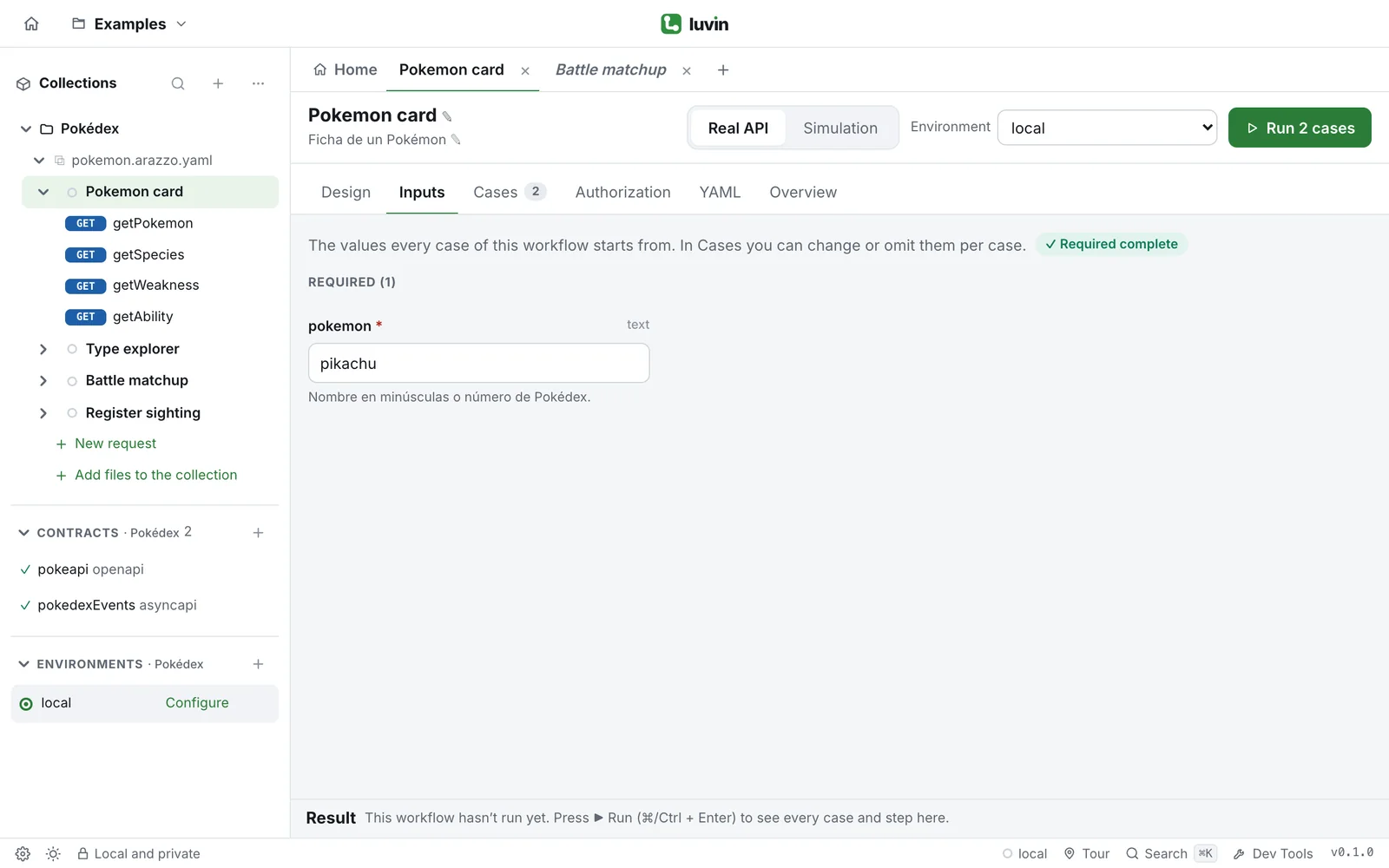
Example: the input of Pokemon card
Section titled “Example: the input of Pokemon card”Pokemon card has one input, pokemon, with the example pikachu.
The Inputs tab shows one field under Required: pokemon *, type text, with the hint e.g. pikachu. The badge at the top says Required complete once you fill it in.
inputs: type: object required: [pokemon] properties: pokemon: type: string description: Nombre en minúsculas o número de Pokédex. example: pikachuFor inputs with random data, see Generated data.
Where inputs come from
Section titled “Where inputs come from”You rarely create inputs by hand. They appear in three ways:
| How | What happens |
|---|---|
| A step needs a value nobody provides | When you add a step in Design, any required value that no earlier step returns becomes an input on its own. |
| You turn a fixed value into an input | In Design, a fixed value in a step shows a → input button. The value stays as the default, and cases can now change it. |
| You choose data to vary | In Cases, Choose data to vary lists the fixed values of every step. Tick the ones you want and press Turn into inputs. |
The third way is for workflows built from saved requests. Their values are fixed in the steps, so at first a case has nothing to change. Each value you choose becomes an input that keeps its current value as the default, so the happy path stays the same. If the same value is used in several steps, a single input feeds them all. You can undo it in Design (Undo) or in the YAML.
You can also add an input yourself: in Design, click the Start node, type a name under Inputs and press Create. The required checkbox next to each input says whether the workflow needs that value.
Set the default values
Section titled “Set the default values”- Open the workflow and click the Inputs tab.
- Fill in each field under Required. The badge at the top says Required complete when nothing is missing, or how many are missing.
- Click Show optional to see the inputs the workflow can run without. Fill in only the ones you want to send.
An input you leave empty is not sent. An input that has an example or a default value in the workflow starts with that value.
If a value does not match its type or format (for example, a text that is not a valid email), the field shows a warning in plain words and the badge at the top says how many values there are to review.
In a workspace, these values are saved with the collection. See Files of a workspace.
Input types
Section titled “Input types”Each field says its type next to its name. A * after the name marks a required input.
| The field says | How you edit it |
|---|---|
| text | A text box. If the contract has an example, it shows as a hint: e.g. pikachu. |
| number, whole number | A text box for digits. |
| yes / no | Three buttons: — (no value), Yes and No. |
| options | A dropdown with the allowed values. |
| group | A block you open and close, with one field per property. Its badge says how many required fields are missing, Done, or Optional · empty. |
| list | A block with one row per item. + Add to … adds an item and the ✕ removes it. |
| free JSON | A box where you write JSON. Invalid JSON appears if it cannot be read. |
A format, when there is one, follows the type: text · email.
Generators and variables as values
Section titled “Generators and variables as values”Text and number fields accept values between double braces:
- A variable of the active environment, such as
{{partnerCode}}. - A generator, which produces a new value on every run, such as
{{$randomEmail}}or{{uuid}}.
Type {{ in a field to see the suggestions. A value with braces is not checked against its format: it is resolved when the case runs.
See Variables and secrets and the full list of dynamic variables.
Change a value for one case only
Section titled “Change a value for one case only”The Inputs tab holds the defaults for every case. To change or leave out a value in one case, use Inputs on that case. See Adjust a case.