
Send requests
Single requests
What a request is, how to create one, what the request screen shows and how requests are saved and organised in folders.
A request is one API call saved on its own, outside a workflow. Use it to try an endpoint, to look closely at a step that fails, or to keep a call you repeat often.
A request in one look
Section titled “A request in one look”You write a method and a URL, press Send and read the answer:
GET https://jsonplaceholder.typicode.com/posts/1 → 200 OK{ "userId": 1, "id": 1, "title": "sunt aut facere repellat provident occaecati excepturi optio reprehenderit", "body": "quia et suscipit\nsuscipit recusandae consequuntur expedita et cum\nreprehenderit molestiae ut ut quas totam\nnostrum rerum est autem sunt rem eveniet architecto"}Luvin saves it as this file, so it is there next time:
name: Get postkind: httpmethod: GETurl: https://jsonplaceholder.typicode.com/posts/1headers: - key: Accept value: application/jsonauth: type: inheritTry it yourself in HTTP requests.
Request or workflow
Section titled “Request or workflow”| You want to | Use |
|---|---|
| Call one endpoint and read what it answers | A request |
| Call several endpoints in order, passing data from one to the next | A workflow |
| Get test cases and a verdict for each one | A workflow |
A request has no cases and no verdict: you send it and read the response.
Create a request
Section titled “Create a request”- In the sidebar, open your collection and click New request (the row with a + under the collection). You can also use the + at the end of the tabs (Create or import) and choose New request.
- The New request dialog opens. Choose a kind.
- The request opens in its own tab, ready to fill in.
| Option | What it creates |
|---|---|
| HTTP | A REST call: GET, POST, PUT, PATCH, DELETE, HEAD or OPTIONS. |
| GraphQL | A query or mutation with variables. See GraphQL. |
| gRPC | A call to a method of a .proto. Desktop app only. See gRPC. |
| WebSocket | A live connection to send and receive messages. See WebSocket. |
| Workflow (Arazzo) | Not a request: an empty workflow, opened in Design. |
| Import from cURL | An HTTP request built from a pasted command. See cURL. |
The request screen
Section titled “The request screen”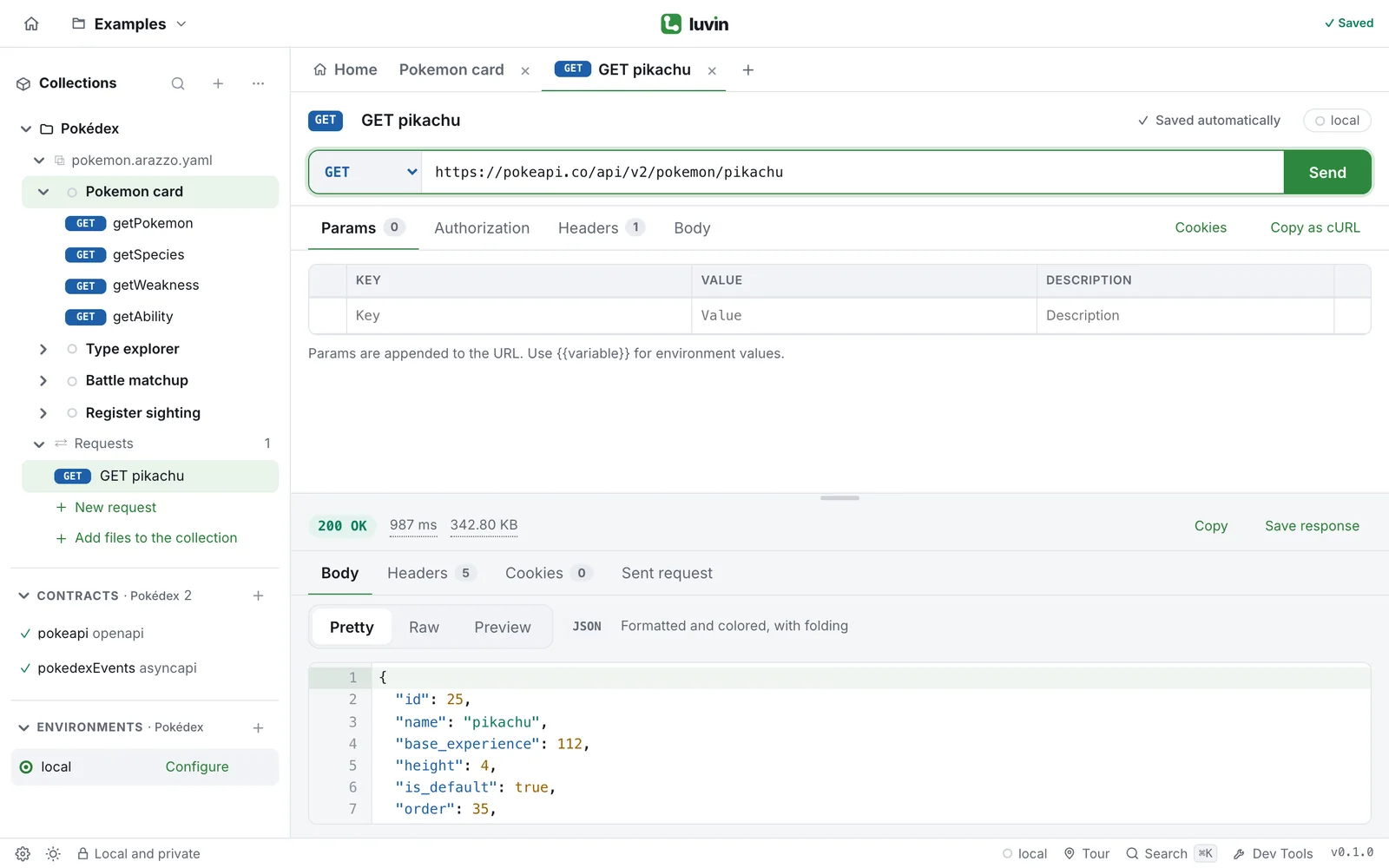
From top to bottom:
- Name. Click it to rename the request. To its right you see the save state and the active environment. Click the environment to open it.
- Method, URL and Send. Choose the method, write the URL and press Send (⌘/Ctrl + Enter). While the request is on its way, the button becomes Cancel.
- Request tabs. Params, Authorization, Headers and Body. On the right of the tabs, Cookies opens the cookie jar and Copy as cURL shows the request as a terminal command.
- Response. The status, the time and the size, then four tabs: Body, Headers, Cookies and Sent request. Sent request shows what Luvin really sent: the final URL, every header and the body.
In the Body tab of the response, Pretty formats and colours the answer, Raw shows it exactly as the server sent it, and Preview shows JSON as a table you can expand or renders an HTML page.
Drag the line between the request and the response to resize them. Double-click it to go back to the original size.
Saving
Section titled “Saving”Luvin saves every change on its own. The request header shows Saved automatically; ⌘S (Ctrl+S) saves right away.
In a workspace, each request is a YAML file inside the collection folder, under requests/ (the file above). Secrets typed in the Authorization tab are never written to it. See How a request is saved and Authorization.
Without a workspace the header says Not saved: open or create a workspace to keep your changes.
Authorization
Section titled “Authorization”The Authorization tab sets how Luvin identifies itself to the API: an API key, Basic Auth, a Bearer token, OAuth 2.0 and more. A request can have its own, or inherit the one of the collection. See the authorization overview.
Folders
Section titled “Folders”Folders are real subfolders of requests/, so they look the same on disk and in git.
- Open the ⋯ menu of the collection, of the Requests group or of another folder.
- Choose New folder. The folder appears with its name ready to type.
- Type the name and press Enter.
| To | Do this |
|---|---|
| Move a request | Drag it onto a folder, or open its ⋯ menu and choose Move to “folder”. Move out of the folder takes it back to the top level. |
| Rename a folder | ⋯ → Rename. |
| Delete a folder | ⋯ → Delete. Luvin asks first, because the requests inside are deleted too. |
Rename, duplicate or delete a request
Section titled “Rename, duplicate or delete a request”Open the ⋯ menu of the request in the sidebar:
- Rename changes the name and the file name. Editing the name at the top of the request screen does the same.
- Duplicate creates “name (copy)” in the same folder and opens it.
- Delete asks for confirmation and removes the file.
Use a request as a workflow step
Section titled “Use a request as a workflow step”In the Design tab of a workflow, the palette has a Collection requests group. Drag a request onto the canvas and it becomes a step, sent exactly like the request. Only HTTP requests with a URL can become steps. See Workflows from requests.