
Test workflows
Read the results
The results bar, the summary in plain words, the case list, what each verdict means and the detail of a case.
The results of a run show, for every case, whether it did what was expected and why. They open on their own when you run, at the bottom of the workflow.
Example: Pokemon card
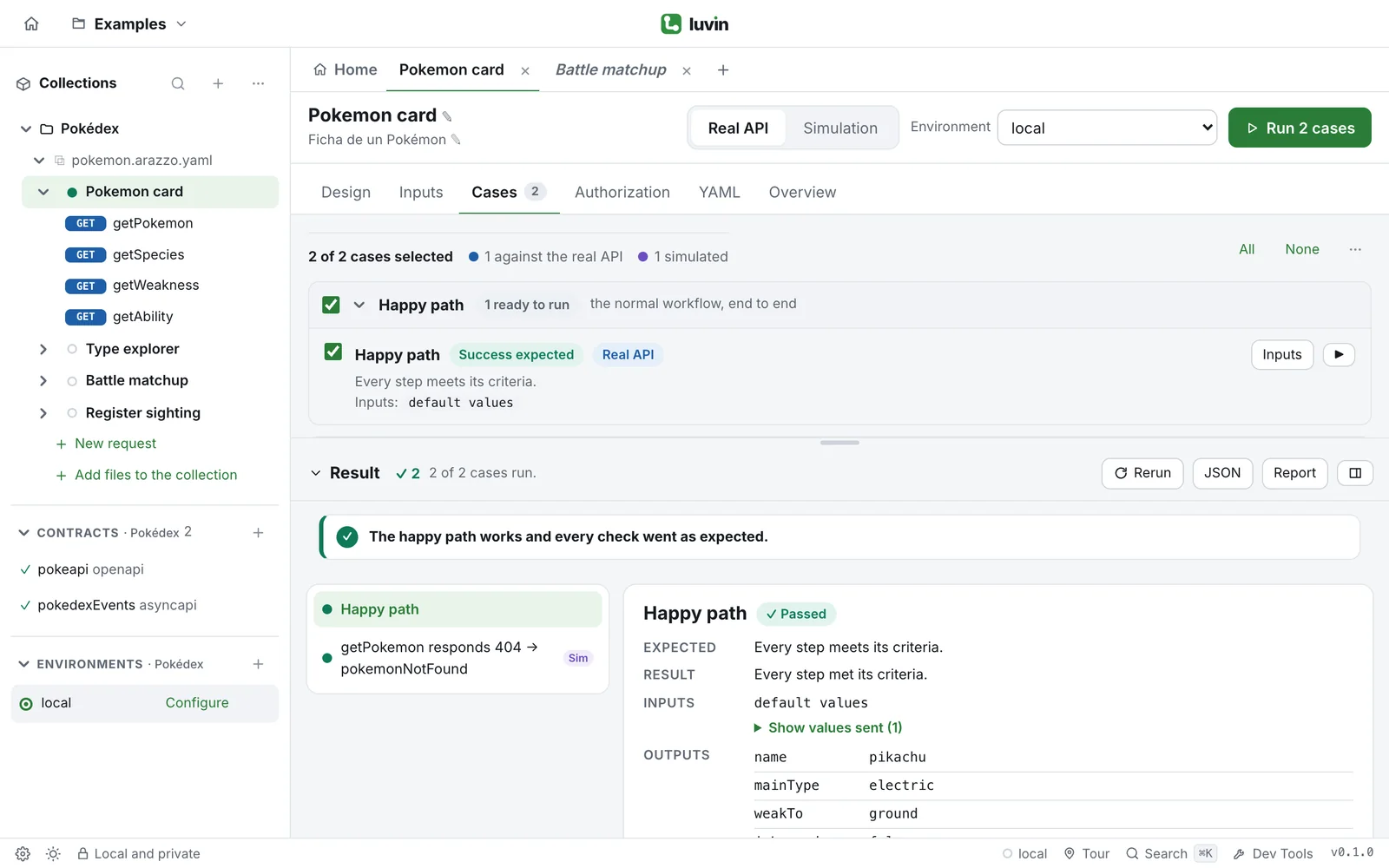
Section titled “Example: Pokemon card”After a run of Pokemon card in Simulation, the results show a summary and one row per case.
The happy path works and every check went as expected.
● Happy path                                   Passed● getPokemon responds 404 → pokemonNotFound    Passed   Sim
The dot has the color of the verdict. Sim marks a simulated case. Click a row to see its steps on the right.
The Result row of the detail gives the reason, in plain words:
Failed at step "getSpecies": …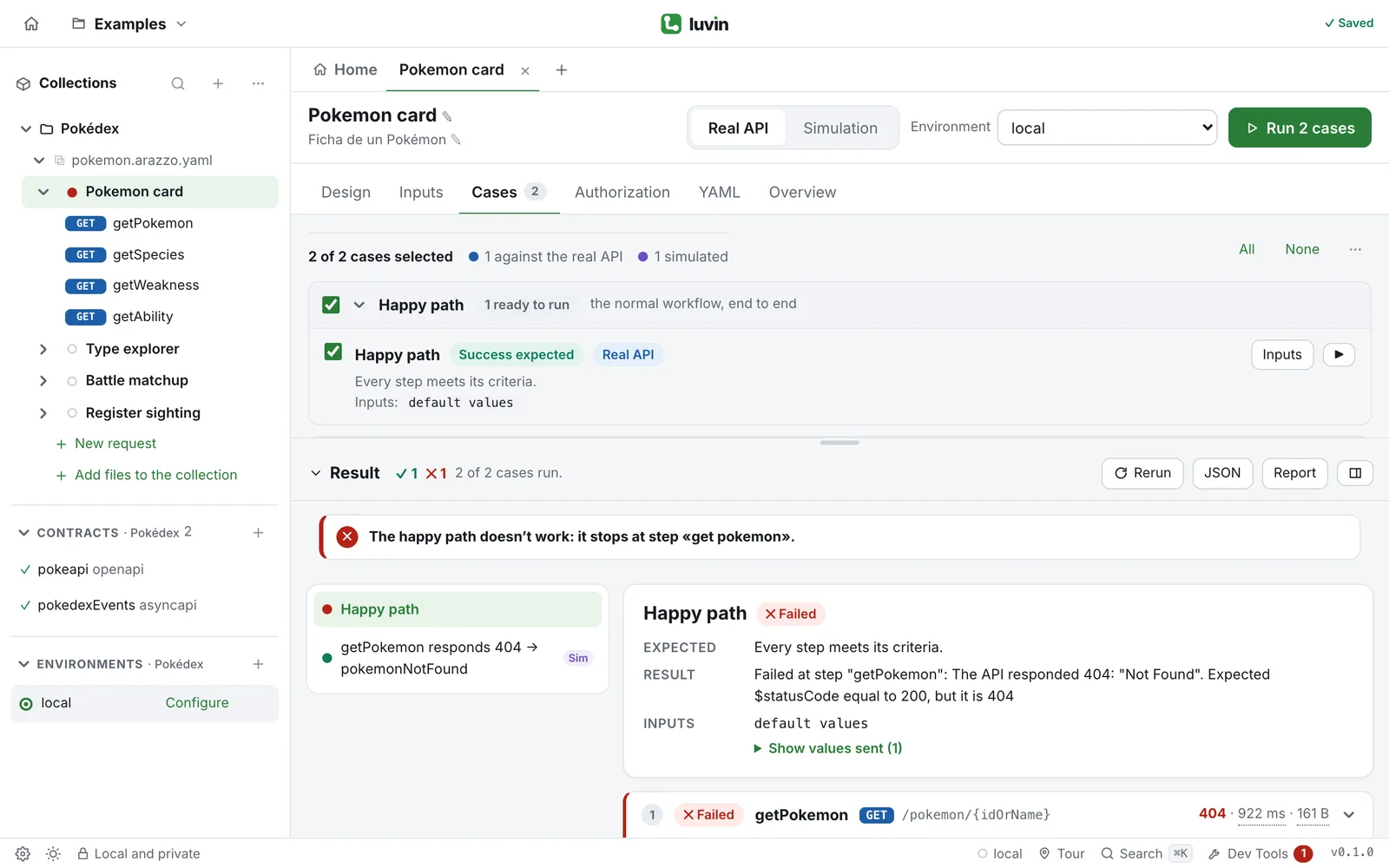
The results bar
Section titled “The results bar”Before the first run, the bar says This workflow hasn’t run yet. After a run, its header holds:
| Element | What it does |
|---|---|
| Result, with an arrow | Collapses the results into a bar, or shows them again. They open again every time you run. |
| ✓ ✕ ! ? with a number | How many cases passed, failed, ended in a warning or were inconclusive. |
| 3 of 5 cases run. | The progress of the run. |
| Rerun | Runs the selected cases again, like the Run button. |
| JSON and Report | Export the results. See Reports. |
| The button at the right end | Show results on the right or Show results below. In the Design tab the results are always below. |
Drag the border between the workflow and the results to resize them.
Each workflow keeps the results of its last run. A new run of that workflow replaces them.
The summary
Section titled “The summary”When the run ends, a line says in plain words whether the workflow works:
- The happy path works and every check went as expected.
- The happy path works, with points to review.
- The happy path works, but other cases failed.
- The happy path doesn’t work: it stops at step «get species».
- The happy path couldn’t be checked (the API didn’t respond or data is missing).
Under it, short points name the checks that failed, the warnings and the checks that could not be completed.
If the API could not be reached, a panel titled Could not reach the API explains what to check and offers Try in simulation. See Connection help.
The case list
Section titled “The case list”The list on the left has one row per case, with a dot in the color of its verdict. Sim marks a simulated case.
- Click a case to see its detail on the right.
- With more than three cases, filters appear above the list: All, Failed, Warnings, Inconclusive and Passed, each with its count.
- During a run, the detail follows the case that is running until you click another one.
Verdicts
Section titled “Verdicts”Every case ends with a verdict and a reason.
| Verdict | Meaning |
|---|---|
| Passed | The case did what it expected. For a rejection case, that means the API rejected the request. |
| Failed | A step did not meet its criteria, the expected action did not fire, or the API answered something other than the status you chose. |
| Warning | Only for Data validation cases with the status Luvin suggested: the API answered something else, usually by accepting data the contract says it should reject. The workflow still works. Review it with whoever builds the API. |
| Inconclusive | The case could not be judged: the API did not respond, the workflow stopped before the step the case checks, or a workflow it depends on failed. |
A happy path can pass with steps that have warnings, for example a response that does not match the contract. The reason names those steps.
The detail of a case
Section titled “The detail of a case”The top of the detail has the case name, its verdict and these rows:
| Row | What it says |
|---|---|
| What it checks | What the case does differently. The happy path does not have this row. |
| Expected | The expected result. |
| Result | The reason for the verdict, for example Failed at step “getSpecies”: … |
| Inputs | default values, or what the case changes. Show values sent lists every input with the value that was sent: generators resolved, secrets masked. |
| Outputs | The outputs of the workflow, when it has them. |
Below the rows, each step of the case is a card. See Read a step result.
A case that is fine as it is
Section titled “A case that is fine as it is”When a generated case other than the happy path ends as Warning or Failed, and the behavior of the API is acceptable, press It’s fine: stop testing it. The case is unticked. Tick it again in the Cases tab. To accept another status instead, see Adjust a case.