Dev Tools
Dev Tools
The panel at the bottom with the Console, Network, Performance and Terminal tabs, how to open it and how the Simple interface hides it.
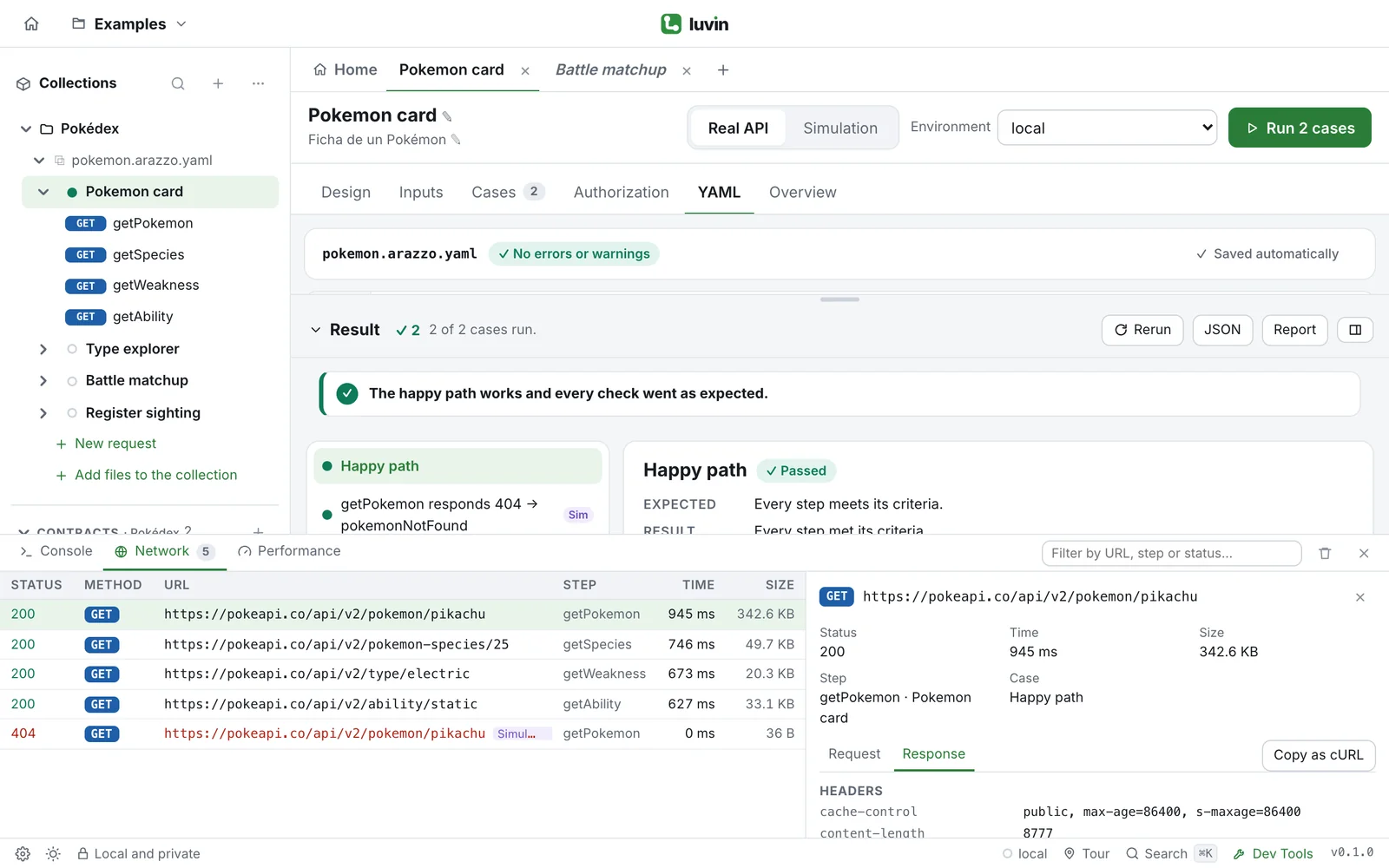
Dev Tools is a panel for looking at what Luvin did: which requests it sent, what came back, what happened in each run and how long each step took. You need it when a case fails and the result alone does not tell you why.
Example: a failed step
Section titled “Example: a failed step”A case fails on the step createOrder. In Network, the row shows the status in red, the method POST and the URL; click it and Request shows the body Luvin sent and Response what the API answered. Copy as cURL gives you the same call for a terminal. See Network.
Open Dev Tools
Section titled “Open Dev Tools”- Look at the bar at the bottom of the window.
- Click Dev Tools. The panel opens above the bar.
- Click Dev Tools again, or the × in the panel (Close), to hide it.
When the panel is closed and something went wrong, a red number appears on the Dev Tools button. It counts the errors in the Console.
To change the height, drag the line at the top edge of the panel. Luvin remembers the height on this computer. The panel can take up to three quarters of the window.
The tabs
Section titled “The tabs”| Tab | What it is for | Page |
|---|---|---|
| Console | A log of what happens: loads, saves, runs, cases and steps, with warnings and errors. | Console and Performance |
| Network | Every HTTP request and message of your runs, with the detail of each one and Copy as cURL. | Network |
| Performance | How much the app uses and how long each step takes. | Console and Performance |
| Terminal | Your own shell, inside the app. Desktop app only. | Terminal |
On the right of the tabs there are some buttons:
| Button | What it does |
|---|---|
| Level selector (Console) | Shows All, Info, Warnings or Errors. |
| Filter field (Network), Filter by URL, step or status… | Keeps the requests that match the text you type. |
| New terminal (Terminal) | Opens another terminal session. |
| Clear | Empties the Console or the Network list, or clears the screen of the terminal. Not in Performance. |
| Inspect (Chromium) | Opens the browser developer tools of the app. Desktop app only. |
| Close | Hides the panel. |
What Dev Tools keeps
Section titled “What Dev Tools keeps”- The Console and Network lists live in memory only. They are not saved to any file, and they empty when you close or reload the app.
- Each list keeps the last 500 entries.
- Secrets are already masked (
••••) in everything you see. See Privacy and security.
The Simple interface hides Dev Tools
Section titled “The Simple interface hides Dev Tools”Dev Tools is a technical tool. People who only run workflows can switch it off with the Simple interface:
- Click the gear at the bottom left, Preferences.
- Next to Interface, choose Simple (product). The other choice is Full (development).
In Simple, the Dev Tools button disappears from the bottom bar, the panel is hidden and the Open in Terminal actions are disabled with the hint not in simple mode. Luvin remembers the choice on this computer. Changing your role in Preferences also adjusts the interface.