
Test workflows
Choose an item from a list
When a step returns a list and the next steps depend on it, the run pauses so you choose what to test with.
Many APIs return lists: the cards of a customer, the products of a catalog. When a later step needs data from that list, Luvin pauses the run and shows you what came back, so you choose what to test with.
Example: Pokemon card against the real API
Section titled “Example: Pokemon card against the real API”The first step of Pokemon card returns two lists that later steps use: types (1 item) and abilities (2 items). The run pauses twice, one dialog after the other.
- Choose Real API and press Run.
- In the first dialog,
typeshas one item. Press Continue with this item. - In the second dialog,
abilitieshas two items. Click the one you want and press Continue with this item.
In Simulation the dialog only appears when the list has more than one item. For a step-by-step version, see the recipe Choose an item from a list.
Choose and continue
Section titled “Choose and continue”- Run the case. After the step that returns the list, a dialog opens with the title Which item of the list do you want to test with?
- Read the top of the dialog: which step returned the list and how many items, the Case that is running, and Goes to, the later steps and parameters that receive the data.
- Click the row of the item you want.
- Press Continue with this item. The next steps run with it.
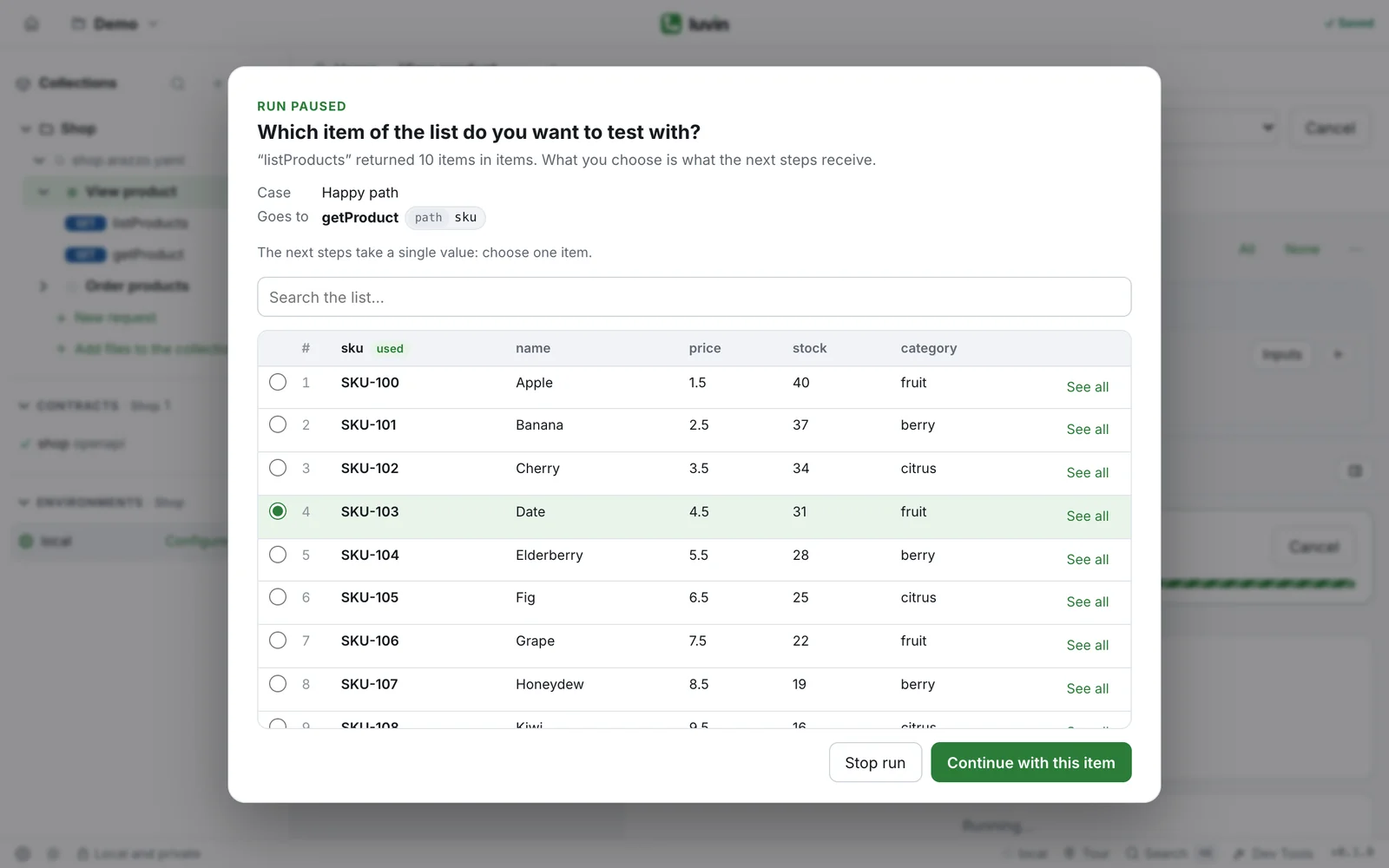
The table shows the real items of the list:
- Columns marked used hold the values that go to the next steps.
- With more than 8 items there is a search box, Search the list…. It also searches the fields that are not shown as columns.
- If the items have more fields than fit in the table, the header says how many, for example +4 fields. See all on a row opens the complete item.
- Max 200 items The table shows up to 200 items. Search to find the rest.
What you can choose depends on the design
Section titled “What you can choose depends on the design”| How the workflow uses the list | What the dialog offers |
|---|---|
| A value of one item goes to a path, query or header parameter | One item |
| A value of one item goes inside a list of the next request’s body | Several items, or Send the whole list. The body gets one entry per item |
| The whole list goes to a step that takes lists | Send the whole list, or Choose items to send only some |
| The whole list is connected to single-value parameters | One item. Each parameter receives a field of that item |
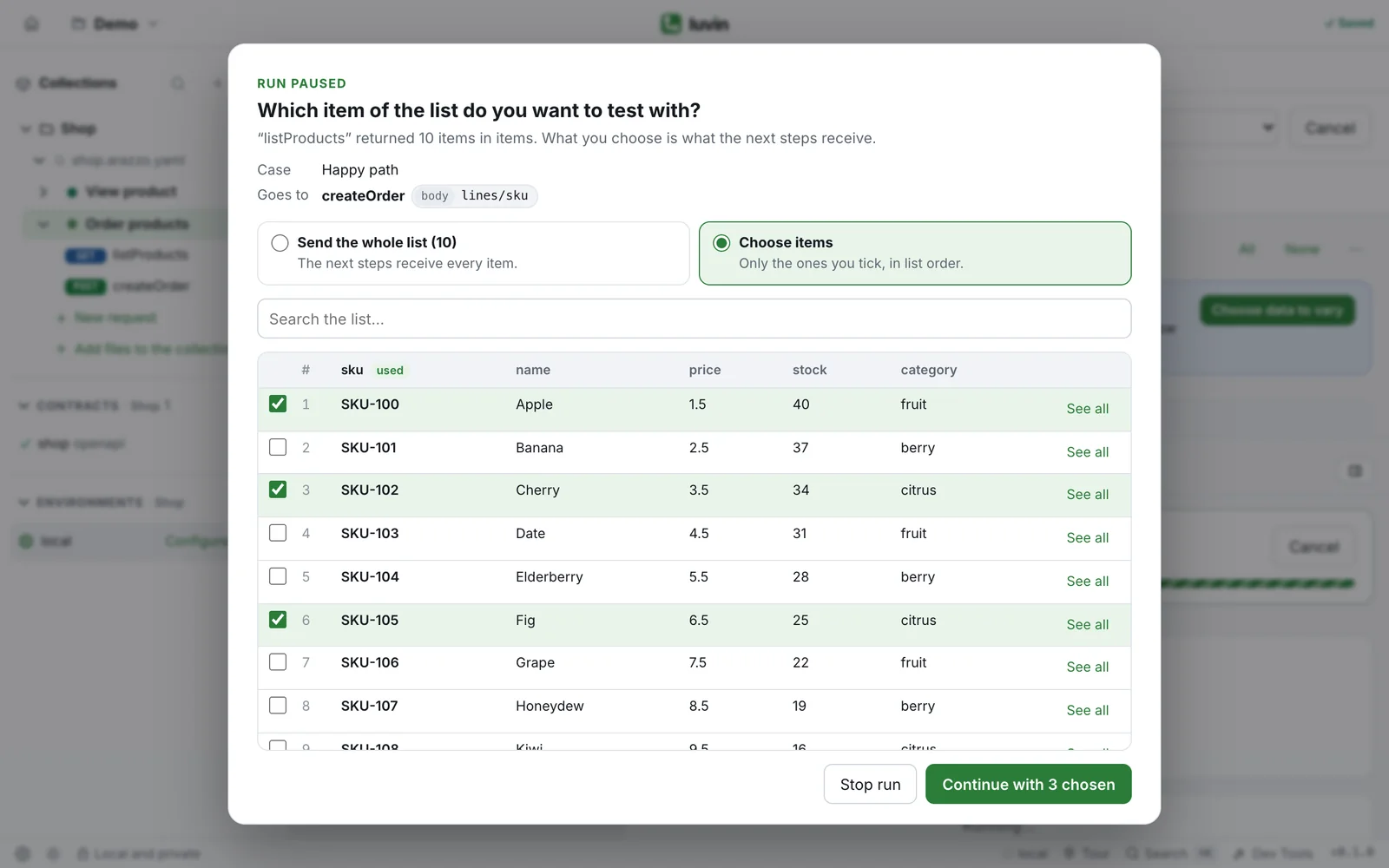
When you tick several items, the button says Continue with N chosen. If a later step takes a single value, it gets the first of the chosen ones, and the dialog says so.
In the last case of the table, the dialog adds What each step receives from the item you choose. Luvin matches each parameter to the field with a similar name: bank takes the item’s bank. To use another field, change it in the dropdown next to the parameter.
Set it up in the design
Section titled “Set it up in the design”- In the Design tab, click the step that needs the data.
- Under Parameters, open the source of the parameter and choose the field of the list from the previous step, for example
activeCreditCards/bank. It says from a list: you choose which at run time. - Run the case. The dialog appears after the step that returns the list.
A field that comes from a list is named without its position: activeCreditCards/bank, not activeCreditCards/0/bank. See Wire data between steps.
Several cases at once
Section titled “Several cases at once”When you run several cases, the dialog offers Use this choice for the other cases in this run. Leave it ticked to be asked once. Untick it to choose in every case. If a later case gets a list without the items you chose, the dialog asks again.
Luvin remembers your last choice and proposes it the next time you run.
What is recorded
Section titled “What is recorded”The step that returned the list keeps a note, Chosen at run time. For example: From the list activeCreditCards, the run continued with “Banco Sur” (item 2 of 3). Below it, the note says which value each parameter received.
When the dialog does not appear
Section titled “When the dialog does not appear”- In Simulation, if the example has a single item. The response is made up from the contract, so there is nothing to review.
- If the list comes back empty.
- If no later step uses data from the list.
- If the step that returns the list failed.
Stop run, in the dialog, cancels the run.