
Get started
Quick start
Open the bundled Pokédex example, run the "Pokemon card" workflow and read the results, click by click.
A complete first run with the bundled Pokédex, which calls the public PokéAPI. It needs no credentials and no setup. If Luvin is not open yet, see Install and open Luvin.
What you will run
Section titled “What you will run”The Pokemon card workflow, from pokemon.arazzo.yaml. Each step uses what the previous one returned:
workflows: - workflowId: pokemonCard inputs: properties: pokemon: { type: string, example: pikachu } steps: - stepId: getPokemon operationId: $sourceDescriptions.pokeapi.getPokemon parameters: - name: idOrName in: path value: $inputs.pokemon outputs: id: $response.body#/id - stepId: getSpecies operationId: $sourceDescriptions.pokeapi.getPokemonSpecies parameters: - name: idOrName in: path value: $steps.getPokemon.outputs.idRun with pokemon: pikachu, the first call is GET https://pokeapi.co/api/v2/pokemon/pikachu and the second GET https://pokeapi.co/api/v2/pokemon-species/25.
Run it
Section titled “Run it”-
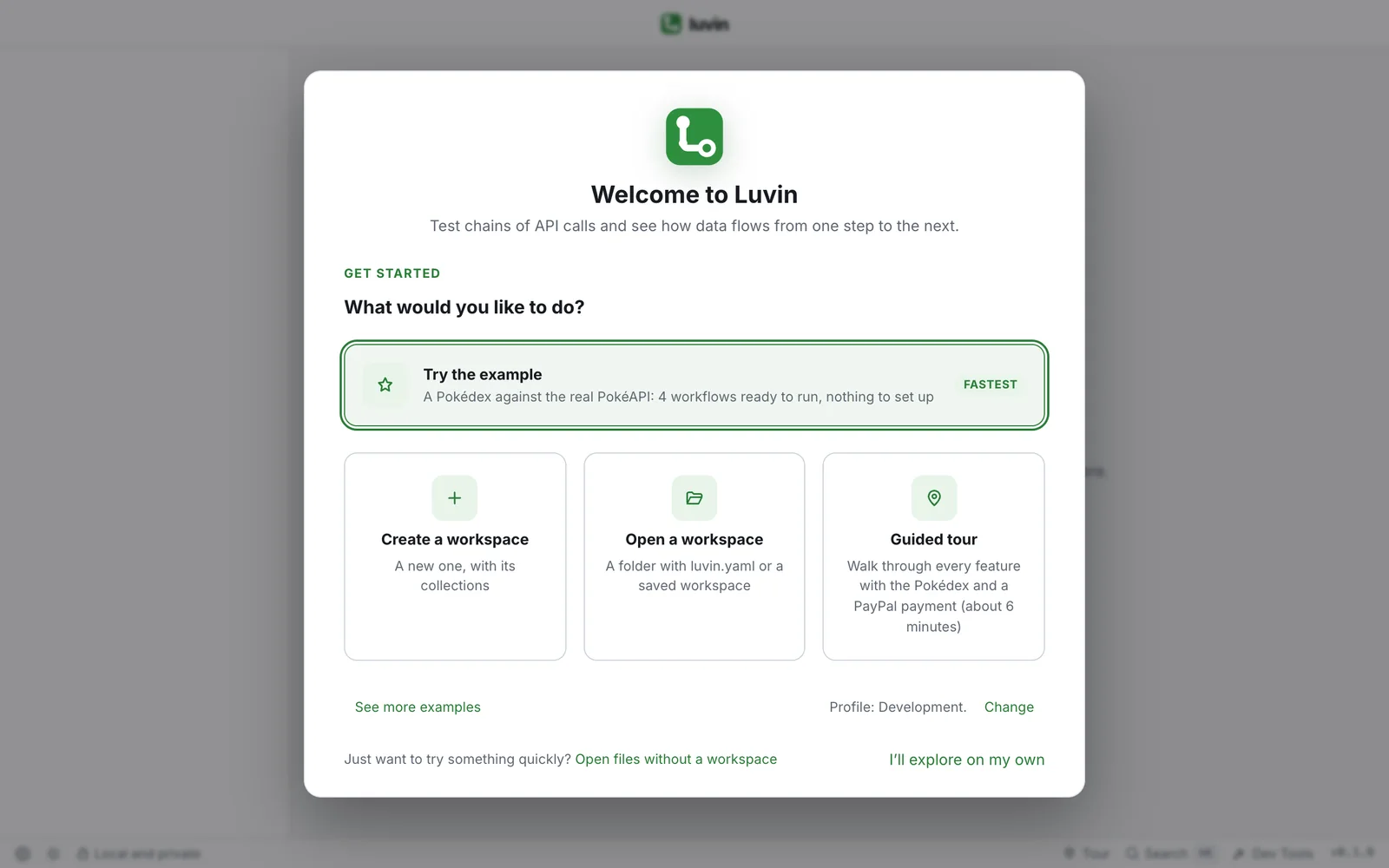
Open the example. Open Luvin and click Try the example on the screen titled Welcome to Luvin.
Luvin creates a workspace called Examples with the collection Pokédex and opens its first workflow, Pokemon card.
-
Look at the design. Click the Design tab.
The canvas shows
getPokemon,getSpecies,getWeaknessandgetAbility. The lines between them are the data that travels. -
Check the cases. Click the Cases tab.
You see Happy path and a case for the 404 the workflow handles. Only ticked cases run.
-
Choose Real API. In the run bar, above the tabs, leave Real API selected. The Environment selector shows
local. -
Run. Click Run (its label says how many cases, for example Run 2 cases) or press ⌘ Enter (Ctrl+Enter on Windows and Linux).
The Result bar at the bottom opens by itself and fills in as each case finishes.
-
Continue the lists. A dialog titled Run paused opens. Click Continue with this item. It opens twice:
typeshas one item andabilitieshas two.See Choose an item from a list for what the dialog offers.
What is in the sidebar
Section titled “What is in the sidebar”| Section | What the example has |
|---|---|
| Collections | Pokédex, its file pokemon.arazzo.yaml, four workflows and their steps |
| Contracts | pokeapi (OpenAPI) and pokedexEvents (AsyncAPI), each with a ✓ because it is loaded |
| Environments | One environment, local |
| Workflow | What it shows |
|---|---|
| Pokemon card | Four steps, each using what the previous one returned |
| Type explorer | A type, its first Pokémon and its species |
| Battle matchup | A workflow that depends on another: Type explorer runs first |
| Register sighting | A real HTTP call plus two messaging steps, which are simulated |
A banner says You’re viewing an example and offers Start the tour. If you close it with ✕, it does not come back on this device.
Real API or Simulation
Section titled “Real API or Simulation”| Option | What it does |
|---|---|
| Real API | Calls pokeapi.co over the network. The example opens with this one. |
| Simulation | Calls nothing. Luvin answers with the examples in the contract. |
Against Real API the Run paused dialog shows even when a list has one item. In Simulation it shows only when the list has more than one.
Read the results
Section titled “Read the results”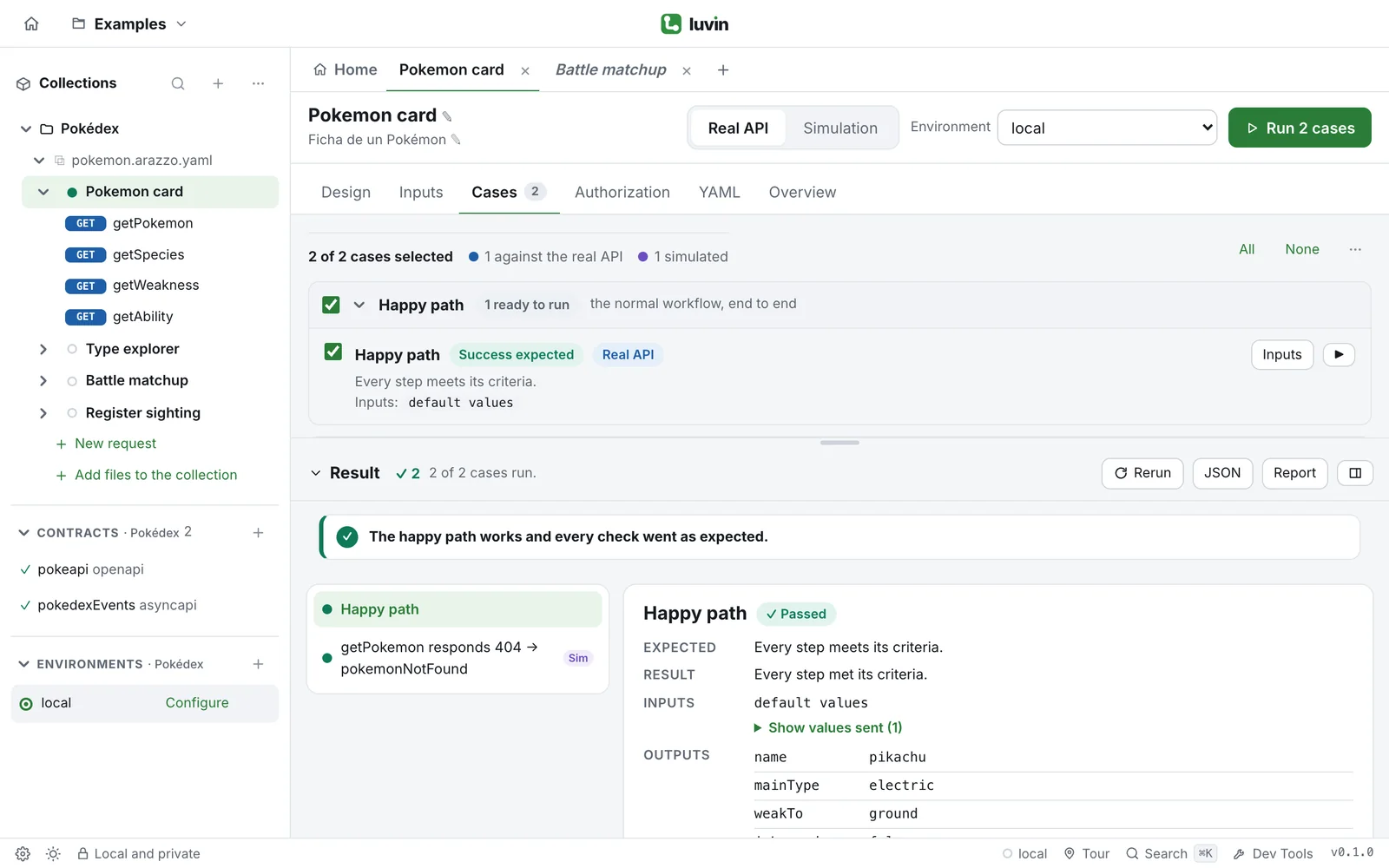
| Part | What it shows |
|---|---|
| Header | Counts: ✓ passed, ✕ failed, ! warnings, ? inconclusive |
| Case list (left) | One row per case with a colored dot. A Sim badge marks a case with simulated steps. The 404 case is simulated even with Real API, so you see the error handling without causing it |
| Detail (right) | The verdict (Passed, Failed, Warning, Inconclusive), what was Expected, the Result in plain words and the Inputs used |
| Steps | One card per step. Click one to open Criteria, Request, Response, Contract and Outputs |
What to try next
Section titled “What to try next”- Another Pokémon. In Inputs, change
pokemontocharizardor150and run again. - Simulation. Select Simulation and run: no network call.
- A dependency. Run Battle matchup. The results show a Preparation block: Type explorer ran first.
- A report. Click Report in the results header for a shareable HTML file.