
Test workflows
The Overview tab
Read the Overview tab of a workflow, check which documented responses the workflow handles and use its notes to find problems before you run.
The Overview tab gives a workflow’s summary in one screen: a diagram of its steps, the problems Luvin found in it and a table of which responses of the contract the workflow handles. Open it before the first run, and again after you change a contract or the workflow. It does not call any API.
Example: Pokemon card
Section titled “Example: Pokemon card”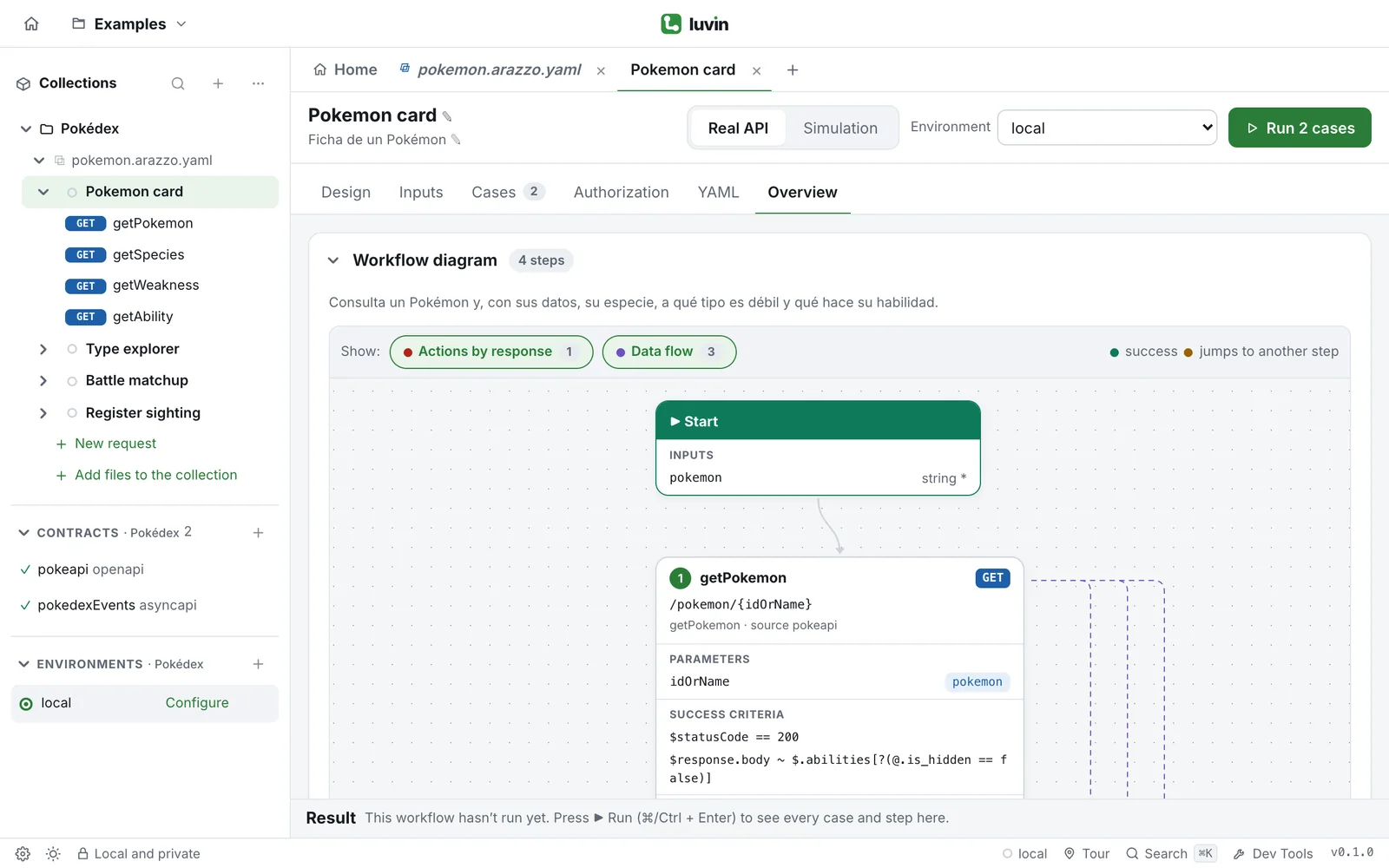
| Section | What you read in Pokemon card |
|---|---|
| Workflow diagram | The badge says 4, the number of steps. The boxes show how getPokemon feeds the other three. |
| Workflow validation | The notes about the workflow. With nothing to report it says No findings. |
| Response coverage | Which documented responses the workflow handles, for example 5/7 handled. |
Open it
Section titled “Open it”Click Overview in the tabs of the workflow. If the workflow has errors, the tab shows a red number with how many.
In the Simple interface, a workflow opens on Overview. See A tour of the interface.
The tab is a list of sections. Click a section’s title to open or close it. The title carries badges, so you can read the state without opening it.
| Section | What it shows |
|---|---|
| General validation | Notes about the whole Arazzo file, not about one workflow. It appears only when the file has warnings or errors. |
| Workflow diagram | The steps of the workflow and how they connect. Open when you arrive. |
| Workflow validation | The notes about this workflow. Open when it has errors or warnings. |
| Response coverage | Which documented responses the workflow handles. Closed until you open it. |
| Steps and operations | The list of steps, with the operation each one calls. |
Workflow diagram
Section titled “Workflow diagram”The badge says how many steps the workflow has. When the section is closed, the summary of the workflow shows next to its title. When it is open, you also see the description, if the workflow has one.
The diagram draws each step as a box, in order, with the data that passes between them. Drag the boxes to tidy the drawing. Show: has two switches: Actions by response and Data flow. They work as in the Design tab; see The Design tab.
Here you only read. To change a step, go to Design.
Workflow validation: the notes
Section titled “Workflow validation: the notes”Luvin checks the workflow against its contracts as you edit it. Each note has a label (Error, Warning or Info) and a message. If it belongs to a step, the name of the step comes first.
| Label | Meaning |
|---|---|
| Error | A mistake to fix, for example a step that uses data from a step that runs later. |
| Warning | Something that may not be what you wanted. |
| Info | Something good to know, for example that a messaging step will be simulated. |
Errors come first. The badges of the section count each level. When there is nothing to report, the section says No findings.
Examples of what you may read:
- Uses $steps.getPokemon.outputs.id, but step “getPokemon” does not exist.
- The contract requires the query parameter “currency” and the step does not send it. The bar This workflow is missing data offers to fix it.
- No successCriteria: any 2xx response will be considered successful.
Analysis messages lists them all with what to do.
Response coverage
Section titled “Response coverage”An API documents the responses it can give: 200, 404, 409 and so on. This table checks, for each step, whether your workflow says what to do with each one. A response nobody handles makes the workflow fail with a generic error.
- Open Response coverage. Its badge reads, for example, 5/7 handled. It is green when every response is handled and turns to a warning color when some are not.
- Read the table. It has one row per step and documented status.
| Column | What it shows |
|---|---|
| Step | The step, on the first row of each group. |
| Status | The status code that the contract documents. |
| Description in the contract | What the contract says about that response. |
| Handling in the Arazzo | How the workflow treats it. |
The last column has three possible values:
| Value | Meaning |
|---|---|
| ✓ Success: successCriteria | The status is one the step expects. |
| ✓ Action: … | An action handles it. The name of the action follows. An action with no condition, which applies to every failure, shows as (no criteria). |
| ✕ Unhandled | Nothing handles it. If the API answers this, the workflow fails with a generic error. |
The table does not include the default response, steps without an HTTP operation, such as messaging steps, or steps that call another workflow.
You do not have to handle every response. Handle the ones your application treats differently. To add a handler, see Success and errors.
Steps and operations
Section titled “Steps and operations”A table with the steps in order. For each one: its number, its name (and description), the operation it calls with the method and path, and the contract it comes from under Source. A step that calls another workflow shows that workflow’s name instead of an operation.
Use it before you run
Section titled “Use it before you run”- Open Overview.
- If General validation or Workflow validation has errors, fix them first. Each note says what is wrong.
- Open Response coverage. Look for ✕ Unhandled on the errors that matter to you, such as 404 or 409.
- Check Steps and operations: the right operation, in the right order, from the right contract.
- Go to the Inputs tab and then Run.