
Test workflows
Read a step result
The card of each step in the results, the tabs inside it, failures in plain words, contract warnings, expected errors and masked secrets.
In the detail of a case, every step of the workflow is a card. Closed, it tells you how the step ended. Open, it shows the request that was sent, the response that came back and why the step passed or failed.
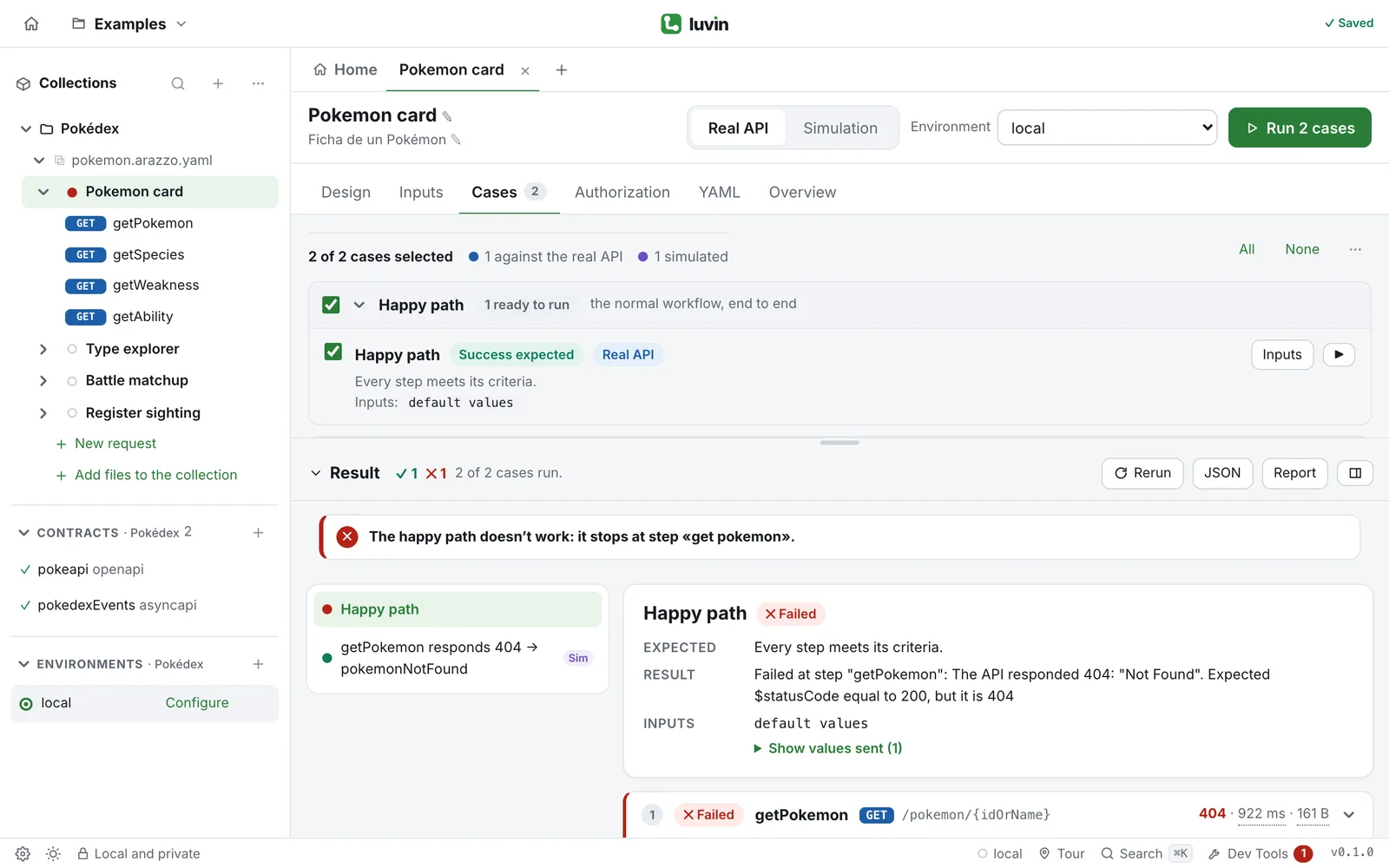
Example: a criterion that was not met
Section titled “Example: a criterion that was not met”A failed step explains what it expected and what it received:
statusExpected "ACTIVE"Received "INACTIVE"Press See in the response to open the Response tab with that field highlighted in the body.
The step card
Section titled “The step card”From left to right, a card shows the step number, its status, its name, the method and path, and the HTTP status with the time and size of the response.
| Status | Meaning |
|---|---|
| Succeeded | The step met all its criteria. |
| Succeeded with warnings | The criteria were met, with something to review: the response does not match the contract, an output that later steps use was not found, or a messaging step was simulated. |
| Failed | The step did not meet its criteria, or there was no response. |
| Not run | The workflow stopped or ended before this step. |
Two more badges can appear: Simulated, and Attempt 2 when the step was retried. A messaging step shows Sent, Message received or No message in place of the HTTP status.
Click a card to open or close it. Failed steps and steps with warnings open on their own.
Under the header, notes say why the step failed, which action fired (for example ↪ End of workflow (action “pokemonNotFound”)) and what you chose from a list.
The tabs inside a step
Section titled “The tabs inside a step”| Tab | What it shows |
|---|---|
| Criteria | Each success criterion in plain words, with the technical expression below, whether it was Met or Not met, and the detail. |
| Request | The method, URL, headers and body that were sent. Copy as cURL copies the request for your terminal. |
| Response | The body, with a search box, and Status and headers. For a messaging step the tab is Message. |
| Contract | The response matches the contract, or the list of differences. |
| Outputs | The values the step exposes to the next steps. Not in the response marks one that was not found. |
Read the response of a step
Section titled “Read the response of a step”Open the Response tab of a step. Under the headline, from top to bottom:
| Part | What it does |
|---|---|
| A yellow box, 1 contract warning(s) | Appears when the response differs from the contract. It shows the difference, for example the field that has the wrong type. |
| ‹ and › | Previous warning and Next warning. Move through the warnings, with a counter such as 1/3. Both are off when there is only one. The body scrolls to the field of each warning. |
| Search the body… | Type a text to find it in the body. Next to the box, Luvin says how many lines match, for example 2 line(s). |
| The body | The JSON, colored. Fields that made a criterion fail are marked in red, and the fields that differ from the contract in yellow. You can fold objects and lists. |
| Status and headers | A folded list. Click it to read the headers of the response in a table. The number is how many there are. |
Example. Imagine getPokemon answers id as text when the contract says a number. The Contract tab lists the difference, and Show in the body opens the Response tab with that warning selected. Type species in the search box to find every line that has that word.
Failures in plain words
Section titled “Failures in plain words”A failed step names the kind of problem and explains it:
| Label | What happened |
|---|---|
| Criterion not met | A value was not the expected one. The note shows the field, the Expected value and the Received value. |
| Error returned by the API | The API answered an error. The note includes its status and message. |
| Authentication | The API answered 401 or 403. Check the credential. |
| Data not available | A value from an input or an earlier step was missing, so the request was sent incomplete. |
| Network or CORS | The API did not respond, or did not respond in time. See Connection help. |
| Operation not found | The operation of the step is not in the loaded contracts. |
Contract warnings
Section titled “Contract warnings”Luvin compares every response with the contract: a status that is not documented, a required property that is missing, a wrong type, a value outside the allowed ones, a property the contract does not define.
A difference does not fail the step. It ends as Succeeded with warnings, with the label Response out of contract. In the Contract tab, Show in the body jumps to the field. In the Response tab, the ‹ and › buttons move from one warning to the next.
A step that answers the expected error
Section titled “A step that answers the expected error”Some cases expect an error: a rejection case, a response case, or a custom data case that expects a 404. The step that answers that error is what the case tests, so it is shown as passed:
- A badge, Responded 404 (expected).
- A note, This is what the case tests, with what the case did on purpose and, after The API said:, the message of the API.
- The action that the error triggered.
- On the steps after it: Not run: the workflow stopped at “…”, which answered with the error this case expected.
If the step answers something else, the note says Did not respond what the case expects.
Chosen at run time
Section titled “Chosen at run time”When the run paused for you to choose an item from a list, the step that returned the list has a note, Chosen at run time, with the item and the value each parameter received. From the list means the list had a single item and it was used without asking.
Secrets are masked
Section titled “Secrets are masked”- The secrets and credentials of the environment appear as
••••in requests, responses and outputs. - Headers such as
Authorization, tokens, API keys, passwords and cookies show only their first and last characters:Bearer ey••••9Q. - Copy as cURL writes secrets as
<secret>, so you can share it. Copy with credentials includes the real values: do not share it.
See Privacy.