
Get started
A tour of the interface
What each part of the Luvin screen is for, from the top bar and the sidebar to the tabs, the run bar, the results, the status bar, search and Preferences.
This page names every part of the screen and says what it is for. Read it once after the quick start, and come back when you cannot find something.
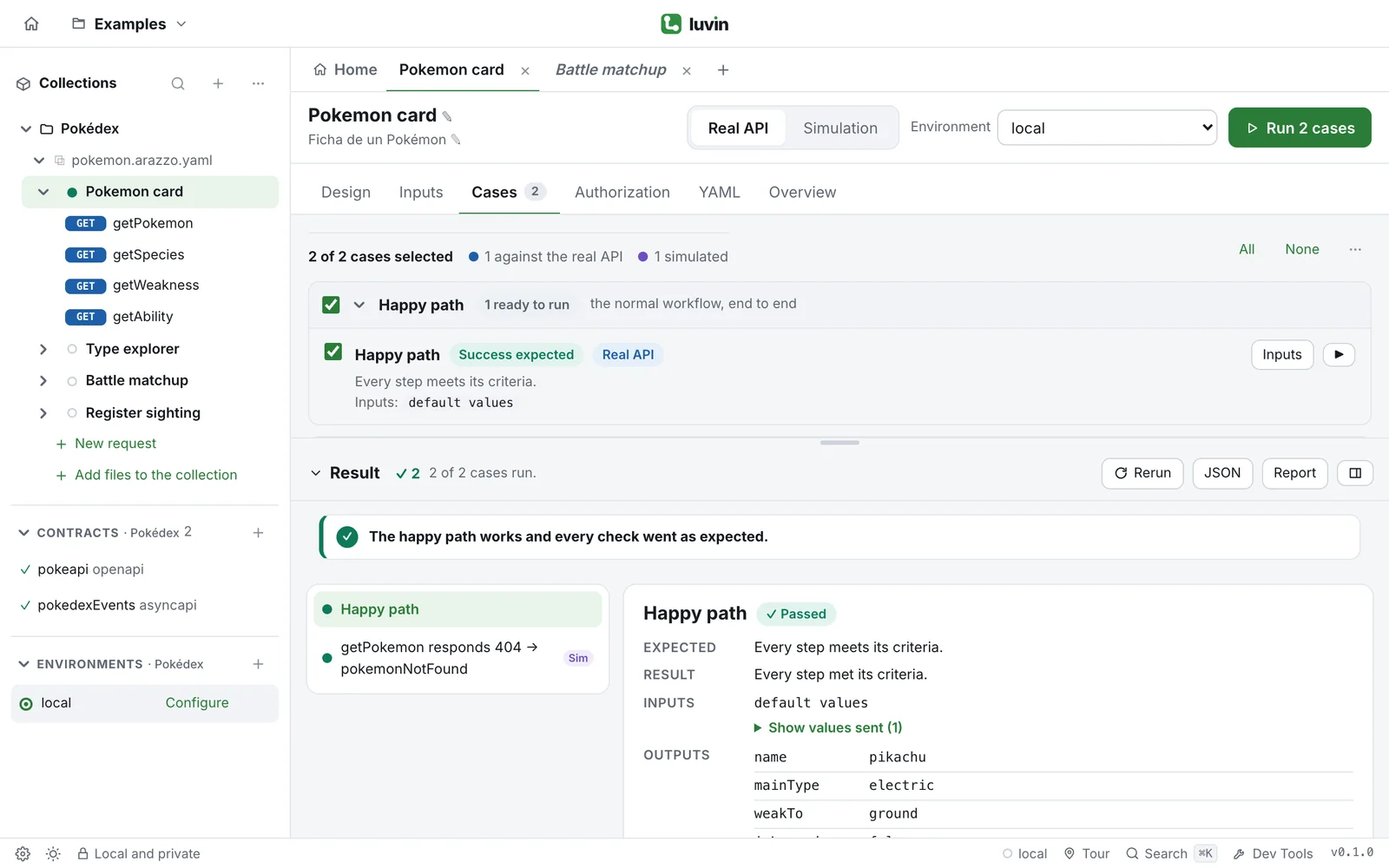
| Area | Where | What it is for |
|---|---|---|
| Top bar | Top edge | The open workspace and its save state |
| Sidebar | Left | Everything in your collections |
| Tabs | Above the main area | What you have open |
| Run bar | Under the tabs, in a workflow | Where and how to run |
| Results bar | Bottom of a workflow | The results of the last run |
| Status bar | Bottom edge | Preferences, theme, tour, search and Dev Tools |
Top bar
Section titled “Top bar”- Home (the house icon) opens the workspace home, with its collections and quick actions.
- The workspace switcher is the button with the workspace name. Its menu shows where the workspace is saved and offers Rename workspace, Close and switch workspace and Delete workspace…. The desktop app adds Show in Finder (Show in file explorer on Windows and Linux).
- The save state, on the right, reads Saving…, ✓ Saved or Save failed. Every change is saved automatically. ⌘S (Ctrl+S) saves at once.
Sidebar
Section titled “Sidebar”| Section | What it shows |
|---|---|
| Collections | Each collection. Click the arrow to unfold one, or its name to open the collection overview. Inside: the Arazzo files, their workflows, the steps of each workflow and the Requests. |
| Contracts | The contracts of the open collection: ✓ loaded, ✕ not loaded, ○ not used by any workflow yet. |
| Environments | The environments of the open collection. Click one to make it active and open it. |
The dot next to a workflow tells how its last run went. Hover over it to read the state, for example Passed, Failed or Not run. Most rows have a ⋯ menu with actions such as Rename and Delete.
Everything you open becomes a tab: a workflow, a request, a contract, an environment. In a workspace, Home is always the first tab.
- Preview tabs. In a workspace, a single click opens a preview tab, with its name in italics. The next thing you open replaces it. To keep it, double-click the tab or the sidebar row, edit it, or run it.
- The + button (Create or import) opens a menu with New request, New workflow in this file, New Arazzo, New OpenAPI contract, New AsyncAPI contract and Import from Postman or Bruno. An item is off when it cannot apply, for example when there is no open collection.
- Right-click a tab for New Arazzo, Close, Close Others, Close to the Left, Close to the Right and Close All. An item is off when there is nothing to close. The tab Home cannot be closed.
The tabs of a workflow
Section titled “The tabs of a workflow”| Tab | What it is for |
|---|---|
| Design | Build the workflow on a canvas by dragging operations |
| Inputs | The values every case starts from. A number means values are missing or invalid |
| Cases | The generated cases and your own. The number is how many are ready to run |
| Authorization | The authorization of each API the workflow calls |
| YAML | The Arazzo file, with validation as you type |
| Overview | The diagram, the validation findings and which documented responses the workflow handles |
Click a step in the sidebar and one more tab opens, with the name of that step.
Run bar
Section titled “Run bar”From left to right: the workflow name and description (click either to edit it), Real API or Simulation, the Environment selector with Configure environment… at the end of its list, and the Run button. ⌘ Enter (Ctrl+Enter) runs too. During a run the button turns into Cancel.
Results bar
Section titled “Results bar”Result is a thin bar at the bottom until you run. Then it opens on its own. Click its title to fold or unfold it. Its header has Rerun, JSON and Report, and a button to show the results on the right or below. In Design the results always go below.
Status bar
Section titled “Status bar”| Item | What it does |
|---|---|
| Gear icon | Opens Preferences |
| Theme icon | Switches the theme: System, Light, Dark |
| Local and private | Hover to read where your data is kept |
| Environment name | The active environment. Click to open it |
| Tour | Starts the guided tour |
| Search | Opens the search |
| Dev Tools | Opens Console, Network and Performance, plus a Terminal in the desktop app |
Search with ⌘K
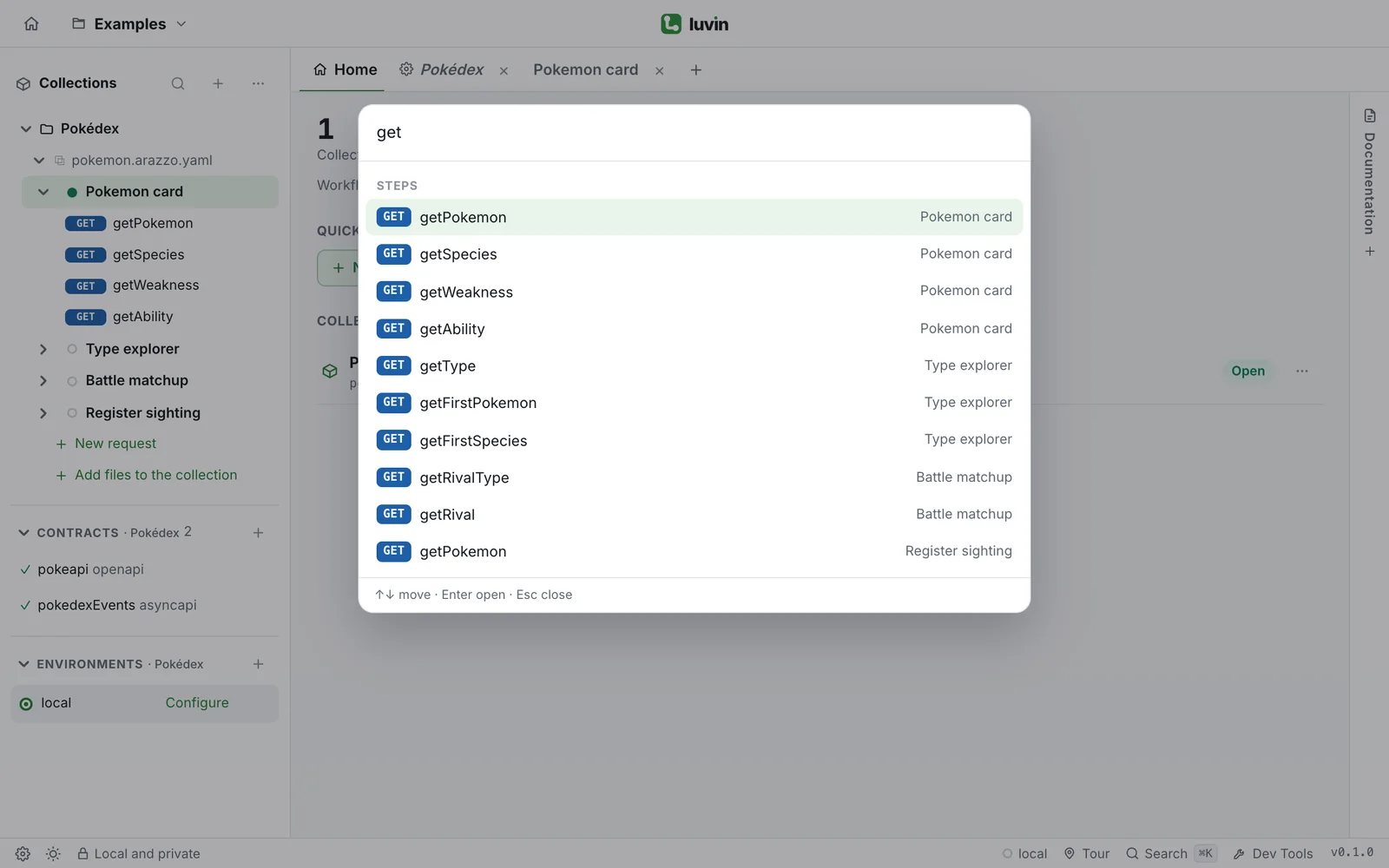
Section titled “Search with ⌘K”Press ⌘K (Ctrl+K on Windows and Linux), type, and press Enter. The search finds workflows, steps, environments, contracts, requests and collections. Words can go in any order, and accents and capitals do not matter. Use ↑ and ↓ to move and Esc to close. Results appear in groups, at most 60 at a time:
| Group | What a row shows | What Enter does |
|---|---|---|
| Workflows | The name of the workflow and, when the collection has several Arazzo files, the file it is in. Otherwise, its summary. | Opens the workflow. |
| Steps | The step, with its HTTP method and the workflow it belongs to. | Opens that step in its workflow. |
| Environments | The environment, with its color. The one in use says active. | Makes it the active environment and opens it. |
| Contracts | The contract, with API or ASYNC, and its file. | Opens the contract. |
| Requests | The saved request, with its method and URL. | Opens the request. |
| Collections | The collection and its folder. | Opens the collection. |
The method and the group name also count when Luvin matches your words, so get pokemon finds the GET steps with that name. When nothing matches, it says Nothing matches your search.
Preferences: language, theme and interface
Section titled “Preferences: language, theme and interface”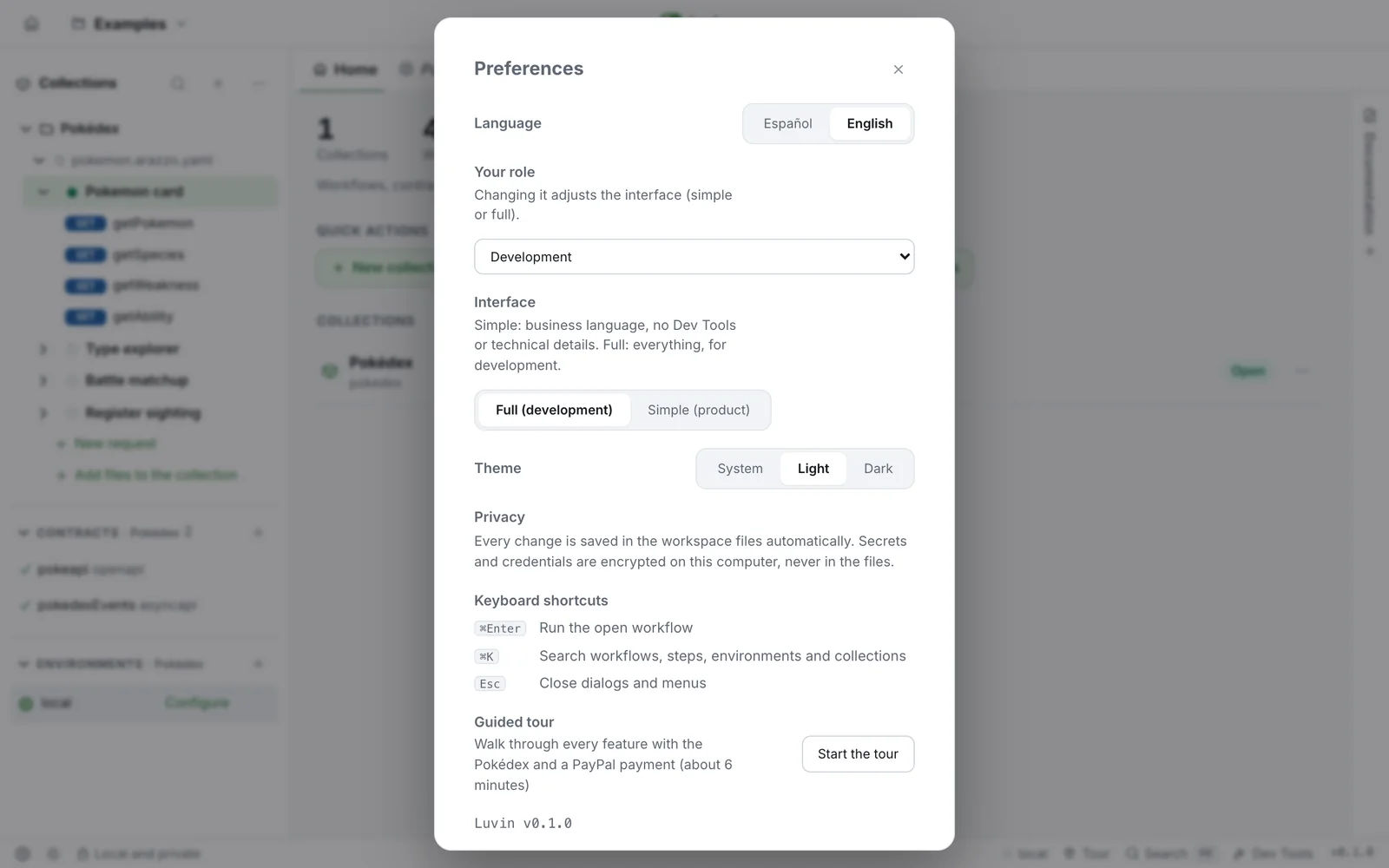
| Setting | Options |
|---|---|
| Language | Español or English. The first time, Luvin follows the language of your browser |
| Your role | Changing it also sets the interface |
| Interface | Full (development) or Simple (product) |
| Theme | System, Light or Dark |
Preferences also lists the keyboard shortcuts and has Start the tour.
The Simple interface is for people who only run workflows. Compared with the full one:
- Dev Tools and the terminal are hidden.
- A workflow opens on Overview, which becomes the first tab.
- Steps show a readable name (
getPokemonbecomes “Get pokemon”) and no HTTP method. - Results use plainer labels, such as Data obtained instead of Outputs.
The roles Product Manager / Owner and Business or partners select the Simple interface. The other roles select the full one.
Your role, from the welcome screen
Section titled “Your role, from the welcome screen”The first time, the welcome screen does not ask for your role: you can start at once. At the bottom, it says Optional: tell us your role. Click that link. After you choose a role, the same place reads Profile: QA / Testing. with a link, Change.
- Click tell us your role. The page Before you start opens.
- Under What is your role?, choose one: Product Manager / Owner, Business or partners, QA / Testing, Development, Architecture or Other. A line below says which interface you get.
- Under What will you use Luvin for?, tick what applies: Validate an integration with a partner, Test API flows end to end, Review or edit OpenAPI / AsyncAPI contracts, Design workflows across several APIs or Learn what Arazzo is.
- Click Continue. Click Skip for now to leave without choosing.
Luvin saves your answers on this computer and sets the interface from the role, as described above. It also marks one card of the welcome screen as Recommended for you: the tour if you want to learn, the example if you want to try, or creating a workspace if you want to write contracts or workflows. You can change the role later in Preferences, under Your role.