
Tutorials
Test a payment flow with OAuth 2.0
Open the PayPal example, see how Luvin gets the access token by itself, run a capture in Simulation and set up the PayPal sandbox to run it for real.
You will explore a payment flow built on PayPal’s Orders API: create an order, capture the payment, and issue a receipt. You will run it in Simulation without credentials, and then see what to change to run it against the PayPal sandbox. The first part takes about 15 minutes and needs nothing else. The second needs a free PayPal developer account.
OAuth 2.0 means the API does not accept a fixed key: it asks for an access token that you request first and that expires. Luvin requests it, reuses it and sends it with every call.
1. Open the PayPal example
Section titled “1. Open the PayPal example”- On the welcome screen, click See more examples, at the bottom. If you opened a workspace before, click See the examples instead.
- Click Try PayPal payments.
Luvin opens the PayPal collection in the Examples workspace. It opens in Simulation, because there are no credentials yet.
2. Look at the three workflows
Section titled “2. Look at the three workflows”In the sidebar, under the collection, there are three workflows:
| Workflow | What it does |
|---|---|
| Create order | Creates an order for an amount and reads it back. It returns orderId, approveUrl and status. |
| Capture order | Checks that the buyer approved the order, captures the payment and waits for the webhook that confirms it. |
| Order receipt | Depends on Create order: it uses the order id that workflow returned. |
- Click Create order and open the Design tab.
The cards marked ♻ use reusables: the idempotency header PayPal-Request-Id and the actions for the errors 400 and 401 are written once and used in several steps. See Reusables.
3. See where the token comes from
Section titled “3. See where the token comes from”- Click the Authorization tab of Create order.
One card shows the API paypal. It says In use: OAuth 2.0 · set for every workflow. Open it to see the fields:
| Field | Value |
|---|---|
| Grant type | Client Credentials |
| Access token URL | https://api-m.sandbox.paypal.com/v1/oauth2/token |
| Client ID | {{clientId}} |
| Client Secret | {{clientSecret}} |
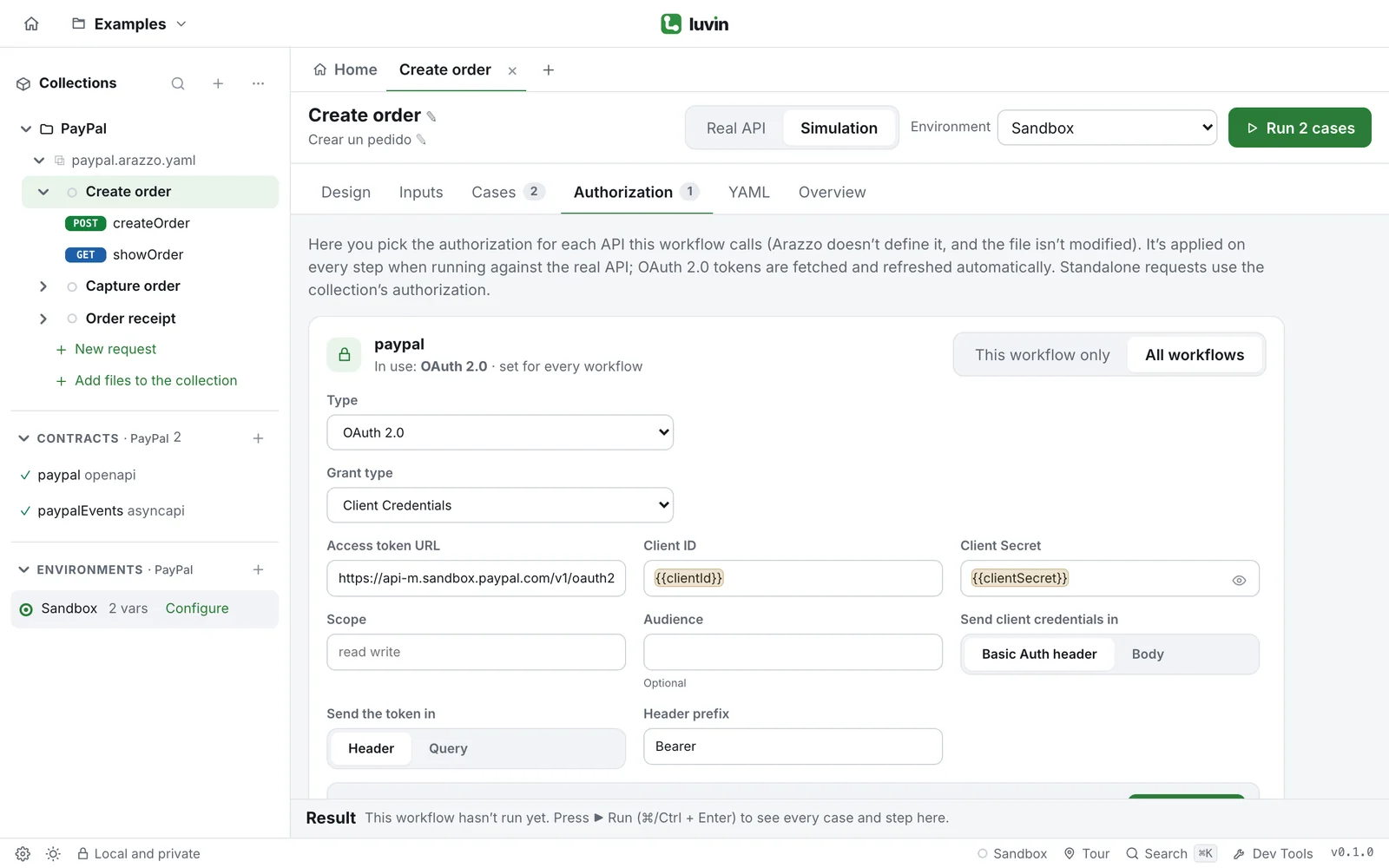
The client id and the secret are not typed here: they are variables, {{clientId}} and {{clientSecret}}, that take their values from the active environment. The Arazzo file knows nothing about authorization. Luvin keeps this setting in flow-auth.yaml. See Authorization of a workflow and OAuth 2.0.
4. Run Capture order in Simulation
Section titled “4. Run Capture order in Simulation”- Click Capture order and open the Inputs tab. The input
orderIdalready has an example value. - Open the Cases tab. Besides Happy path, Luvin generated cases by response, for example one where the
capturestep answers 422 and the workflow ends through the actionnotApproved. - In the run bar, check that Simulation is selected.
- Click Run.
Next to the workflow name, a note says that one messaging step is simulated. That is the last step, awaitCaptureEvent: it waits for the PAYMENT.CAPTURE.COMPLETED webhook. Luvin does not receive PayPal events: webhooks are always simulated, in Simulation and against the real API.
In the results, open the Happy path case. The three steps checkOrder, capture and awaitCaptureEvent answer with the examples of the contract. The last one shows the badge Simulated. See Read the results and Simulation.
5. Run Order receipt
Section titled “5. Run Order receipt”- Click Order receipt and click Run.
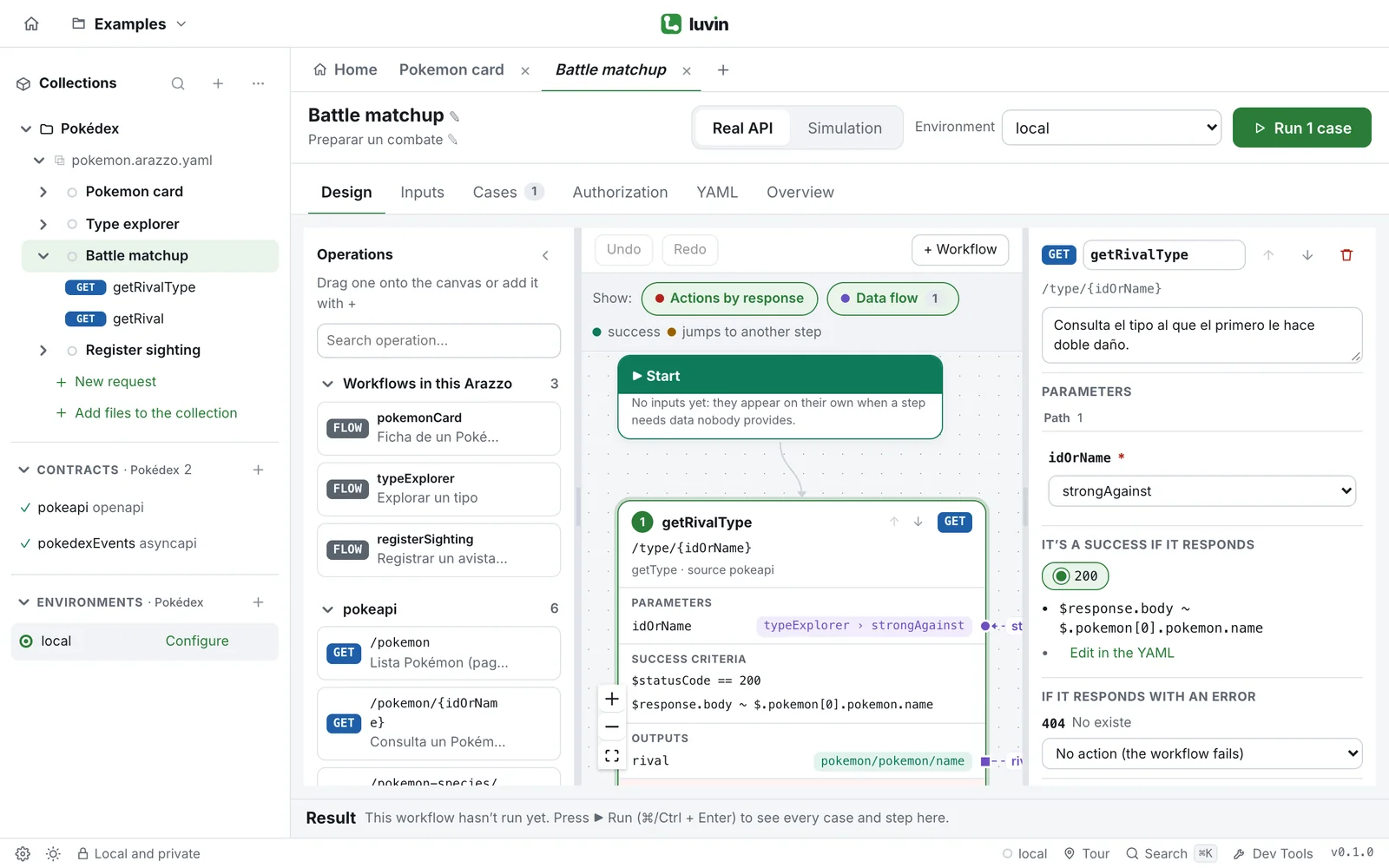
The results show a Preparation block: Create order ran first, because Order receipt depends on it, and the receipt used its orderId. See Workflows that use other workflows.
6. Set up the PayPal sandbox
Section titled “6. Set up the PayPal sandbox”To run for real you need a sandbox app. The sandbox moves no real money.
- Go to developer.paypal.com/dashboard. Open Apps & Credentials, choose the Sandbox tab and click Create App.
- Copy the Client ID and the Secret of the app.
- In Luvin, open the Sandbox environment, under Environments in the sidebar.
- In Variables, type the Client ID in the Value of
clientId. - In Secrets, type the Secret in the Value of
clientSecret.
The secret is stored encrypted on your computer and never written in the files of the collection. See Base URLs, variables and secrets.
7. Run Create order for real
Section titled “7. Run Create order for real”- Open Create order and click its Inputs tab.
amountis25.00andcurrencyisUSD. - In the run bar, choose Real API and the environment Sandbox.
- Click Run.
- Luvin warns that the steps modify data in Sandbox. Click Run anyway.
Luvin requests the token on the first call and reuses it for the rest of the run. The case passes when the order is created with the status CREATED. If the token cannot be obtained, Luvin shows the reason of PayPal after The token couldn’t be fetched:. Check the Client ID and the Secret.
8. Capture the payment
Section titled “8. Capture the payment”PayPal only captures an order the buyer approved.
- In the results of Create order, open the step
createOrderand its Outputs tab. CopyapproveUrlandorderId. - Open
approveUrlin a browser and approve the payment with a sandbox buyer account (Testing Tools → Sandbox Accounts, in the PayPal dashboard). - In Luvin, open Capture order and paste the
orderIdin its Inputs tab. - Choose Real API and Sandbox, and click Run.
checkOrder finds the order APPROVED and capture captures it. If the buyer did not approve, PayPal answers 422 (ORDER_NOT_APPROVED) and the workflow ends through notApproved. The webhook step stays simulated.
What you learned
Section titled “What you learned”- OAuth 2.0 is set per API in the Authorization tab, with variables for the client id and the secret.
- Luvin requests the token, reuses it and sends it in every step.
- Secrets live in the environment, encrypted on your computer, not in the files.
- A workflow can depend on another one, and the results show it under Preparation.
- Webhooks are always simulated.