
Tutorials
Find out why a case failed
Read the verdict and its reason, open the failed step, check the request in Dev Tools, repeat it in a terminal with cURL and fix the input.
A case ended as Failed and you need to know why: your workflow, your data or the API? You will cause a failure on purpose in the Pokédex example, and follow it from the verdict down to the exact request. You need about 20 minutes, Luvin open with the Pokédex example, an internet connection and, for step 5, a terminal.
1. Cause a failure
Section titled “1. Cause a failure”- Open Pokemon card and click the Inputs tab.
- Type
missingnoinpokemon. That Pokémon does not exist. - Click the Cases tab and click None to untick every case. Tick Happy path.
- In the run bar, choose Real API and click Run.
The results open at the bottom and the case ends as Failed.
2. Read the verdict and the reason
Section titled “2. Read the verdict and the reason”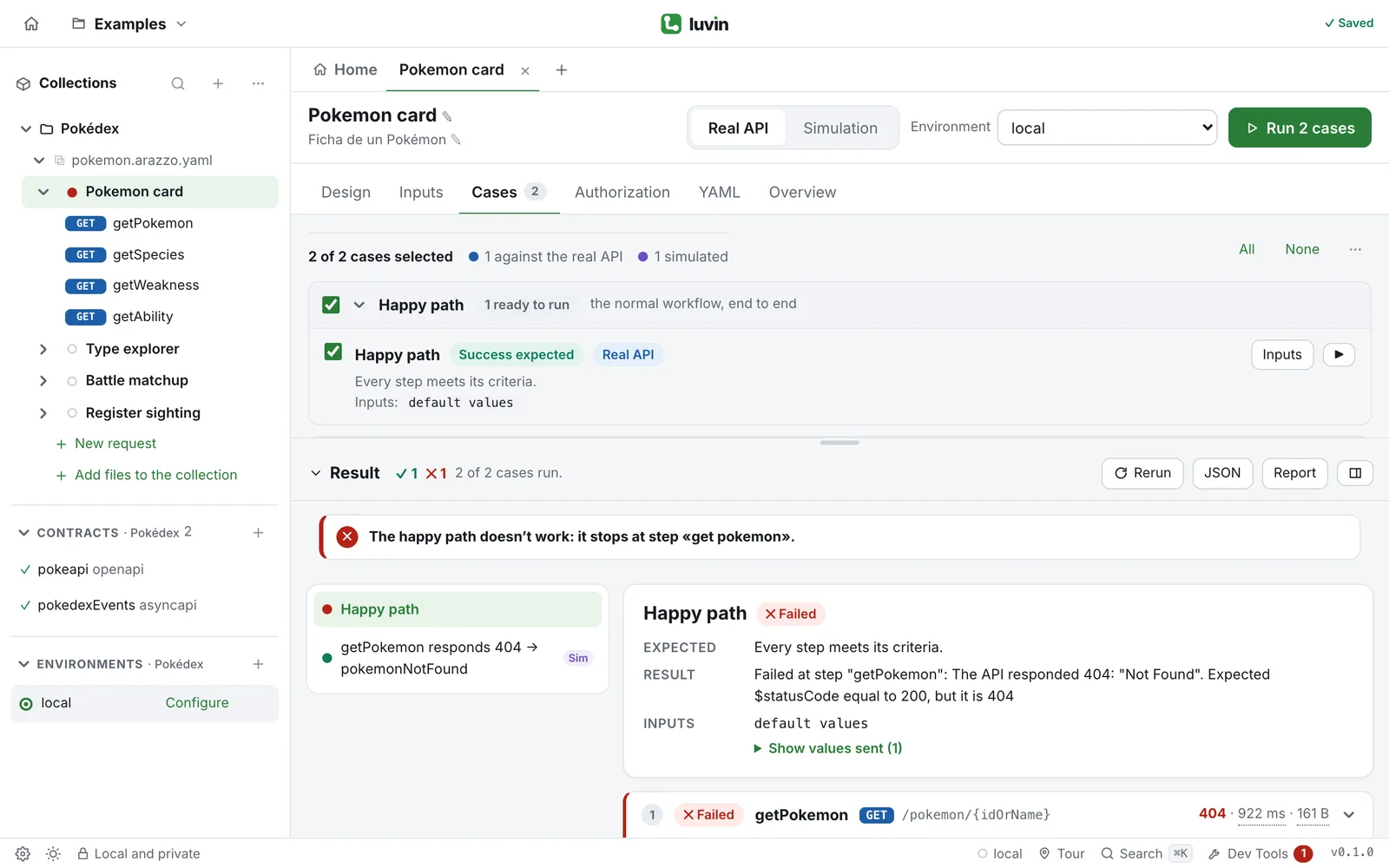
- Look at the header of the results. The counter ✕ says 1.
- Click the case in the list on the left. The detail shows its verdict, Failed, and these rows:
| Row | What it says here |
|---|---|
| Expected | Every step meets its criteria. |
| Result | The reason in plain words. It starts with Failed at step “getPokemon” and says The API responded 404 Not Found. |
You already know where it broke (the first step) and what happened (the API did not find the Pokémon). See Read the results.
3. Open the failed step
Section titled “3. Open the failed step”Under the detail, each step is a card. The failed one is already open.
- Read its header: the status Failed, the method and path, and the HTTP status
404. - Read the note under the header. It names the kind of problem, Error returned by the API, and the action that fired, End of workflow (action “pokemonNotFound”).
- Click the tab Criteria. Each success criterion says Met or Not met. The status criterion is not met.
- Click Request to see the URL, headers and body that were sent. The path ends in
/pokemon/missingno. - Click Response to see what the API answered.
The steps after it say Not run, because the workflow stopped. See Read a step result.
When the label is “Criterion not met”
Section titled “When the label is “Criterion not met””Here the API answered with an error. When the API answers 200 but a value is wrong, the label is Criterion not met and the note compares two values. For example, in a shop API:
statusExpected "ACTIVE"Received "INACTIVE"Press See in the response. The Response tab opens with that field highlighted in the body. Compare the field with what you expected: the API may have changed, or your data is not what you thought.
4. Look at the real request in Dev Tools
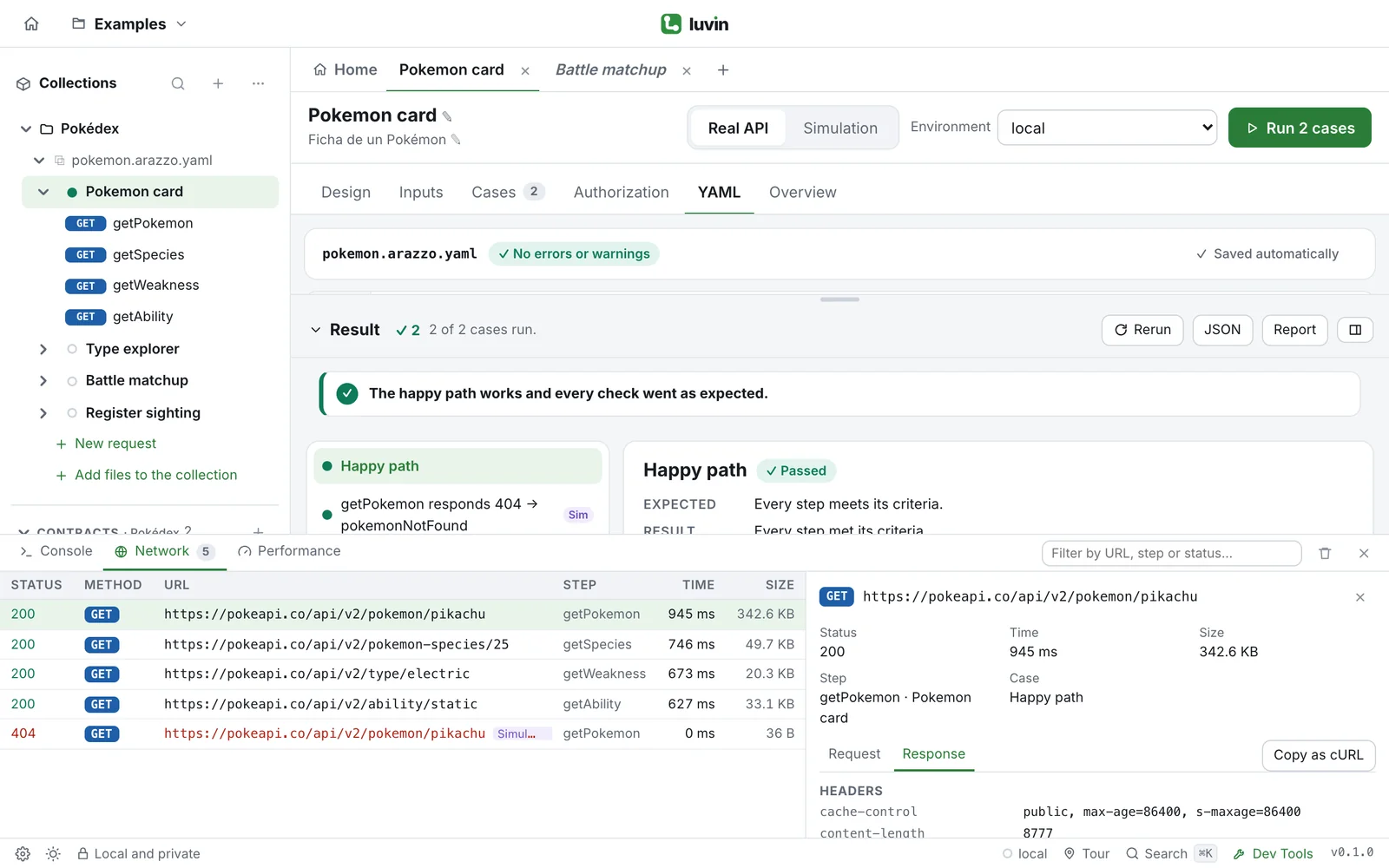
Section titled “4. Look at the real request in Dev Tools”Dev Tools lists every request Luvin sent, with secrets masked.
- Click Dev Tools in the bar at the bottom of the window, and open the Network tab.
- Find the row with a red status
404. Failed rows are highlighted. Typemissingnoin Filter by URL, step or status… to find it faster. - Click the row. A panel opens with the summary: Status, Time, Size, Step and Case.
- Click Request and then Response to read the headers and the body of each.
If you do not see Dev Tools, you are in the Simple interface. Switch to the full one in Preferences. See The interface.
5. Repeat it in a terminal
Section titled “5. Repeat it in a terminal”If the same request fails outside Luvin, the problem is not in the workflow.
- In the detail of the request, click Copy as cURL. The button shows ✓ Copied.
- Paste it in a terminal and press Enter. Add
-iaftercurlto see the status line.
curl -i 'https://pokeapi.co/api/v2/pokemon/missingno'The terminal also answers 404. So the workflow is correct and the data is wrong. Secrets in the command appear as <secret>: replace them by the real values. See Network.
6. Try the operation alone
Section titled “6. Try the operation alone”You can call one operation without the rest of the workflow.
- In Design, click the step
getPokemon. - Click ▶ Try alone. A tab opens with the operation.
- Choose Real API, check the environment and click Send.
The status and the body appear. Change the path parameter to pikachu and send again: you get 200. Now you know the operation works and only the value was wrong. See Try one operation.
7. When the API does not answer
Section titled “7. When the API does not answer”Not every failure is an answer. If the step has Network or CORS as its label and there is no status, the API did not respond. A panel titled Could not reach the API appears above the results, with the number of cases affected and the servers that did not answer.
- Click Open https://… ↗ to try the address in your browser. If it does not load, the problem is the server or the address.
- Click Review environment and check the base URL.
- In the browser version, if the address loads in another tab, the cause is probably CORS: click Copy headers and send them to whoever runs the API. The desktop app has no CORS restriction.
- Click Try in simulation to keep working while it is fixed.
See Connection help.
8. Fix the input and run again
Section titled “8. Fix the input and run again”- Click the Inputs tab and type
pikachuinpokemon. - Click the Cases tab and click Run.
If the run pauses with Run paused, click Continue with this item each time. The case ends as Passed. See Choose an item from a list.
What you learned
Section titled “What you learned”- The Result row says in plain words where the case broke and why.
- The label of a failed step tells the kind of problem: the API returned an error, a criterion was not met, there was no response, and so on.
- See in the response highlights the field that differs.
- Dev Tools Network shows the exact request, and Copy as cURL repeats it in a terminal.
- ▶ Try alone tests one operation without the rest of the workflow.
- The connection panel helps when the API does not answer.