
Authorization
OAuth 2.0
Get an access token with Client Credentials, Password Credentials or Authorization Code (with PKCE), reuse it, refresh it and send it, in requests, collections and workflows.
With OAuth 2.0 the API does not take a fixed key. You first ask an authorization server for a short-lived access token, then send it. Luvin asks for the token, reuses it while it is valid and renews it when it expires.
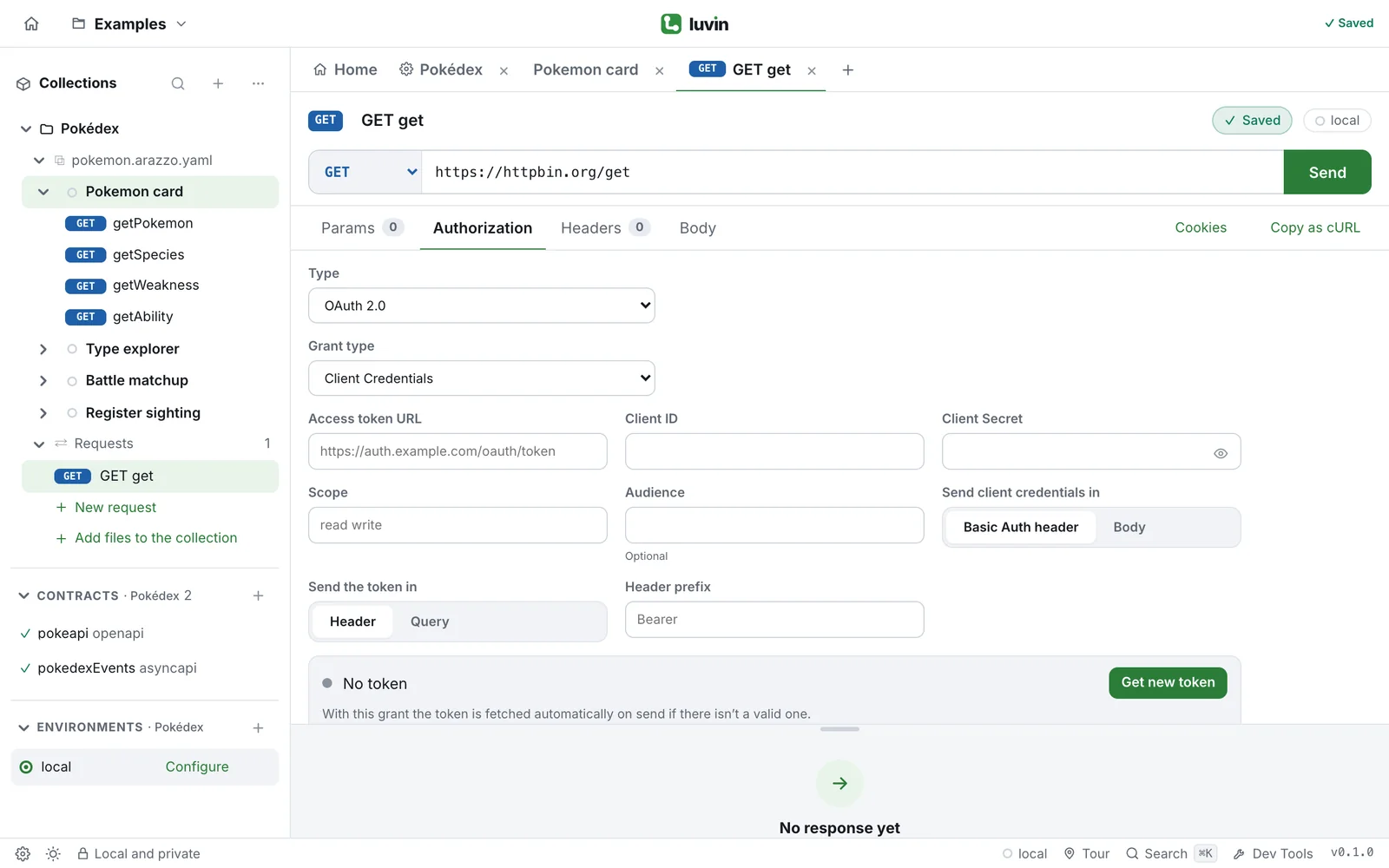
Example: PayPal sandbox
Section titled “Example: PayPal sandbox”The bundled PayPal example uses Client Credentials. This is a request that uses it:
name: List orderskind: httpmethod: GETurl: "{{baseUrl}}/v2/checkout/orders/{{orderId}}"auth: type: oauth2 grantType: client_credentials accessTokenUrl: https://api-m.sandbox.paypal.com/v1/oauth2/token clientId: "{{clientId}}" clientSecret: "{{clientSecret}}" credentialsIn: header tokenIn: header headerPrefix: BearerWhen you press Send, Luvin makes two calls:
- The token request:
POST https://api-m.sandbox.paypal.com/v1/oauth2/tokenwithAuthorization: Basic <clientId:clientSecret in base64>,Content-Type: application/x-www-form-urlencoded,Accept: application/jsonand the bodygrant_type=client_credentials. - Your request, with
Authorization: Bearer <access_token>.
The next sends reuse the token until it expires. In a workflow, the same setup is the flow-auth.yaml of the PayPal example: see Authorization of a workflow.
Choose the grant type
Section titled “Choose the grant type”Grant type decides how the token is obtained. The other fields change with it.
| Grant type | When to use it | Fields | Does a person sign in? |
|---|---|---|---|
| Client Credentials (default) | Your app identifies itself with a client ID and secret. | Access token URL, Client ID, Client Secret | No |
| Password Credentials | The API gives a token in exchange for a username and password. | The same, plus Username and Password | No |
| Authorization Code | A person signs in on the provider’s page and approves. | Authorization URL, Access token URL, Callback URL, Client ID, Client Secret (optional), PKCE (S256) | Yes |
Fields for every grant
Section titled “Fields for every grant”| Field | Meaning |
|---|---|
| Scope | Permissions to ask for, separated by spaces: read write. |
| Audience | The API the token is for. Optional; some providers need it. |
| Send client credentials in | Basic Auth header (default) or Body. In the body Luvin sends client_id and client_secret. Without a Client Secret it always sends client_id in the body. |
| Send the token in | Header (default) or Query. In the query Luvin adds access_token=<token>. |
| Header prefix | The word before the token. Bearer by default. Only with Header. |
Every field accepts {{variables}}.
Authorization Code and PKCE
Section titled “Authorization Code and PKCE”With Authorization Code a person signs in. PKCE (S256) is on by default: Luvin makes a random secret, sends only its SHA-256 hash to the provider and sends the secret itself when it exchanges the code. Leave it on unless your provider does not support it.
- Fill in the fields and press Get new token, or press Send. A sign-in window opens with the provider’s page. Luvin sends
response_type=code, Client ID, the Callback URL, Scope, Audience, a randomstateand, with PKCE,code_challengeandcode_challenge_method=S256. - Sign in and accept. The window closes by itself when the provider redirects to the callback.
- Luvin takes the
codeand exchanges it at the Access token URL (grant_type=authorization_code,code,redirect_uriand, with PKCE,code_verifier). The token is ready.
If the provider returns an error or a different state, Luvin does not take the code.
Type in Callback URL the one registered with the provider. The app intercepts the redirect, so that address does not need to exist. The sign-in opens in its own window, with its own session, separate from the rest of the app. The field is required: without it you see The callback URL is missing.
Register with the provider the address shown under the field: the app’s address followed by /oauth2/callback. Empty, Luvin uses that address. The sign-in opens in a pop-up: allow pop-ups for the page.
The token: get, reuse, refresh, clear
Section titled “The token: get, reuse, refresh, clear”Under the fields, a line shows the state of the token and its first six characters.
| You see | It means |
|---|---|
| No token | There is none yet. |
| Token valid until a time, or Valid token | It can be used. Without an expiry from the provider, it stays valid. |
| Token expired | It is renewed on the next send. |
- Client Credentials and Password Credentials: Luvin asks for the token by itself on send if there is no valid one.
- Get new token always asks for a new one. Clear token forgets it. Changing the authorization also forgets it.
- A token counts as expired 30 seconds early.
- If the provider gave a
refresh_token, Luvin renews an expired token with it (grant_type=refresh_token). If that fails, it asks for a new one. - When several steps need the token at once, it is requested once.
- Tokens live in memory while the collection is open. They are never written to disk.
- If you wrote an
Authorizationheader in Headers, Luvin does not add the token.
Who shares a token
Section titled “Who shares a token”| Where it is set | The token is shared by |
|---|---|
| A request with its own OAuth 2.0 | That request only. |
| The collection | All requests that inherit it. |
| A workflow, All workflows | All workflows that call that API. |
| A workflow, This workflow only | That workflow. |
In a workflow
Section titled “In a workflow”Set OAuth 2.0 in the Authorization tab of the workflow. With Authorization Code, a notice above the tabs says This workflow signs in with OAuth 2.0 to: and the API. Press Sign in, or press Run against the real API: the sign-in opens first. If you close it, the run does not start. See Authorization of a workflow.
When it fails
Section titled “When it fails”| Message | What to do |
|---|---|
| The access token URL is missing. | Fill in Access token URL. Same for the authorization URL and the callback URL. |
| The token couldn’t be fetched: … | The provider refused and says why. Check client ID, secret, scope and Send client credentials in. |
| The provider didn’t authorize: … | The person did not approve, or the provider returned an error. |
| The authorization window was closed before finishing. | Press Get new token and finish the sign-in. |
| The browser blocked the authorization window: allow pop-ups for this page. | Allow pop-ups. |
| This request uses OAuth 2.0 with Authorization Code: press “Get new token”… | Sign in first from the Authorization tab. |
More in Troubleshooting.
Secrets
Section titled “Secrets”Client Secret and Password are secrets. Typed as-is they are stored encrypted on your computer; with {{clientSecret}} only the name goes to the file. Client ID, Username and the URLs are written as typed. See Secrets.