
Tutorials
From a Postman or Bruno collection to a tested workflow
Import a collection you already have, chain two saved requests into a workflow, let Luvin suggest the wiring and add a case with your own data.
You will turn a Postman or Bruno collection into a workflow that creates an order and reads it back, and then test it with your own data. You need about 25 minutes, Luvin open with a workspace, and a collection exported from Postman (JSON, v2.0 or v2.1) or a Bruno collection folder. It needs no OpenAPI contract.
The example uses a shop API with two requests: Create order, and Get order, whose path is /orders/{{order_id}}. Use your own names.
1. Import the collection
Section titled “1. Import the collection”- Click + (Create or import) to the right of the open tabs, then Import from Postman or Bruno. If no workspace is open, Luvin says Open or create a workspace to import. Open one first.
- For Postman, click Choose .json files and pick the exported collection. Pick its environment files too, to bring the variables. For Bruno, click Choose folder and pick the collection folder.
- Read the summary: requests, folders, examples and environments, and a list of what is not imported, such as scripts. Luvin checks responses with success criteria instead of scripts.
- Change the collection name if you want, then click Import (N requests).
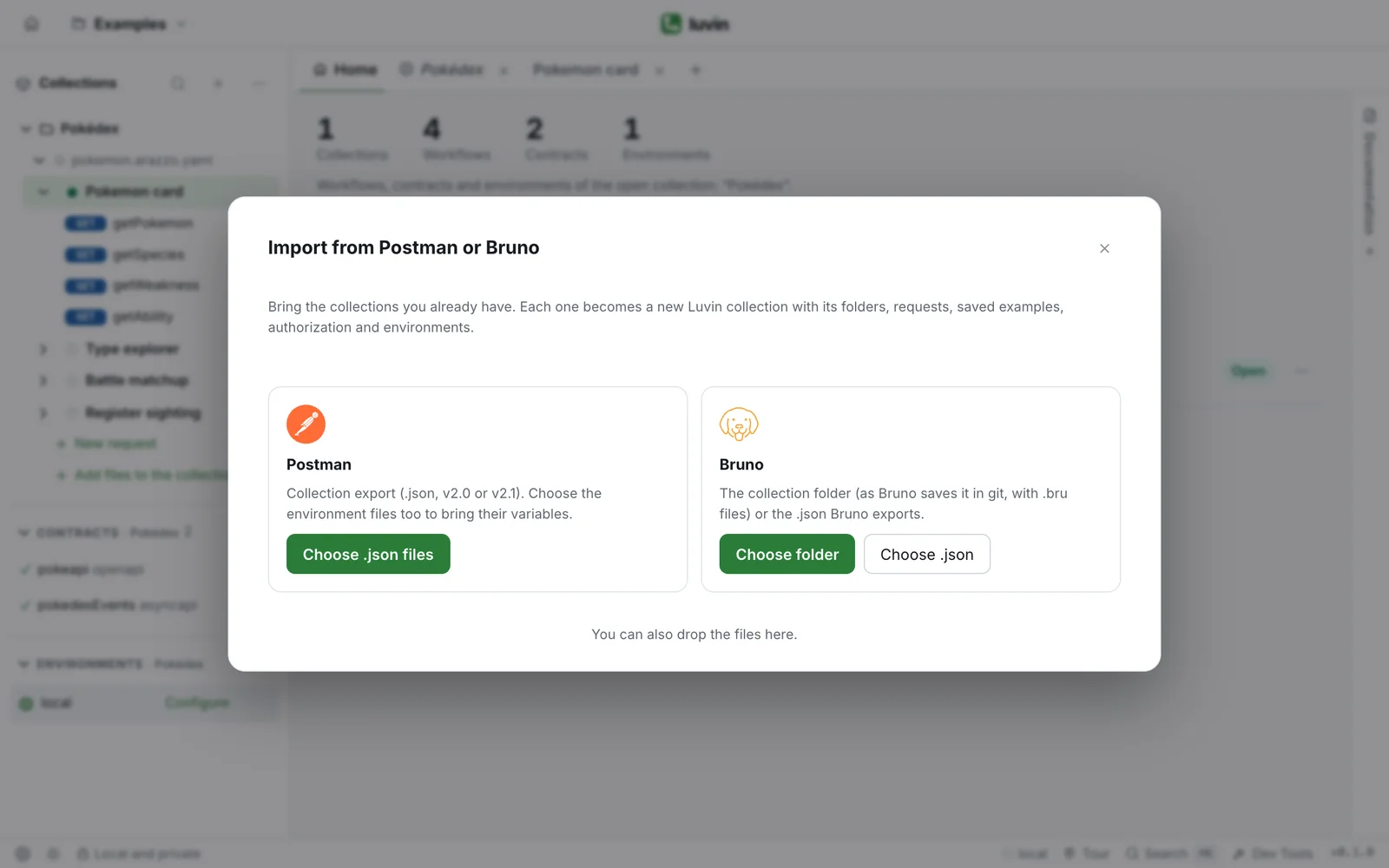
Luvin creates a new collection and opens it. Bruno does not save the value of its secrets: if your environment has some, they arrive empty. Open the environment in the sidebar and type them. See Import your existing work.
2. Open a request and send it
Section titled “2. Open a request and send it”- In the sidebar, open the new collection and click the request Create order.
- Check the environment shown next to the request name. It must be the test one.
- Click Send (or press ⌘/Ctrl + Enter).
The response appears below with its status, time and size. If it says The request couldn’t complete, see Connection help.
This also helps later: Luvin remembers the last response you received from a request. See Single requests.
3. Create a workflow
Section titled “3. Create a workflow”- Click + (Create or import) and choose New Arazzo.
Luvin creates new.arazzo.yaml in the collection and opens its workflow, My workflow, in the Design tab. The canvas says Drag the first operation here.
- Click the name, type
Order and read itand press Enter.
4. Drag the saved requests onto the canvas
Section titled “4. Drag the saved requests onto the canvas”- In the Operations palette, open the group Collection requests. It lists the requests of the collection, by folder.
- Drag Create order onto the canvas.
- A dialog asks What does the API require in «Create order»? Tick the fields the API requires and click Save. The answer applies to every workflow that uses this request.
- Drag Get order below Create order.
Each request is a step, named after it: createOrder and getOrder. A step is sent exactly like its request, with the same URL, headers and body. getOrder still has {{order_id}} written by hand in its path: Luvin does not know yet that createOrder returns that value. See Build from saved requests.
5. Run once so Luvin learns the responses
Section titled “5. Run once so Luvin learns the responses”A saved request does not say what the API answers. Luvin learns it from the first run against the real API.
- Open the Cases tab. The Happy path case is ticked.
- In the run bar, choose Real API and the test Environment.
- Click Run.
- Luvin warns that the steps modify data in that environment. Read the name of the environment and click Run anyway.
The results open at the bottom. If a step returns a list that a later step uses, the run pauses with Run paused: click Continue with this item. See Choose an item from a list.
6. Accept the suggested wiring
Section titled “6. Accept the suggested wiring”- Go back to the Design tab. A bar above the canvas says Luvin found 1 connection(s) between steps.
- Read the line: it names the step, the value and where it would come from, for example the path of
getOrderand theidofcreateOrder. - Click Connect all (or Connect on that line).
The step getOrder now takes its id from createOrder, with a dashed line on the canvas. Luvin connects nothing until you accept. Undo reverts it. Run the workflow again: getOrder reads the order that createOrder just made. See Connect data between steps.
7. Choose the data to vary
Section titled “7. Choose the data to vary”The steps keep the values of the requests, so the workflow starts with no inputs, and a case has nothing to change.
- On the Start card, read No inputs: the steps use N fixed values. and click Choose variable data….
- In Data to vary per case, tick the values you want to change, for example the customer id in the body of Create order. Each row shows where it is and its current value.
- Click Turn into inputs (N).
Each value becomes an input that keeps its current value as the default, so the happy path does not change. Open the Inputs tab to see them. See Inputs.
Now that the workflow has inputs, open Cases: Luvin also generates cases that send missing or invalid data. See Cases.
8. Add a case with your own data
Section titled “8. Add a case with your own data”- In the Cases tab, in the group Custom data cases, click + New data case.
- In Case name, type
Unknown customer. - In Step to check, choose
createOrder. - In Expected status, type the status your API returns for an unknown customer, for example
404. - Under Case inputs, change the customer id to a value that does not exist, for example
C-0000. - Click Add case, then Run.
Custom data cases always run against the real API. If the API answers what you expected, the case ends as Passed, and the step that answered the error is shown as passed because it is what the case tests. If it answers something else, the case ends as Failed and says what was different. See Custom data cases.
What you learned
Section titled “What you learned”- A Postman or Bruno collection imports as a Luvin collection, without a contract.
- Saved requests become steps that Luvin sends as they are.
- The first run against the real API teaches Luvin the responses, and then it suggests the wiring. You decide.
- Choose variable data… turns fixed values into inputs, which unlocks generated and custom cases.