
Dev Tools
Network
Read the list of requests and messages of your runs, open the detail of one and copy it as a cURL command with secrets masked.
The Network tab lists every HTTP request and every message that Luvin sent. Use it to see exactly what went to the API and what came back, for example when a step fails and you want to check the URL, a header or the body.
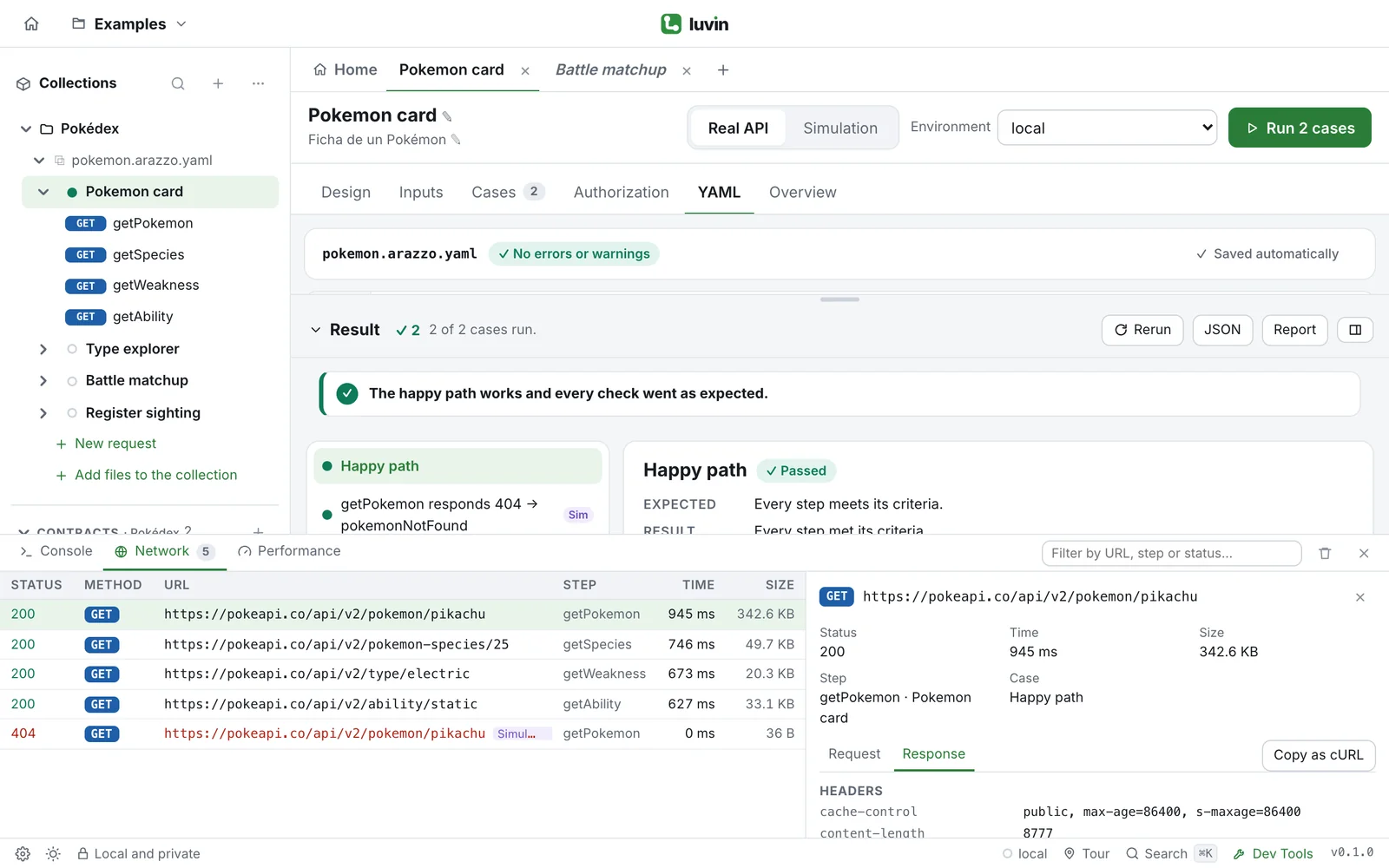
Example: Copy as cURL, with a masked secret
Section titled “Example: Copy as cURL, with a masked secret”A cURL command repeats the request from a terminal, which is useful to share a problem or to rule out the app.
- Open the detail of an HTTP request.
- Click Copy as cURL. The button shows ✓ Copied for a moment.
- Paste it into a terminal or a ticket.
Message rows do not have this button.
Secrets are masked
Section titled “Secrets are masked”Everything in Network is already masked: the tokens, passwords, API keys and values of secrets show as ••••. In the copied command, a masked value in the URL or in a header is replaced by <secret>, so you see what you must fill in:
curl -X POST 'https://api.shop.test/orders' \ -H 'Authorization: Bearer <secret>' \ -H 'content-type: application/json' \ --data-raw '{ "customerId": "C-1001"}'See the requests
Section titled “See the requests”- Open Dev Tools and click the Network tab.
- Run a workflow. Each request appears as a row while the run goes on.
While there is nothing yet, the tab says No requests yet.
What each row is
Section titled “What each row is”| Column | What it shows |
|---|---|
| Status | The HTTP status, in green. In red if the step failed or the API did not answer. A dash (—) means there was no response. For messages: ✓ or ✕. |
| Method | GET, POST and so on. A messaging step shows SEND or RECEIVE. |
| URL | The full address. For a message, the channel. The label Simulated marks an answer that did not go to the network. |
| Step | The step that made the call. |
| Time | How long the call took, in milliseconds. |
| Size | The approximate size of the response (or of the message): B, KB or MB. |
Rows that failed are highlighted. Each case of a run adds its own rows, so a workflow with several cases lists its calls once per case.
A row appears for:
- Every step of a workflow run, against the Real API or in Simulation. Steps that call another workflow add the rows of that workflow.
- The requests you send from a saved request: the workflow column says Requests and the step is the name of the request.
- Try it out in a contract: the workflow is
Swagger UI.
Requests that use gRPC or WebSocket do not appear in this list.
Filter the list
Section titled “Filter the list”Type in the field Filter by URL, step or status…. Luvin keeps the rows where the text appears in the method, URL, status, step, workflow or case name. If nothing matches, the tab says No request matches the filter.
Click Clear (the trash icon) to empty the list. It also empties on its own when you close the app, and it keeps the last 500 entries.
Open the detail of a request
Section titled “Open the detail of a request”- Click a row. A panel opens next to the list.
- Read the summary at the top:
| Field | What it shows |
|---|---|
| Status | The status and its text, for example 201 Created. If there was no answer, No response. |
| Time and Size | As in the row. |
| Step | The step and, after a dot, the workflow. |
| Case | The case that ran the call, with Simulated when it was a simulation. |
- Click Request to see what Luvin sent, or Response to see what came back. In a message, the tabs are called Sent and Received.
- Read the Headers and the Body. When there is nothing, the panel says No headers. or No body.
- Click the row again, or the × of the panel, to close it.
The panel opens on Response if the call had one.