
Dev Tools
Connection help
The panel that appears when the API does not answer, what it checks and the CORS headers it gives you.
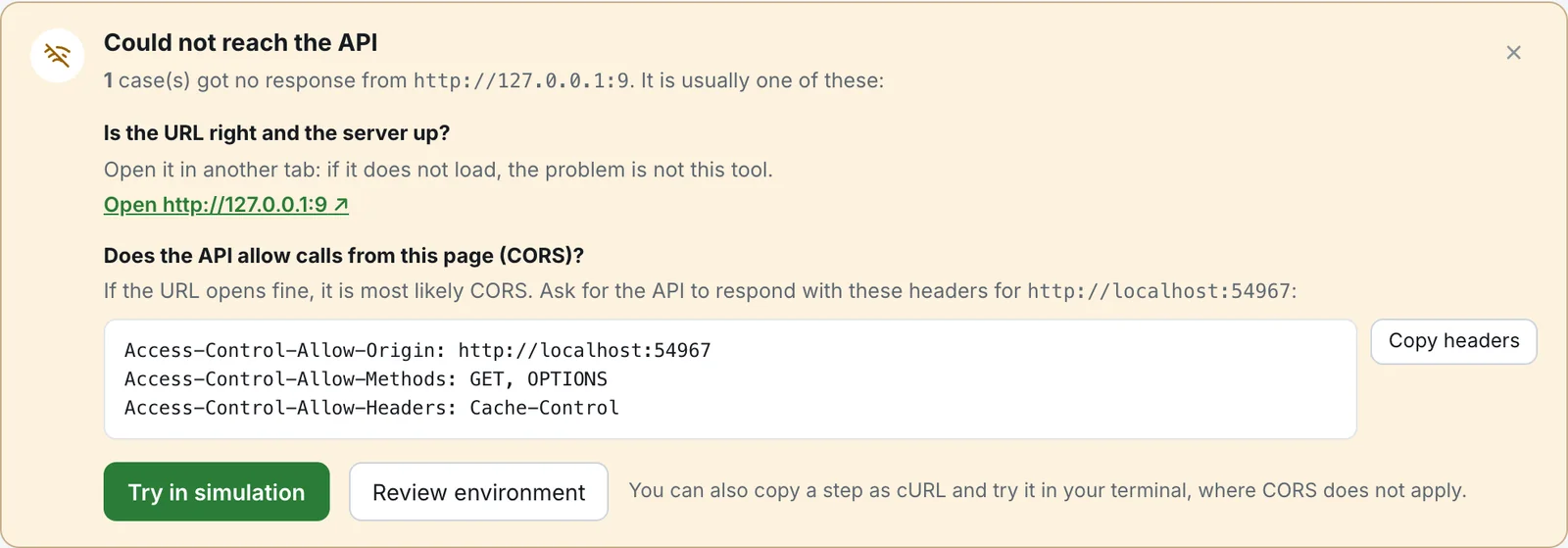
When a run against the Real API gets no answer from the API, Luvin shows a panel called Could not reach the API. It tells you what to check, in order, and gives you the exact headers to ask the API owners for. You do not have to open it: it appears by itself above the results.
When it appears
Section titled “When it appears”The panel appears when a step could not connect: the server did not answer, the address does not exist, or the browser blocked the call. It does not appear when the API answers with an error such as 401 or 500. Those are results, and you read them in the results.
The first line says how many cases are affected and which servers did not answer:
3 case(s) got no response from https://api.shop.test. It is usually one of these:Click × (Close) to hide the panel.
What it checks
Section titled “What it checks”The panel is a short list. Which items you see depend on where you run Luvin.
| Item | Desktop app | Browser |
|---|---|---|
| Is the URL right and the server up? | Yes | Yes |
| The page is https and the API is http | No | Only if it applies |
| Does the API allow calls from this page (CORS)? | No | Yes |
Is the URL right and the server up?
Section titled “Is the URL right and the server up?”Open the address in another tab: if it does not load, the problem is not Luvin. The panel gives one link per server, Open https://api.shop.test ↗. If the address is wrong, fix it in the environment (see below).
The page is https and the API is http
Section titled “The page is https and the API is http”A page opened over https cannot call an API over plain http. The browser blocks it. Use the API over https, or open Luvin over http. The desktop app has no such limit.
Does the API allow calls from this page (CORS)?
Section titled “Does the API allow calls from this page (CORS)?”A browser only lets a page call another address if that address allows it. That permission is called CORS. When the API does not allow it, the browser blocks the call and Luvin cannot see why, so it reports “no response”.
If the address opens fine in another tab, the cause is most likely CORS. The panel shows the headers that the API must answer with, already filled in with the address of the page and your requests:
Access-Control-Allow-Origin: http://localhost:5173Access-Control-Allow-Methods: GET, POST, OPTIONSAccess-Control-Allow-Headers: Authorization, Content-Type| Header | What it is | Where the value comes from |
|---|---|---|
Access-Control-Allow-Origin |
The address allowed to call the API. | The address where Luvin is open. |
Access-Control-Allow-Methods |
The HTTP methods allowed, always with OPTIONS. |
The methods of the requests that failed. |
Access-Control-Allow-Headers |
The headers the requests send. | The headers of the failed requests, except the three the browser sends without asking: Accept, Accept-Language and Content-Language. Left out when there are none. |
- Click Copy headers. The button shows ✓ Copied.
- Send them to the people who run the API, and ask them to answer with those headers.
What you can do from the panel
Section titled “What you can do from the panel”| Button | What it does |
|---|---|
| Try in simulation | Runs this workflow again in Simulation, with no network. Use it to keep working while the API is fixed. |
| Review environment | Opens the active environment, to check the base URL. |
At the bottom, the panel reminds you that you can copy a step as cURL and try it in your terminal, where CORS does not apply. See Network.