
Get started
The guided tour
What the guided tour covers, how to start it, the workspace it creates and what to do with that workspace when it ends.
The guided tour walks you through Luvin on a real example, one highlighted area of the screen at a time. It takes about 6 minutes. Take it after the quick start if you want to see every feature once.
What the tour covers
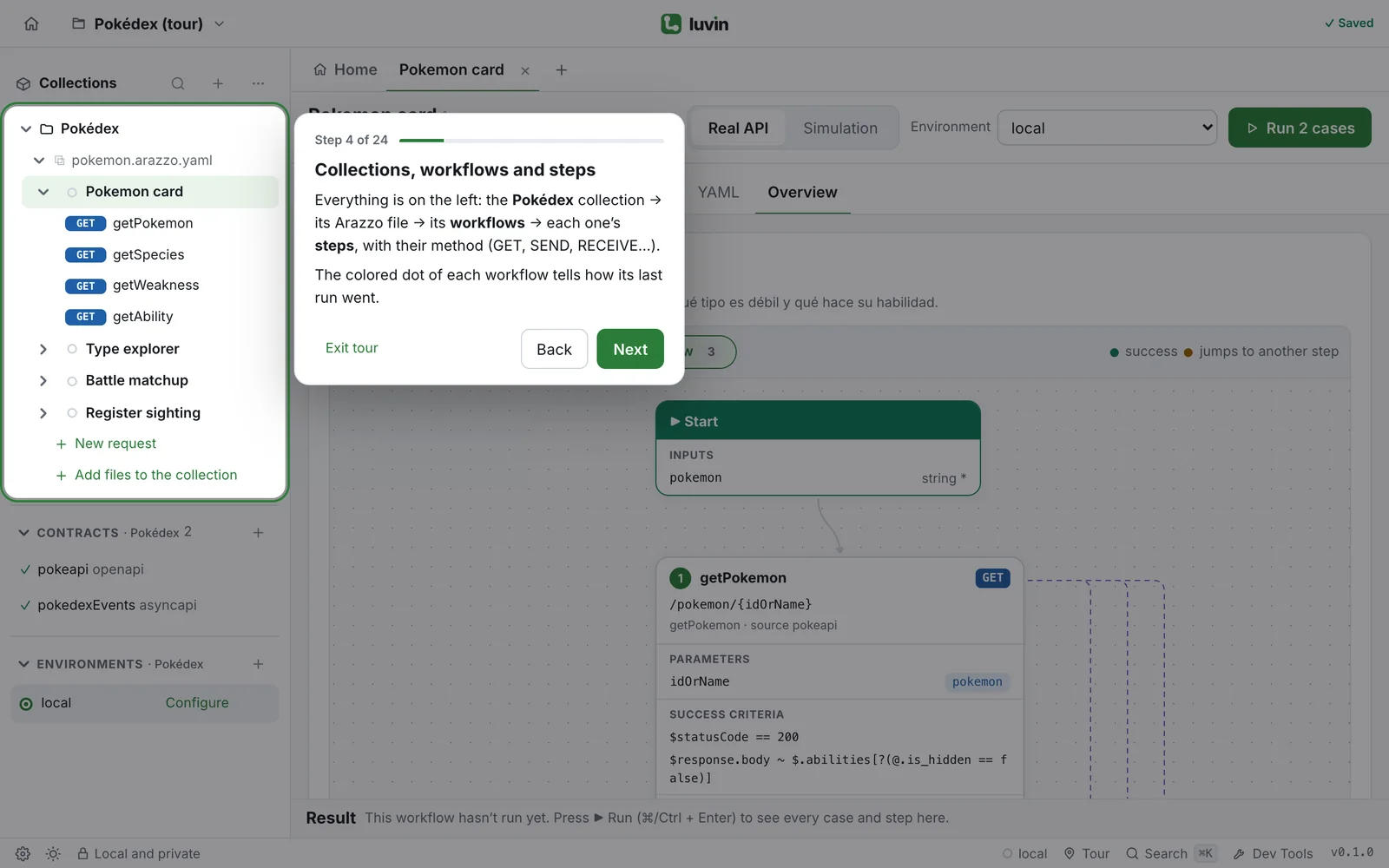
Section titled “What the tour covers”It uses the Pokédex example against the public PokéAPI, which needs no credentials. At the end it shows a payment with PayPal, to explain authorization and reusables. In order, it covers:
- The workspace, Home, and the sidebar with collections, workflows and steps.
- The diagram of a workflow, its inputs and its environments.
- The generated cases, and a run against the real API.
- One step in detail, the YAML editor and a contract open next to its preview.
- A workflow that depends on another one, and a workflow that mixes an HTTP call with messaging steps.
- The PayPal example: reusables, authorization per API, and a run in Simulation.
- The Design tab, standalone requests, Dev Tools, search, the collection overview and Preferences.
You can use the app at any time while the tour is open. The tour does not block it.
Start the tour
Section titled “Start the tour”Use any of these:
| Where | What to click |
|---|---|
| Welcome screen | The Guided tour card |
| Status bar, at the bottom | Tour |
| Preferences (the gear icon in the status bar) | Start the tour |
| The banner You’re viewing an example | Start the tour |
See A tour of the interface for the status bar and Preferences.
The banner that offers the tour
Section titled “The banner that offers the tour”When you open an example, a banner appears at the top of the screen: You’re viewing an example. Want us to walk you through it? The tour covers every feature in about 6 minutes.
- Click Start the tour to begin.
- Click the ✕ to close it. Its tooltip says Don’t show again. Luvin remembers it on this computer, so the banner does not come back for any example.
- The banner does not appear while the tour is running.
The tour stays available from the other places in the table above.
What the tour creates
Section titled “What the tour creates”When it starts, the tour says Getting ready… and builds its own workspace:
- If you have a workspace open, Luvin closes it.
- Luvin creates a workspace called Pokédex (tour). It is kept in the storage of the browser (or of the desktop app), not in a folder on disk.
- It adds a collection, Pokédex, with the example files.
Later steps add a second collection, PayPal. The tour does its work inside Pokédex (tour).
Move through the tour
Section titled “Move through the tour”| Action | How |
|---|---|
| Next step | Next or the → key |
| Previous step | Back or the ← key |
| Leave the tour | Exit tour |
The card shows Step 3 of N and a progress bar. While a step is getting the screen ready, the card shows Getting ready….
When the tour ends
Section titled “When the tour ends”The last card is titled All set! and asks what to do with the Pokédex (tour) workspace:
| Button | What happens |
|---|---|
| Keep it | The workspace stays. Find it later under Open a workspace on the welcome screen |
| Delete it | The workspace is deleted, with its collections and its secrets. This cannot be undone |
You can run the tour again at any time. Each time it builds a fresh Pokédex (tour) workspace.