
Get started
Preferences and the Simple interface
Change the language, your role, the interface (Simple or Full) and the theme, and read what the Simple interface hides.
Preferences holds the settings that belong to you, not to a workspace: language, role, interface and theme. Open it when Luvin shows too much (or too little) technical detail, or when you want another language or theme.
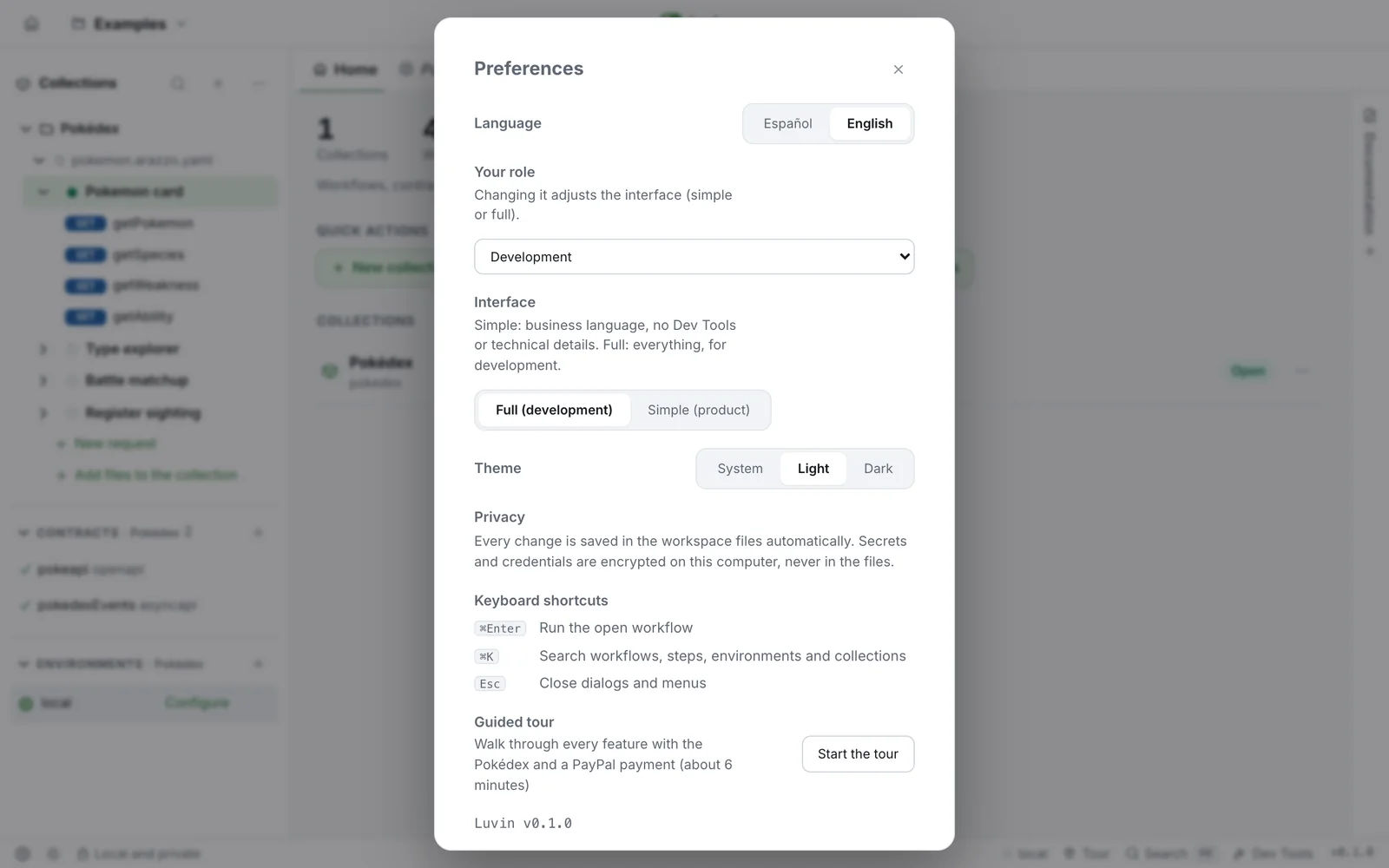
Open Preferences
Section titled “Open Preferences”- Click the gear icon at the bottom left of the window (the status bar).
- The Preferences dialog opens over the app.
- Change what you need. Each change applies at once; there is no save button.
- Press Esc, click the ✕ or click outside the dialog to close it.
Luvin remembers every setting on this computer. It does not save them in your workspace or in your files.
Each setting
Section titled “Each setting”| Setting | Options | What it does |
|---|---|---|
| Language | Español, English | Changes every label of the app. The first time, Luvin follows the language of your browser. |
| Your role | Product Manager / Owner, Business or partners, QA / Testing, Development, Architecture, Other | Also sets the interface, as the next table shows. Empty (—) until you choose one. |
| Interface | Full (development), Simple (product) | How much technical detail Luvin shows. |
| Theme | System, Light, Dark | System follows your operating system. |
Below the settings, the dialog also shows:
- Privacy: where your data lives. In the browser: Everything runs in your browser. Your session is saved only on this device, without credentials. In the desktop app: Everything runs on your computer. Requests go out from the app, never through a server of ours. With a workspace open, it says that every change is saved in the workspace files and that secrets are encrypted on this computer.
- Keyboard shortcuts: the three main ones (⌘Enter, ⌘K, Esc). The full list is in Keyboard shortcuts.
- Guided tour, with Start the tour. See The guided tour.
- The version of Luvin, at the bottom.
The theme, without opening Preferences
Section titled “The theme, without opening Preferences”The sun or moon icon next to the gear, in the status bar, changes the theme in one click. Each click goes to the next one: System, Light, Dark, and back to System. Its tooltip says the current theme and the next one.
Role and interface go together
Section titled “Role and interface go together”Choosing a role changes the interface. Changing only the interface does not change the role.
| Role | Interface Luvin selects |
|---|---|
| Product Manager / Owner | Simple (product) |
| Business or partners | Simple (product) |
| QA / Testing | Full (development) |
| Development | Full (development) |
| Architecture | Full (development) |
| Other | Full (development) |
The welcome screen offers the same choice the first time. See A tour of the interface.
Example: a product manager opens Pokemon card
Section titled “Example: a product manager opens Pokemon card”Open the Pokédex example with each interface and compare the same workflow.
- The workflow opens on Design. Overview is the last tab.
- Steps are called
getPokemon,getSpecies, and each one shows its method, for exampleGET. - A step panel lists
onSuccess,onFailureandOutputs. - Dev Tools is in the status bar.
- The workflow opens on Overview, now the first tab. Design comes next.
- Steps are called Get pokemon, Get species, with no method.
- A step panel says If it goes well, If it goes wrong and Data obtained.
- The criterion
$statusCode == 200reads The API responds 200 (OK). - Dev Tools is gone.
What the Simple interface changes
Section titled “What the Simple interface changes”It changes how things are shown. It does not change what Luvin does: the same cases run and the same requests are sent.
| Where | In Simple |
|---|---|
| Status bar | The Dev Tools button disappears, and the panel stays hidden even if it was open. See Dev Tools. |
| Terminal | Open in Terminal is off, with the hint not in simple mode. |
| Tabs of a workflow | Overview goes first. The workflow opens on it. |
| Sidebar and tabs | Steps use a readable name (getPokemon becomes Get pokemon) and have no method badge. |
| The canvas (Design) | Step cards show readable names, the description of the step and the criteria in words. |
| The step tab | No technical line (operationId, timeout, dependsOn). Values show in words, and the expression appears when you point at them. The titles are If it goes well, If it goes wrong and Data obtained. |
| Results | Step names are readable and the request line is hidden. Criteria are in words, and a passed one shows — instead of detail. The outputs tab is Data obtained. |
| Dialog to choose from a list | Step names are readable. See Lists. |
| Guided tour | Skips the Dev Tools stop. |
Switch the interface
Section titled “Switch the interface”- Open Preferences.
- Next to Interface, click Simple (product) or Full (development). The hint under the name says what each one means.
- Look at the app behind the dialog: it changes at once.