
Get started
Troubleshooting
The problems you are most likely to meet, what causes each one and what to do, from an API that does not answer to an app that will not open.
Find your problem in the list, read what causes it and follow the steps. Each section is independent.
| Problem | Go to |
|---|---|
| A run says it could not reach the API | The API does not answer |
| The desktop app will not open | The app will not open |
| A contract has a ✕ in the sidebar | A contract shows ✕ |
| A workflow shows errors after you deleted a contract | Errors after deleting a contract |
| A secret has no value on another computer | Secrets are missing on another computer |
| A step needs cookies and the browser skips them | Cookies are not sent |
| gRPC or NTLM do not work | gRPC and NTLM need the desktop app |
The API does not answer
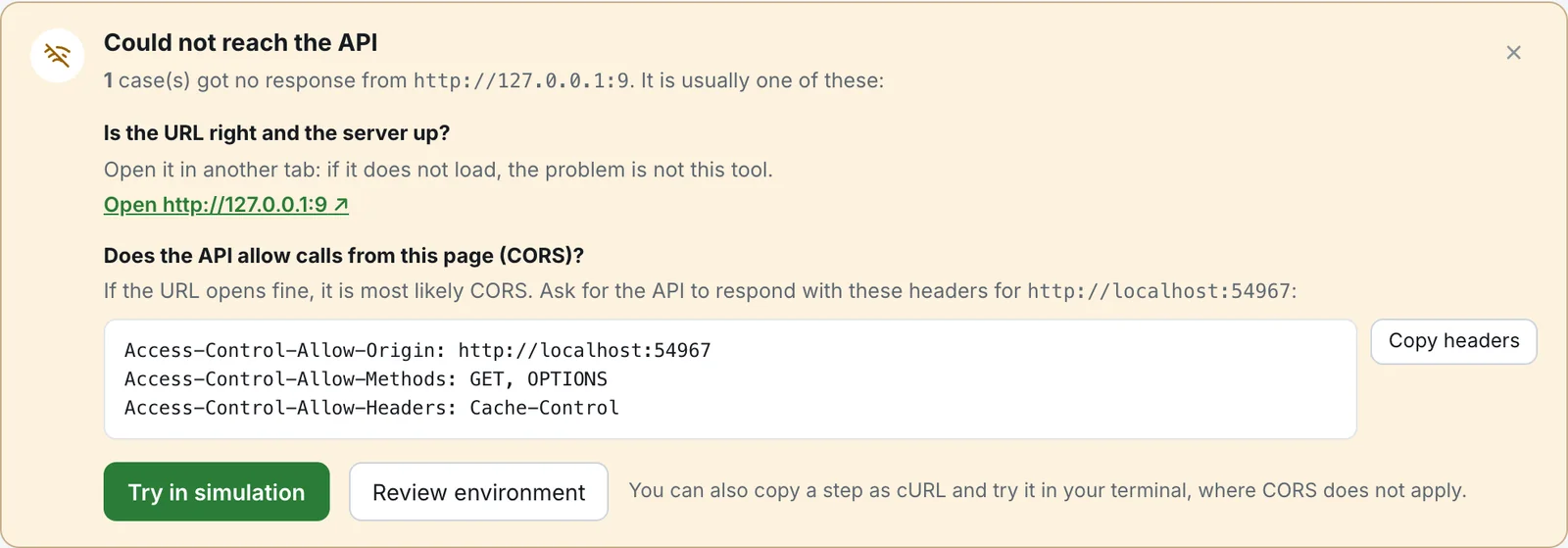
Section titled “The API does not answer”When cases get no response, a panel titled Could not reach the API opens in the results. It says how many cases got no response and from which address. It is usually one of three causes.
- The URL is wrong or the server is down. The panel has a link for each address, Open …. Open it in another tab. If it does not load, the problem is not Luvin. Check the base URL in the environment (click Review environment).
- The page is https and the API is http. The browser blocks those calls. This item only appears when it applies. Use the API over https, or open Luvin over http.
- The API does not allow calls from this page (CORS). If the URL opens fine, this is the most likely cause.
What CORS is
Section titled “What CORS is”CORS is a browser rule. A web page may call an API on another address only if that API says it allows it. In the browser version, Luvin is a web page, so the rule applies to every call. The desktop app sends the requests itself, so CORS does not apply there.
Fix CORS
Section titled “Fix CORS”- In the panel, find the code block under Does the API allow calls from this page (CORS)?
- Click Copy headers.
- Send them to whoever manages the API, and ask that the API answers with these headers.
The block lists what the failed requests need. For example, if Luvin is open at http://localhost:5173 and a step sends POST with an Authorization header, it reads:
Access-Control-Allow-Origin: http://localhost:5173Access-Control-Allow-Methods: POST, OPTIONSAccess-Control-Allow-Headers: AuthorizationAccept, Accept-Language and Content-Language are never listed: the browser sends them without asking.
Other ways out
Section titled “Other ways out”| Button or tip | What it does |
|---|---|
| Try in simulation | Runs the cases without calling the API |
| Review environment | Opens the environment, to check the URLs |
| The cURL tip | Copy a step as cURL and try it in your terminal, where CORS does not apply |
The simplest fix is to use the desktop app. See Install and open Luvin.
The app will not open
Section titled “The app will not open”The desktop installers are not signed yet, so macOS and Windows warn you the first time.
- macOS. Try to open the app once, then go to System Settings → Privacy & Security, find the message about Luvin under Security and click Open Anyway. You only do this once.
- Windows. Run the installer. In the warning, click More info, then Run anyway.
The installers have been tested on macOS. The Windows and Linux builds have not been tried on those systems yet. See Install and open Luvin.
A contract shows ✕
Section titled “A contract shows ✕”In the Contracts section of the sidebar, ✓ means a contract is loaded and ✕ means it is not. Hover over the row to read the reason. A contract can show ✕ for three reasons:
- Its file is missing. The Arazzo mentions the contract, but its file was never added.
- It could not be read. The tooltip shows the error.
- Files it points to are missing. The contract uses
$refto other files that were not added. The tooltip says Files referenced with $ref are missing and lists them.
To fix it:
- In the sidebar, click Attach on the row and choose the contract file. For missing
$reffiles, add them to the collection as well. See Bring your own files and requests. - If the contract came from a web address, click Download on the row instead.
The row turns ✓ when everything is loaded. Until then, the steps that use that contract cannot be run.
Errors after deleting a contract
Section titled “Errors after deleting a contract”When you delete a contract that steps use, Luvin warns you first: those steps will have no contract until you attach another one. If you went ahead, the workflow shows errors. Its dot in the sidebar turns red and tells how many errors there are, and the Overview tab lists them.
- In the Contracts section, find the contract. It stays in the list with a ✕, because the Arazzo still mentions it.
- Click Attach and choose the file again, or the file of the contract that replaces it.
If you do not want those steps any more, delete them. A contract that has no file and that no step uses can be removed with Remove contract….
Secrets are missing on another computer
Section titled “Secrets are missing on another computer”Secrets are never in the workspace files. The environment files only keep the names of the secrets. The values are stored encrypted on the computer where you typed them, using the operating system’s keychain in the desktop app and WebCrypto in the browser.
So when you copy a workspace to another computer, or clone it from git, its secrets have no value there.
- Open the environment in the sidebar.
- Type the value of each secret again.
Share the values with your team through a safe channel, not through the files.
Cookies are not sent in the browser
Section titled “Cookies are not sent in the browser”Browsers cannot send cookies from a web page. If a step uses a cookie parameter or an API key placed in a cookie, the browser version skips it. The results explain it: This step needs the cookies … which the browser cannot send: try it in the desktop app.
Open the same workspace in the desktop app. There Luvin sends the cookies, keeps the ones your APIs set and shows them under Cookies. In the browser, the browser handles cookies itself and Luvin cannot read them.
gRPC and NTLM need the desktop app
Section titled “gRPC and NTLM need the desktop app”Browsers cannot open gRPC connections, and NTLM needs a handshake over a single connection, which browsers do not allow. In the browser version:
- A gRPC request shows gRPC needs the desktop app and is tagged Desktop only when you create it.
- NTLM authorization shows that it needs the desktop app.
Open the workspace in the desktop app to use them. See Limitations for the full list.