
Workspaces
Collections
Create a collection, add files to it, import one from Postman or Bruno, set its version, rename it, remove it from the workspace or delete it from disk.
A collection is a folder inside the workspace with everything about one topic: contracts, Arazzo files, environments, cases and requests. You create one per partner, product or family of APIs. This page covers every action on a collection.
Create a collection
Section titled “Create a collection”You need an open workspace. See Create and open a workspace.
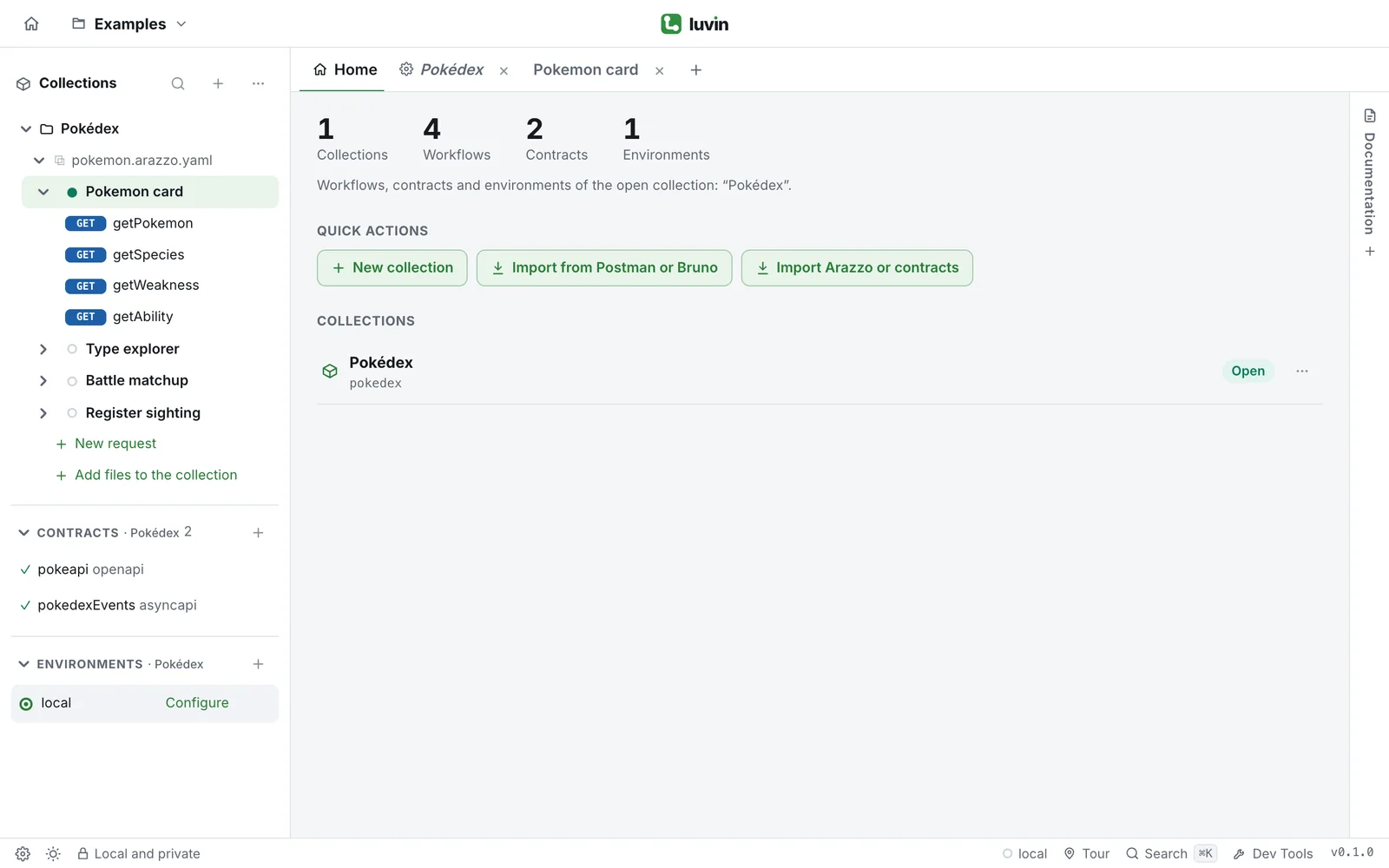
- Open Home (the house icon at the top left). Under Quick actions, click New collection.
- Or, in the sidebar, click + next to Collections.
- On a new workspace, the screen Create your first collection has the same box.
- Type the name in Collection name (e.g. Cobrand). For example:
Partners. - Read the line under the box: Creates the folder
…/partners. The folder name comes from the name you typed, in lower case and with dashes. - Click Create.
The collection opens. It already has an environment called local:
Directorymy-workspace/
- luvin.yaml
partnersis added to itscollectionslist Directorypartners/
- collection.yaml
Directoryenvironments/
- local.yaml
- luvin.yaml
If another collection already uses that folder name, Luvin adds a number: partners-2. The empty collection says “Partners” is still empty: add files next.
Add files to a collection
Section titled “Add files to a collection”Accepted files: .yaml, .yml and .json. They can be OpenAPI or AsyncAPI contracts, and Arazzo files. Luvin tells them apart by their content.
- Open the collection.
- Use one of these:
- On Home, under Quick actions, click Import Arazzo or contracts. It appears when a collection is open.
- In the sidebar, open the ⋯ menu of the collection and choose Add files to the collection.
- At the bottom of the open collection in the sidebar, click Add files to the collection.
- Pick the files in the dialog.
The workflows appear in the sidebar and the files are saved in the collection folder. Add the contracts the Arazzo files point to, or Luvin cannot find their operations.
Drag and drop
Section titled “Drag and drop”You can drop files anywhere on the window. While you drag, an overlay says Drop to add to “Partners” and OpenAPI or AsyncAPI contracts and Arazzo files (.yaml, .yml or .json). When you release, a note says Added 3 file(s) to the collection.
| Case | What you see |
|---|---|
Some files are not .yaml, .yml or .json |
Added 2 file(s); 1 were not .yaml, .yml or .json. The others are added. |
| None of the files is valid | Only .yaml, .yml or .json files can be added |
| No collection is open | Open or create a collection to add files to it |
Import from Postman or Bruno
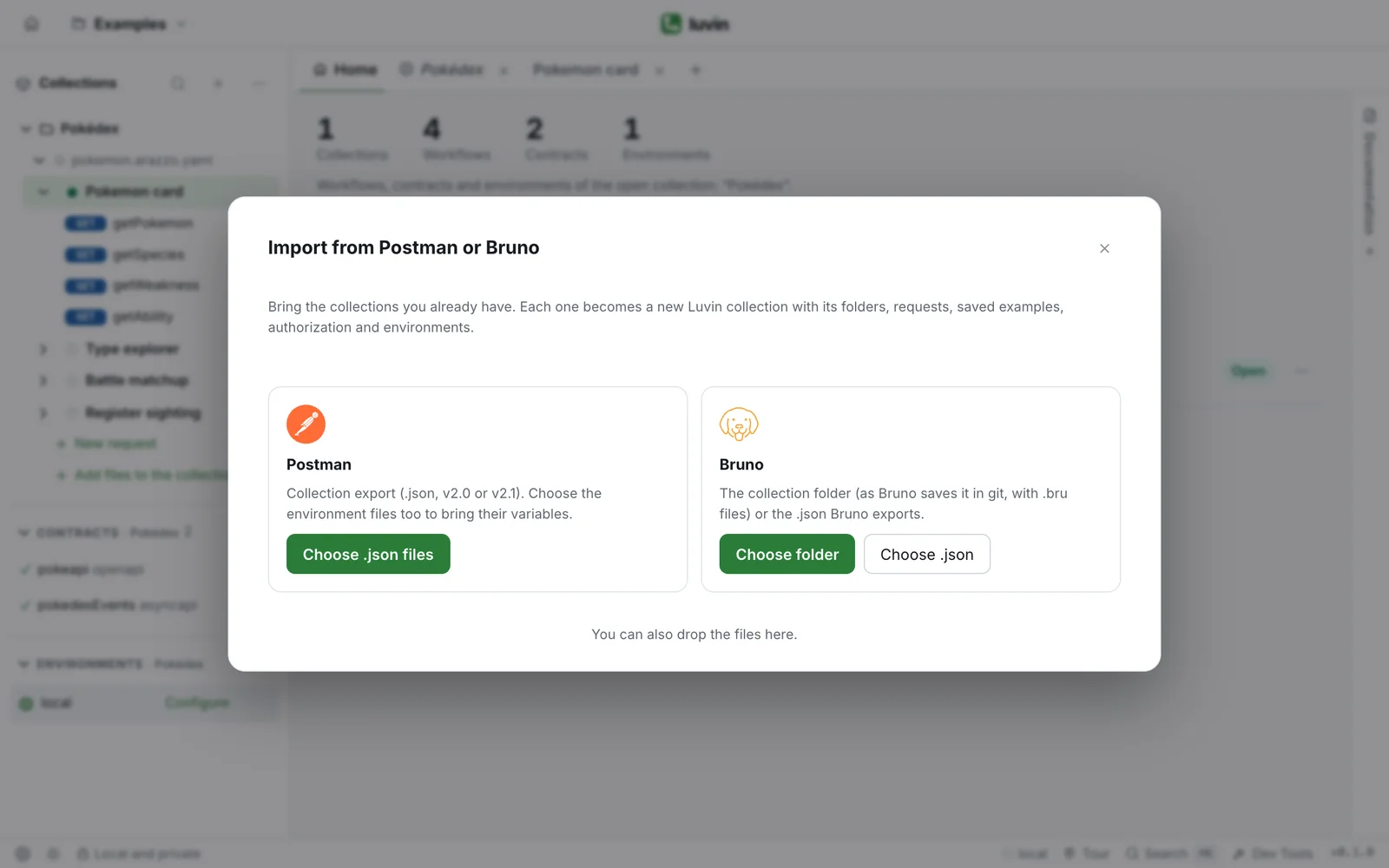
Section titled “Import from Postman or Bruno”Each Postman or Bruno collection becomes a new Luvin collection, with its folders, requests, saved examples, authorization and environments.
- Click Import from Postman or Bruno. It is under Quick actions on Home, and in the ⋯ menu of Collections in the sidebar.
- For Postman, click Choose .json files and pick the collection export (v2.0 or v2.1). Pick the environment files too if you want their variables.
- For Bruno, click Choose folder and pick the folder of the collection, or click Choose .json. You can also drop the files on the dialog.
- Read the summary: requests, folders, examples and environments, plus warnings. Change the Collection name if you want.
- Click Import (12 requests).
Scripts are not imported, and an authorization or body type without an equivalent is left empty. The warnings in the dialog say which. The full walkthrough is in Import and From Postman.
Open a collection
Section titled “Open a collection”Only one collection is open at a time.
- On Home, click its name. The open one has the badge Open.
- In the sidebar, click its name: the collection overview opens and the collection expands.
- Click the arrow before the name to expand or collapse it. Collapse all in Collection options collapses everything.
There is no “close” for one collection inside a workspace. Open another collection, or close the workspace.
Rename a collection
Section titled “Rename a collection”- Open the ⋯ menu of the collection, on Home or in the sidebar, and choose Rename.
- Type the new name and press Enter.
Only the visible name changes. The folder keeps its name.
The ⋯ menu of a collection
Section titled “The ⋯ menu of a collection”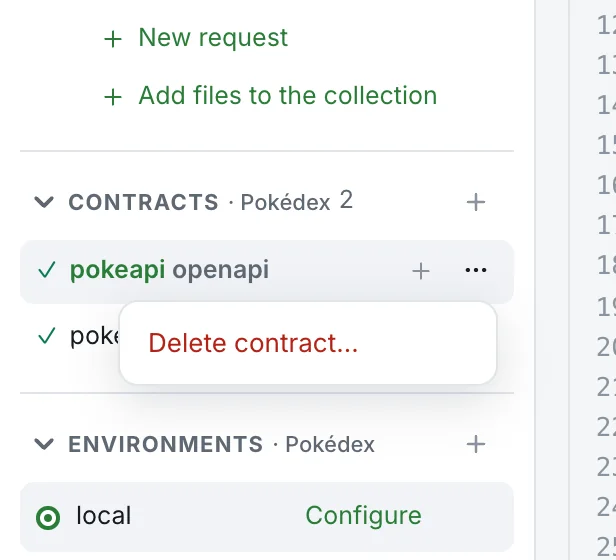
The menu of a collection in the sidebar also creates things inside it:
| Item | What it does |
|---|---|
| Collection overview | Opens the summary page. |
| New request, Import from cURL, New folder | Create requests and folders of requests. |
| New Arazzo file, New OpenAPI contract, New AsyncAPI contract | Create a file in the collection. |
| Add files to the collection | Adds files from your disk. |
| Rename | Changes the visible name. |
| Show in Finder (Show in file explorer) Desktop only | Opens the folder in your file manager. |
| Open in Terminal Desktop only | Opens a terminal in the folder. |
| Remove from workspace | Takes it out of the workspace. The files stay. |
| Delete folder… | Deletes the folder and its files. |
The menu on Home has Open, Rename, Show in Finder, Remove from workspace and Delete folder….
Remove or delete a collection
Section titled “Remove or delete a collection”| Remove from workspace | Delete folder… | |
|---|---|---|
| Folder and files | Stay on disk. | Deleted. |
luvin.yaml |
The collection leaves the list. | The collection leaves the list. |
| Secrets of its environments | Stay on this computer. | Deleted. |
| Can you undo it? | Yes. Add the folder name to collections in luvin.yaml. |
No. |
Both ask first. Remove from workspace asks Remove “Partners” from the workspace? Its folder stays on disk and you can open it again. Click Remove. Delete folder… asks Delete “Partners” and its folder “partners”? Its Arazzo files, contracts, environments, cases and secrets are deleted. This can’t be undone. Click Delete.
Set the version
Section titled “Set the version”The collection version is a label your team chooses, such as 1.2.0. It is not the version of an API.
- Open the collection overview.
- In the card Version, click Set version. If there is one, click Change.
- Type it, for example
1.2.0, and click Save.
It is saved as collectionVersion in collection.yaml. Empty text removes it. The generated documentation shows it.
Copy the path and share
Section titled “Copy the path and share”In the card Share of the overview, click Copy path. The button says Copied. A collection is a folder of text files: send the path, or share it with git. Secrets are never in it.
Order the collections
Section titled “Order the collections”In the sidebar, open Collection options (the ⋯ next to Collections) and choose Sort A-Z. The order is saved in luvin.yaml.