
Workspaces
Create and open a workspace
Create a workspace on disk or in the browser, open an existing one, come back to the last one, and rename, switch or close it.
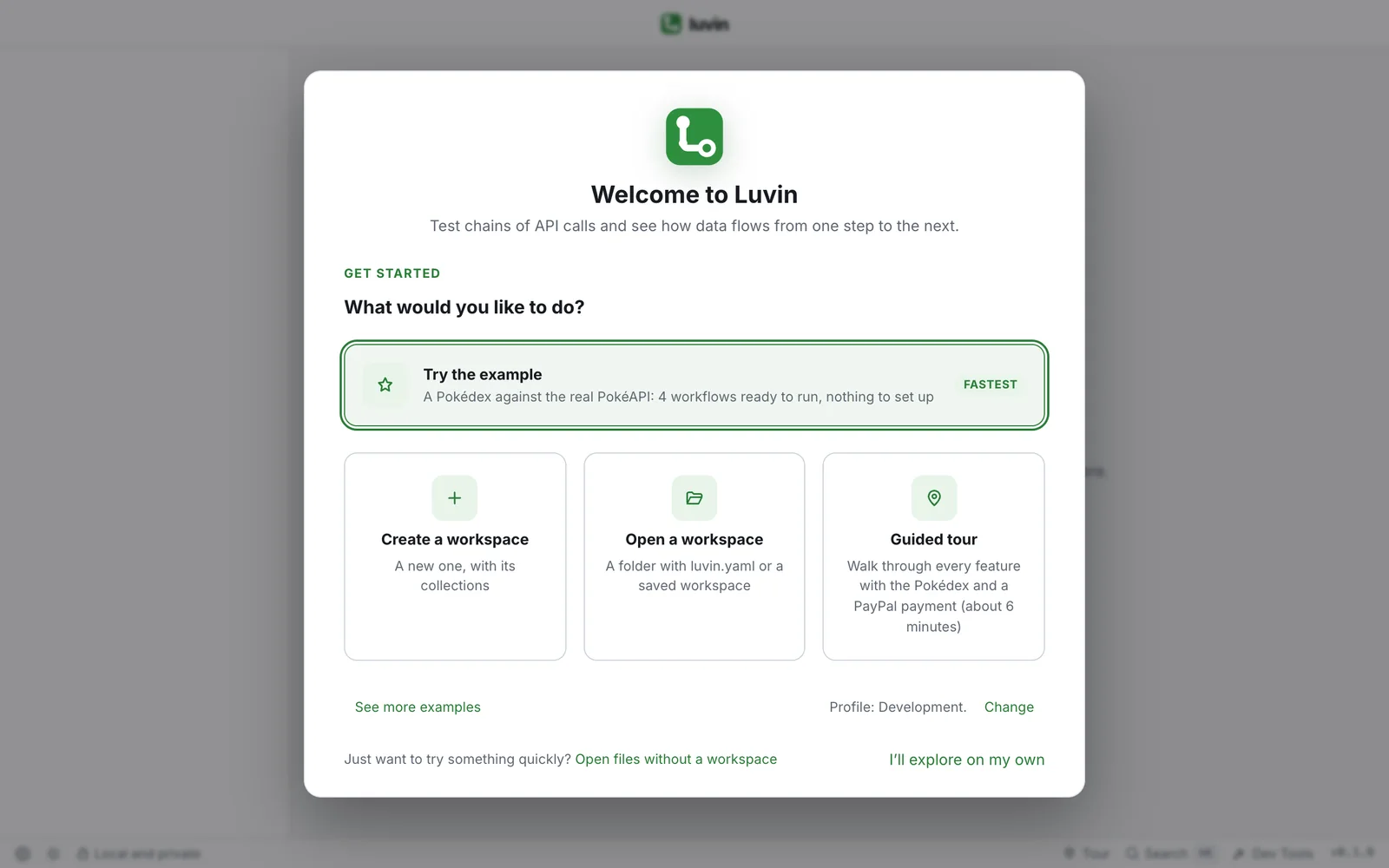
Every session starts on the welcome screen: you create a workspace, open one, or try an example. This page covers the workspace itself. To add collections to it, see Collections.
Where a workspace can live
Section titled “Where a workspace can live”| Place | What it is | Where |
|---|---|---|
| A folder on disk | Real files: luvin.yaml and one subfolder per collection. You can open them in any editor and keep them in git. |
Desktop app, and Chrome or Edge in the browser |
| In this browser | No files on disk. Luvin saves the workspace inside the browser, on this computer. | Any browser |
In the desktop app the workspace always goes into a folder. The first suggestion is Documents/Luvin, and Luvin remembers the last folder you used.
Create a workspace
Section titled “Create a workspace”- On the welcome screen, click Create a workspace.
- Type the Workspace name. The first value is My workspace. For example:
Shop tests. - Choose where to save it.
- In the browser with folder access (Chrome or Edge), pick In a folder on disk or In this browser.
- In the desktop app there is nothing to choose: the place comes already filled in.
- Read the line Will be created at. It shows the full path, for example
/Users/ana/Documents/Luvin/shop-tests. The last part is the folder name, taken from the name you typed. - To change it, click Change location. Then click Change… (or Choose folder…) to pick another folder, and edit the Folder name if you want.
- Click Create workspace.
Luvin creates the folder and its luvin.yaml, opens the workspace and shows the screen Create your first collection. Go on with Create a collection.
# Workspace de Luvin. Cada colección es una carpeta con su collection.yaml.version: 1id: 4f0c6a3e-2b1d-4c58-9a77-0d3a5e9b1c22name: Shop testscollections: []With In this browser, the line says Saved in this browser, with no files on disk. and there is no path to edit.
Open a workspace
Section titled “Open a workspace”- On the welcome screen, click Open a workspace.
- Pick the folder, or the saved workspace:
A folder dialog opens. Pick a folder that has a
luvin.yaml.Click Open a folder on disk (Chrome and Edge), or click one of the workspaces listed as In this browser. If none is saved and the browser cannot open folders, you see There are no workspaces saved in this browser.
You can also open a folder that is not a workspace yet. Luvin creates a luvin.yaml in it:
- Each subfolder that has a
collection.yamlbecomes a collection. - If the folder itself has Arazzo files or contracts, the folder becomes a collection, named like the workspace.
A workspace created with the old name of the app, with a studio.yaml, is renamed to luvin.yaml when you open it.
Open the last workspace
Section titled “Open the last workspace”Luvin remembers the last workspace you opened. The welcome screen shows it first, as Open “Shop tests”, with its place below. One click opens it.
In the browser, Chrome or Edge may ask again for permission to the folder. If the permission is not given, Luvin says The browser did not allow opening that folder. Try again or open it again.
Switch, rename and close
Section titled “Switch, rename and close”The name of the workspace is at the top left of the window. Click it to open the menu Workspace options. Below the name you see where it is.
| Menu item | What it does |
|---|---|
| Rename workspace | The name becomes a text box. Type the new name and press Enter. Escape cancels. Only the name in luvin.yaml changes. The folder keeps its name. |
| Show in Finder (Show in file explorer on Windows and Linux) | Opens the folder in your file manager. Desktop only |
| Close and switch workspace | Saves, closes the workspace and goes back to the welcome screen. Open or create another there. |
| Delete workspace… | Deletes the whole workspace. Asks you to confirm. |
- Click the workspace name at the top left.
- Choose Close and switch workspace. Everything is already saved in its files.
- On the welcome screen, open or create the other workspace.
The house icon next to the name opens Home of the current workspace.
What Delete workspace does
Section titled “What Delete workspace does”| Where it lives | What happens |
|---|---|
| Desktop app | The folder goes to the Trash (Move to Trash) with all its collections. You can restore it from there. Its secrets on this computer are deleted. |
| A folder chosen from the browser | The folder is deleted with all its collections and its secrets. This cannot be undone. |
| In this browser | The collections and secrets are deleted from the browser. This cannot be undone. |