
Workspaces
Write documentation
Write the README of a workspace and of a collection, generate it from your Arazzo files, edit and regenerate it, and read the documentation of a contract.
Luvin keeps three kinds of documentation: the README of the workspace, the README of each collection, and the documentation view of each contract. The first two are Markdown files that you write in the app. Your teammates and partners read them in Luvin or in git.
The workspace README
Section titled “The workspace README”It explains the whole workspace: what it is for, how to set up the environments, who to ask.
-
Click the house icon at the top left to open Home.
-
On the right, find the panel Documentation. When it is empty it is a thin tab at the edge: click it to open it.
-
Click Add documentation. The box fills with this outline, with the name of your workspace as title:
# Shop testsWhat this workspace is about and who it is for.## Environments- **local**: …- **intg**: …## Key workflows- …## Contacts- … -
Replace the text with yours. Under the box it says Markdown · saved as README.md in the workspace folder.
-
Click Save. Cancel leaves without saving.
The panel now shows the text formatted. Click Edit to change it. The file is README.md in the workspace folder.
The collection README
Section titled “The collection README”Open the collection overview: the Documentation panel is on the right. A collection README can be written by hand, or generated.
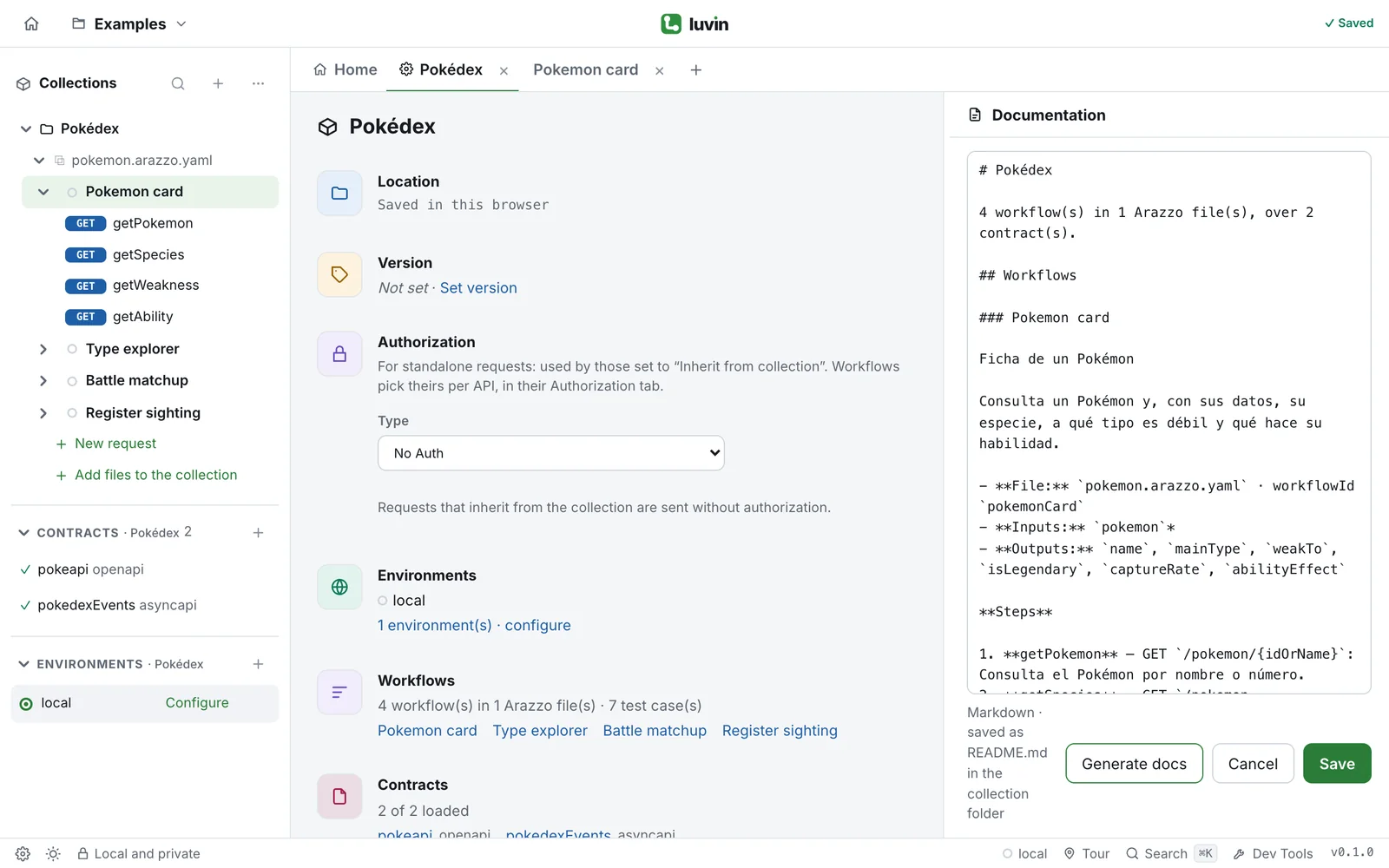
Generate it from the Arazzo files
Section titled “Generate it from the Arazzo files”- Open the overview of the collection.
- In Documentation, click Generate docs (or Add documentation: in a collection both do the same).
- Read the text in the box. It is Markdown.
- Change what you need and click Save.
The generated text lists every workflow with its file, inputs, outputs and steps, then the contracts and the environments. This is a real excerpt for the Pokédex example. The texts of the example are written in Spanish, and yours will be in your language:
# Pokédex
4 workflow(s) in 1 Arazzo file(s), over 2 contract(s).
## Workflows
### Pokemon card
Ficha de un Pokémon
Consulta un Pokémon y, con sus datos, su especie, a qué tipo es débil y qué hace su habilidad.
- **File:** `pokemon.arazzo.yaml` · workflowId `pokemonCard`- **Inputs:** `pokemon`*- **Outputs:** `name`, `mainType`, `weakTo`, `isLegendary`, `captureRate`, `abilityEffect`
**Steps**
1. **getPokemon** — GET `/pokemon/{idOrName}`: Consulta el Pokémon por nombre o número.2. **getSpecies** — GET `/pokemon-species/{idOrName}`: Consulta su especie (legendario, tasa de captura, generación).3. **getWeakness** — GET `/type/{idOrName}`: Consulta su tipo principal para saber a qué es débil.4. **getAbility** — GET `/ability/{idOrName}`: Consulta qué hace su primera habilidad (en inglés).
## Contracts
- **pokeapi** (openapi) — `pokeapi.openapi.yaml`- **pokedexEvents** (asyncapi) — `pokedex-events.asyncapi.yaml`
---
*Generated by Luvin from the collection Arazzo files. Edit it freely.*
A * after an input means it is required. If you set a version, a line Version: 1.2.0 follows the title. A workflow that depends on others also lists dependsOn. A section Environments lists each environment with its URLs, and says that credentials and secrets are not in the repository.
Edit and regenerate
Section titled “Edit and regenerate”- Click Edit to change the saved text.
- In the box, Generate docs replaces the text with a new generated one. Nothing is lost until you click Save: Cancel brings back the saved text.
- After you add or change workflows, generate again.
What the panel understands
Section titled “What the panel understands”Headings, paragraphs, lists, code blocks, bold, italic, code, links that start with https and images with an https address. It does not draw tables. If you save an empty text, the README.md file is deleted.
Drag the divider between the page and the panel to change its width. Luvin remembers the width on this computer, for both panels.
The documentation of a contract
Section titled “The documentation of a contract”Every contract documents itself: open it from Contracts in the sidebar. Next to the YAML you see its documentation, which follows what you type.
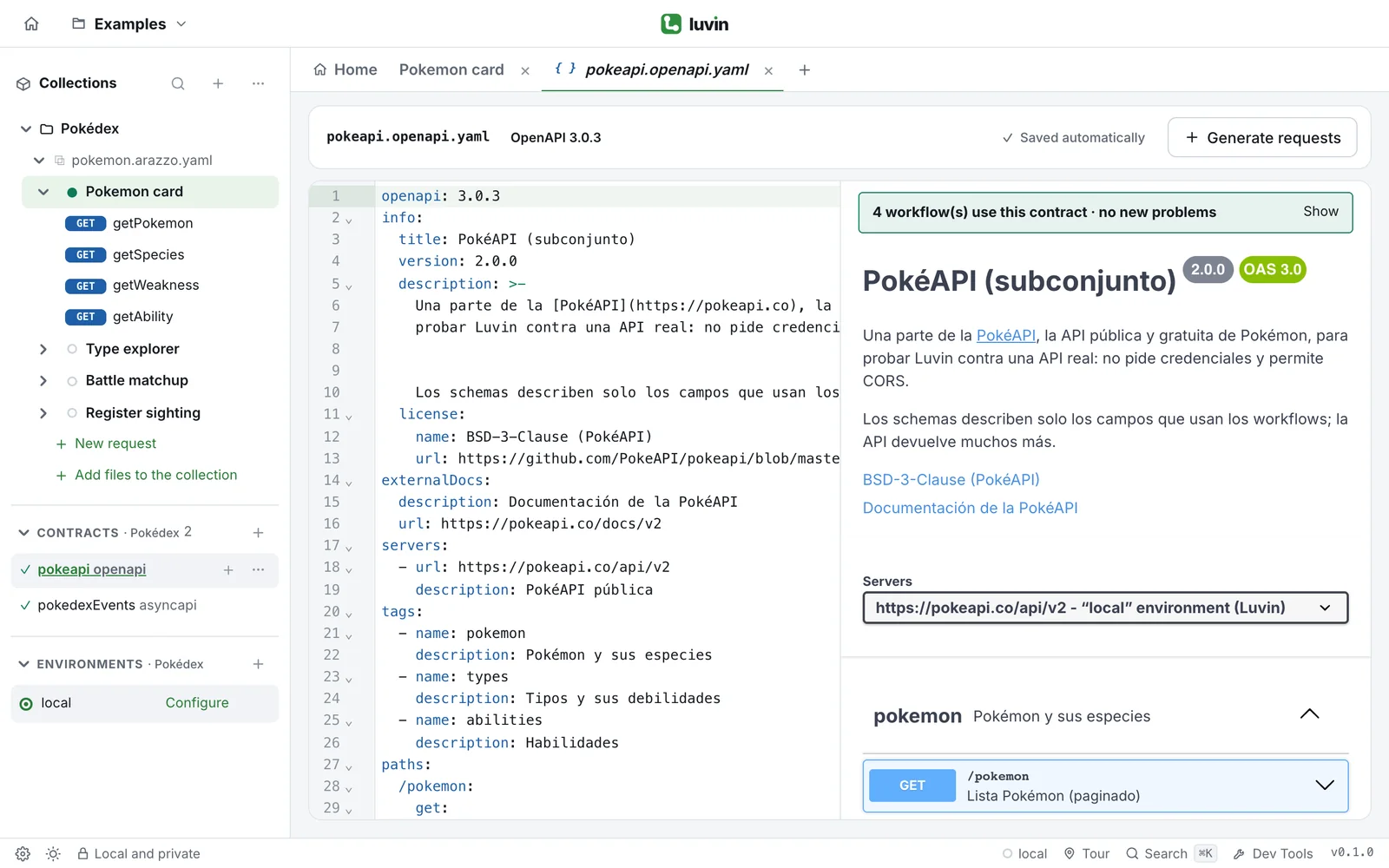
- Open the contract. For OpenAPI the view is Swagger UI; for AsyncAPI it is Luvin’s own view.
- Read the title, the version and the Servers.
- Expand an operation to see its Parameters, its Request body and its Responses, with their codes and examples.
- Click Try it out to call the operation from here. See Try one operation.
- In Luvin’s own view, click Show in YAML to jump to the operation in the editor.
When the contract declares credentials, an Authorize button is at the top, and the credentials come from the active environment. See Edit a contract and AsyncAPI contracts.
To describe an operation better, write it in the contract: its summary, description and example fields show up here.
Who reads it
Section titled “Who reads it”| Reader | Where |
|---|---|
| A teammate who opens the workspace | The Documentation panels, in Luvin |
| A partner who receives the folder | The README.md files and the contracts |
| A reviewer in a pull request | The README.md diff, in git |