
Send requests
Read a response in detail
Everything in the response area of a request: status, time and size with their details, the body views, headers, cookies, the request that was sent, and how to copy or save the response.
After you send a request, the response area shows what the API answered and how the call went. This page explains each part, in the order you see it. Use it when you need to know why a call was slow, what exactly came back or what Luvin really sent.
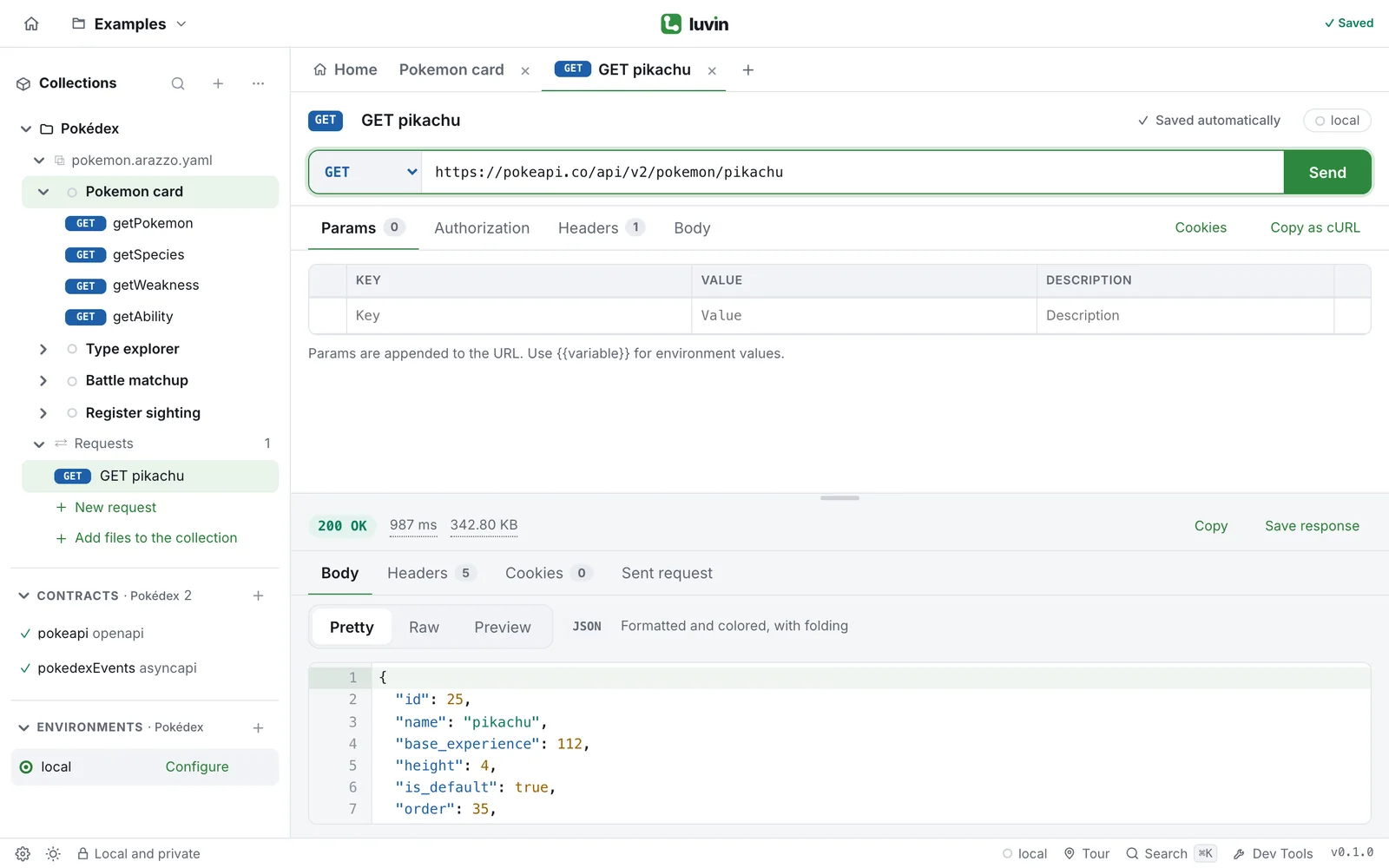
Example
Section titled “Example”You send POST https://jsonplaceholder.typicode.com/posts with a JSON body (see HTTP requests). The response area shows:
| Where | What you see |
|---|---|
| Bar above the response | 201 Created, the time, the size and, on the right, Copy and Save response. |
| Body tab | The JSON of the new post, ending with "id": 101. |
| Headers tab | The headers of the answer, for example content-type: application/json; charset=utf-8 and location: https://jsonplaceholder.typicode.com/posts/101. |
| Sent request tab | POST, the final URL, and every header that went out, including Content-Type: application/json, which Luvin added because the body is JSON. |
The rest of the page explains each part.
Before and during the call
Section titled “Before and during the call”| What you see | What it means |
|---|---|
| No response yet | You have not sent the request. Press Send (⌘/Ctrl + Enter). |
| Sending… with a spinner | The request is on its way. |
| The request couldn’t complete | The API did not answer, and the reason is below. In the browser version, the API must allow CORS. The desktop app has no such limit. |
When a call fails this way, a fold-out Sent request under the message shows the URL and the headers that were sent. See Connection help.
The bar above the response
Section titled “The bar above the response”When the API answers, a bar shows, from left to right:
- The status, for example
200 OKor404 Not Found. Luvin colors it by family: 2xx, 3xx, 4xx and 5xx. - The time, for example
985 ms. - The size, for example
1.26 KB. - A globe icon, when Luvin knows the address of the server.
- Copy and Save response, on the right.
Move the mouse over the time, the size or the globe, or reach them with the keyboard, to open a card with the details.
The time
Section titled “The time”The card Response time shows the total and each phase as a bar on a time line. The longest phase is marked, because it is the one to look at first. It is usually the wait for the server.
| Phase | What it is |
|---|---|
| Prepare | Luvin gets the request ready. |
| Socket initialization | Luvin starts the network connection the request travels through. |
| DNS lookup | The name of the server, such as pokeapi.co, is turned into a numeric address. |
| TCP handshake | The connection to that address is opened. |
| SSL handshake | For https, both sides agree how to encrypt the traffic. |
| Waiting (TTFB) | Time to first byte: from sending the request until the server starts to answer. It is the server’s time to work. |
| Download | The response arrives. |
| Process | Luvin reads the response. |
Notes under the phases tell you when they apply:
- Connection reused: no DNS, TCP or SSL this time. The request used a connection that was already open, so those phases are 0.
- Followed N redirect(s); times are from the last one.
- In the browser, a server may not share its detailed timing with the page (
Timing-Allow-Origin). The card says so. The desktop app measures every phase.
If Luvin has no phases, you see only the total time.
The size
Section titled “The size”The card Response size shows the total and its parts: Headers and Body. If the server compressed the body, an extra line, Body, uncompressed, gives its size after decompressing. Below, Request size shows what you sent, also split into Headers and Body.
The network
Section titled “The network”The globe shows HTTP version, Remote address, Local address, TLS protocol, Cipher, Certificate issuer and Certificate valid until. Rows Luvin does not know are left out. This is the first place to look when a call fails because of a certificate.
The four tabs
Section titled “The four tabs”| Tab | What it shows |
|---|---|
| Body | The content of the response. See below. |
| Headers | A table with every header of the response. The number is how many there are. |
| Cookies | The cookies the response set, with Name, Value, Domain, Path, Expires and Attributes. The number is how many there are. When there are none: This response did not set cookies. See Cookies and saved examples. |
| Sent request | What Luvin really sent. See below. |
The body
Section titled “The body”Above the body, Pretty, Raw and Preview change how it is shown. A label says what Luvin detected: JSON, HTML, XML or Text. Luvin remembers your choice on this computer.
| View | What you see |
|---|---|
| Pretty | The body formatted and colored, and you can fold the blocks. JSON, HTML and XML are indented. Any other text is shown as it came. |
| Raw | Exactly as the server sent it. |
| Preview | JSON as a table you can expand, or an HTML page already drawn. It is offered only for JSON and HTML. |
If the response has no body, the area says The response has no body.
Search in the body
Section titled “Search in the body”Click inside the body and press ⌘ + F (Ctrl + F). A search box opens. Use it to find a field or a value in a long response. It works in Pretty and Raw.
The expandable table
Section titled “The expandable table”In Preview, a JSON response is a table of key and value. Objects and lists have an arrow. Click a row to open it and see what it holds. The badge says how much it contains: {3} is an object with three fields and [2] is a list with two items. Empty ones say empty.
A page drawn
Section titled “A page drawn”For HTML, Preview draws the page in an isolated frame. Scripts do not run there. This is a way to read the page, not to test it.
Sent request
Section titled “Sent request”The tab Sent request answers “what did I send?”. It shows the method, the final URL, with every {{variable}} already replaced, and Copy URL. Then it lists every header, including the ones Luvin adds by itself, such as Host and Content-Length, and the body.
If the request should carry an Authorization but none went out, a warning says No Authorization was sent. Check the Authorization tab of the request or of the collection. See Authorization.
Copy and save
Section titled “Copy and save”- Copy puts the body of the response on the clipboard, exactly as it arrived. The button says ✓ Copied for a moment.
- Save response opens Save response as example, which keeps the response with its request under the request in the sidebar. Download as file, in the same dialog, saves only the body to a file. See Cookies and saved examples.