
Send requests
Import and copy cURL
How to create a request from a pasted cURL command, which options Luvin understands, and how to copy a request as a cURL command for a terminal.
cURL is a command-line tool that sends an HTTP request, and many tools and API documents show their examples as cURL commands. Luvin reads such a command and turns it into a request, and it can also write any request back as a command.
Example
Section titled “Example”Paste this command from an API’s documentation:
curl -X POST 'https://jsonplaceholder.typicode.com/posts' \ -H 'Content-Type: application/json' \ -d '{"title":"Hello Luvin","body":"My first post","userId":1}'Luvin creates a request named POST posts:
| Part of the request | What Luvin fills in |
|---|---|
| Method and URL | POST, https://jsonplaceholder.typicode.com/posts |
| Headers | Content-Type: application/json |
| Body | JSON, formatted, with the title, the body and the user. |
Press Send: the answer is 201 Created with "id": 101. See HTTP requests.
Create a request from a cURL command
Section titled “Create a request from a cURL command”Copy the command from Chrome (Network tab, Copy as cURL), from Postman or from the documentation of an API. Then use one of these two ways.
From the New request dialog
Section titled “From the New request dialog”- In the sidebar, open the ⋯ menu of the collection, of the Requests group or of a folder, and choose Import from cURL. You can also click New request and choose Import from cURL in the dialog.
- Paste the command in the text box. The dialog says: Paste the command. Method, URL, headers, authorization and body are converted.
- Press Import (or ⌘/Ctrl + Enter). Back returns to the list of request kinds.
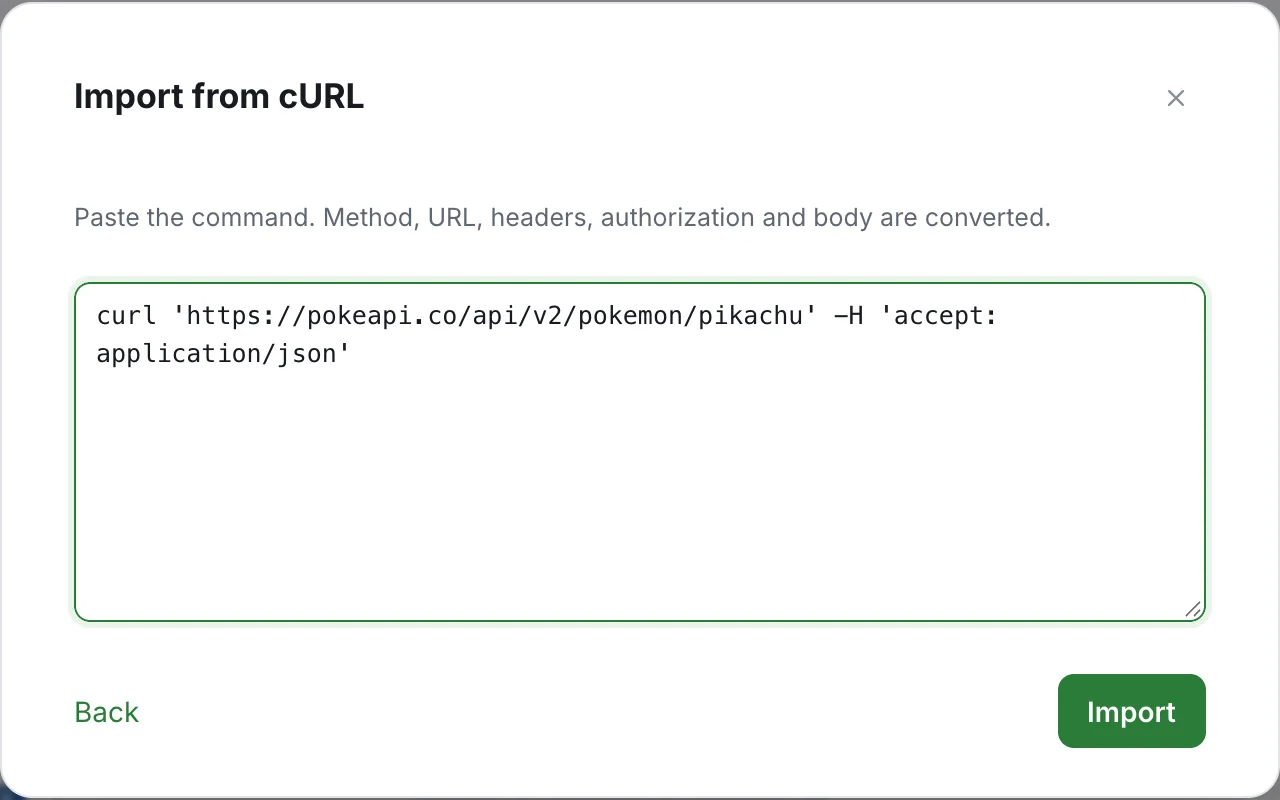
The request opens in its own tab, ready to send. Its name is the method and the last part of the path: curl 'https://pokeapi.co/api/v2/pokemon/pikachu' becomes GET pikachu. Rename it if you want a clearer name.
By pasting in the URL field
Section titled “By pasting in the URL field”- Open an HTTP request.
- Paste the command in the URL field.
Luvin fills the method, URL, params, headers, authorization and body from the command. This replaces what the request had in those fields. It does not work in a GraphQL request.
If the text starts with curl but cannot be read, a message appears: This doesn’t look like a valid cURL command (it must start with “curl” and include a URL). A command must start with curl and contain a URL.
What Luvin recognises
Section titled “What Luvin recognises”| In the command | In the request |
|---|---|
-X, --request |
The method. Without it, the method is POST when there is a body and GET when there is not. |
-I, --head |
The method HEAD. |
The URL (or --url) |
The URL. What follows ? goes to the Params tab. |
-H, --header |
A row in Headers. |
-d, --data, --data-raw, --data-binary, --data-ascii |
The Body. Several -d are joined with &. |
--data-urlencode |
A body value with the special characters encoded. |
--json |
The body, and the headers Content-Type and Accept set to application/json when you did not give them. |
-F, --form, --form-string |
A Multipart Form body. Fields come in as text. |
-G, --get |
The data of -d goes to the Params tab instead of the body. |
-u, --user |
Basic Auth with the username and password. |
-H 'Authorization: Bearer …' |
Bearer Token, with the token in the Authorization tab. |
-A, --user-agent |
A User-Agent header. |
-e, --referer |
A Referer header. |
-b, --cookie |
A Cookie header. |
Luvin picks the body type from the content:
| If the body… | The type is |
|---|---|
Has a JSON Content-Type, or has no Content-Type and starts with { or [ |
JSON, formatted. |
Has an XML Content-Type |
XML. |
Has a form Content-Type, or looks like name=value |
Form URL Encoded. |
| Is anything else | Text. |
The command can use single quotes, double quotes, $'…' and a \ at the end of a line to continue on the next one, as in a terminal.
Options that only change how curl runs, such as -o, -L, -k, --compressed or -m, are skipped. Cookie files, proxies and certificates are not converted.
Copy a request as cURL
Section titled “Copy a request as cURL”Use this to reproduce a request in a terminal, attach it to a bug report or ask a colleague to run it.
-
Open the request.
-
On the right of the request tabs, click Copy as cURL. A dialog with the same name opens and shows the command.
-
Choose the version you need:
Option What the command contains With {{variables}}The {{variables}}stay as you wrote them. Nothing from your environment goes out. Use it to share or save.With “name” values The values of the active environment, ready to paste in a terminal. Secrets show as <secret>. -
Press Copy command. The button says Copied to the clipboard.
A command looks like this:
curl -X POST 'https://api.example.com/customers' \ -H 'Content-Type: application/json' \ -H 'Authorization: Bearer <secret>' \ --data-raw '{ "name": "Ana"}'Before you run it, replace each <secret> with the real value. That is on purpose: the secrets are hidden so a command you paste somewhere else does not expose them.
A GET request has no -X. A Multipart Form body is written with -F, and a file body with --data-binary @file.