
Send requests
Generate requests from a contract
How to create one ready-to-send request for each operation of an OpenAPI contract, grouped by tag, with the base URL as a variable of the environment.
If you have the OpenAPI contract of an API, you do not need to write its requests by hand. Luvin creates one request for each operation of the contract, with its parameters and an example body already filled in. Use it to start testing an API in a minute, or to fill a collection with every call of the API. The contract must be OpenAPI; AsyncAPI contracts do not generate requests.
Example
Section titled “Example”The bundled pokeapi.openapi.yaml describes the operation listPokemon. Luvin turns it into this request, in the folder of its tag pokemon:
name: Lista Pokémon (paginado)kind: httpdescription: Lista Pokémon (paginado)method: GETurl: "{{pokeapi}}/pokemon"params: - key: limit value: "5" enabled: false description: Cuántos devolver. - key: offset value: "0" enabled: false description: Desde cuál empezar.auth: type: inheritrequiredFields: []The names come from the contract: the summary is the name and the description, the examples of the parameters are the values. limit and offset are optional in the contract, so their rows come unticked (enabled: false). The URL starts with {{pokeapi}}, a variable that holds the server of the contract.
Generate the requests
Section titled “Generate the requests”- Open the collection that has the contract. See Contracts if you still need to add it.
- Start the dialog in one of two ways:
- In the Contracts list of the sidebar, click the + button on the row of the contract (Generate requests).
- Open the contract in the editor and click Generate requests in its top bar.
- The dialog Generate requests from «name» opens. It lists every operation of the contract.
- Choose what you want, as described below.
- Press Generate N requests.
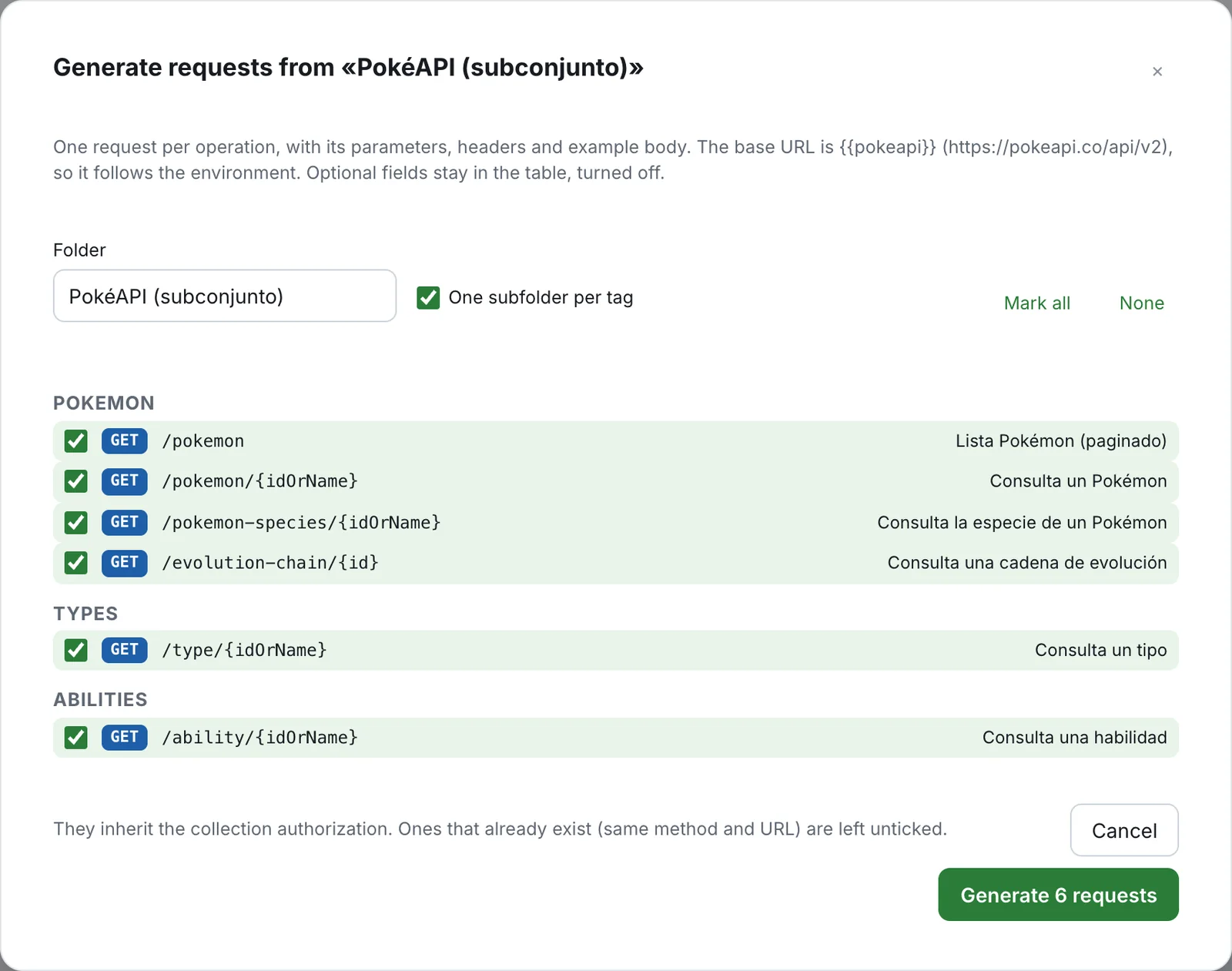
Luvin shows Created N requests in «folder» and opens the first one. The requests are in the Requests group of the sidebar, in a folder named as you chose.
If the file is not a valid OpenAPI, you see This file is not a valid OpenAPI.
Choose what to generate
Section titled “Choose what to generate”| Control | What it does |
|---|---|
| Folder | The folder that holds the requests. It starts with the title of the contract (info.title). Write another name if you prefer. |
| One subfolder per tag | Creates one subfolder for each tag of the contract, such as pets or orders. It appears only when the contract has tags, and it is ticked by default. Untick it to put all requests in one folder. |
| Mark all / None | Ticks or unticks every operation. |
| Each row | A checkbox, the method, the path and the name of the request. Untick the operations you do not want. |
A tag is a label that the contract puts on operations to group them. Operations without a tag go under No tag.
The Generate button stays disabled while no operation is ticked or the folder name is empty.
The base URL
Section titled “The base URL”Every generated request starts with a variable, for example {{pokeapi}}/pokemon/pikachu, not with the full address. The dialog says which one: The base URL is {{pokeapi}} (https://pokeapi.co/api/v2), so it follows the environment.
- The variable is named after the contract file.
pokeapi.openapi.yamlgivespokeapi. If a workflow already uses the contract as a source, the name of that source is used. - Its value is the first server of the contract. It is added as a base URL to every environment that does not have it yet. An environment that already has it keeps its value.
- To point the same requests to another server, switch the active environment or change the value in it. See Variables and secrets.
If the contract has no server, the request is generated anyway, and you set the variable in the environment.
What each request contains
Section titled “What each request contains”| Part | What Luvin puts in |
|---|---|
| Name | The summary of the operation. If it has none, its operationId. If it has neither, the method and the path, for example GET /pets/{id}. |
| Method and URL | The method, and the variable followed by the path. A path parameter takes its example from the contract. Without an example it becomes {{name}}, a variable for you to fill. |
| Params | One row for each query parameter, with its example value and the first line of its description. |
| Headers | The same for header parameters. Content-Type, Authorization, Content-Length, Host and Accept are not added as rows: Luvin handles them itself. |
| Body | An example body. It uses the example of the contract; if there is none, it builds one from the schema. JSON bodies are formatted. For a form (application/x-www-form-urlencoded or multipart/form-data) you get a table of fields. Luvin prefers JSON when the contract offers several types. |
| Authorization | Inherit from collection. See Authorization. |
| Description | The description of the operation. |
Required and optional fields
Section titled “Required and optional fields”The contract says which fields are required. Required query params and headers come ticked. Optional ones stay in the table, unticked: tick them when you need them. The fields marked required in the schema of the body are remembered too.
Luvin keeps this information in the request. When you later drag the request into a workflow, it knows which data the workflow needs and which negative cases to generate. See Workflows from requests.
Requests that already exist
Section titled “Requests that already exist”Luvin compares each operation with the requests of the collection. When a request with the same method and URL (without the query) already exists, the row shows already exists and is unticked, so running the dialog twice does not duplicate anything. You can tick it if you want a second copy.
After generating
Section titled “After generating”Send a request to check it. If the API answers 401, set the authorization of the collection. See Authorization.