
Contracts
Edit a contract
How to edit the YAML of a contract next to its preview, read the live errors, see which workflows a change affects and make a local copy of a contract you cannot edit.
Click a contract in the sidebar and Luvin opens it in an editor. On the left you edit the YAML. On the right you see the contract as a readable page, which updates as you type.
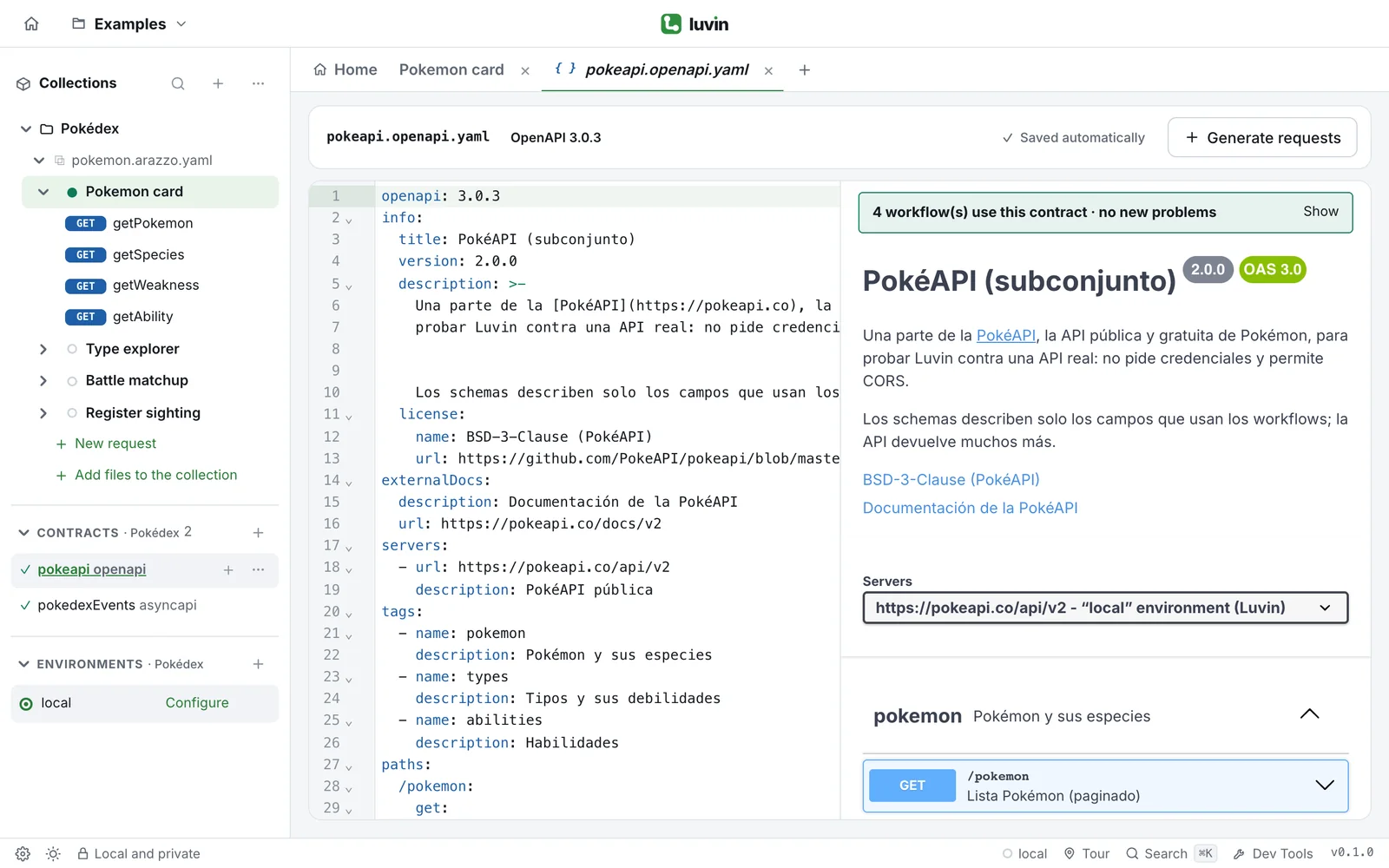
Example: a rename that breaks a workflow
Section titled “Example: a rename that breaks a workflow”In the PokéAPI contract, the Pokemon card workflow uses the operation getPokemon. You rename it in the YAML:
/pokemon/{idOrName}: get: # operationId: getPokemon operationId: getPokemonByNameThe bar above the preview now says This change breaks N workflow(s). Click Show, then the step that now has no operation: the workflow opens at that step. Rename it back and the bar returns to no new problems.
The screen
Section titled “The screen”The top bar shows:
- The file name and a badge with the type and version, for example OpenAPI 3.0.3 or AsyncAPI 3.0.0.
- A Read-only badge when you cannot edit the file. See below.
- A $ref: file button for each file that this contract references. Click it to open that file.
- The save state. In a workspace the state is Saved automatically. Outside a workspace you see Changes not saved to a file and the Save file button, plus Discard changes to go back to the text you opened.
- Generate requests (OpenAPI only). See Generate requests from a contract.
The preview depends on the contract:
| Contract | Preview |
|---|---|
| OpenAPI | The official Swagger UI. You can try an operation from it: see Try one operation. |
| AsyncAPI | Luvin’s own preview. See AsyncAPI contracts. |
| A file of schemas that others reference | A list of its schemas. |
At the top of the Swagger UI, Servers lists the address of the active environment first, named “name” environment (Luvin).
Live errors
Section titled “Live errors”Luvin checks the contract every time you stop typing. Problems appear in two places: marked in the YAML, and in a panel above the preview. The panel is called Errors (n), or Warnings (n) when there are only warnings.
- Read the list. Each line shows the level (Error, Warning or Info), the line (Line 12) and the message.
- Click a line. The editor jumps to it.
- Fix the YAML. The line disappears when the problem is gone.
- Use Hide and Show to fold the panel.
While the YAML cannot be read, the preview keeps showing the last version that could.
These are some of the things Luvin checks:
| Check | Why it matters |
|---|---|
Two operations with the same operationId |
A workflow would not know which one to use. |
An operation without operationId |
The workflow has to point to it by its path instead. |
A path parameter that is not required: true, or that is not in the path |
The URL cannot be built. |
A $ref that points to nothing |
Part of the contract cannot be read. |
| An operation with no documented response | Luvin cannot check the answer. |
No servers |
The base URL comes from the environment. This is only information. |
| A version other than OpenAPI 3.x or AsyncAPI 2.x or 3.x, or Swagger 2.0 | Luvin works with OpenAPI 3.x. |
An AsyncAPI operation without action: send or receive, or without a channel |
The operation cannot be used as a step. |
When a change breaks a workflow
Section titled “When a change breaks a workflow”A workflow that uses the contract is analysed again as you edit. Above the preview, a bar tells you the effect:
- N workflow(s) use this contract · no new problems when the change is safe.
- This change breaks N workflow(s). when your edit created new problems in some workflow. For example, you renamed an
operationIdthat a step uses.
Click the bar (Show) to see the list of workflows that use the contract. Each row has the name of the workflow and either no change or N new problem(s). Under a workflow with problems you see the messages and the step they belong to. Click one to open that workflow at that step.
The list shows only the problems that appeared after you opened the contract, so existing ones do not hide the new ones. If no workflow uses the contract, the bar does not appear.
Make a local copy
Section titled “Make a local copy”Not every contract can be edited. A contract that was downloaded from a URL, or that you attached to a row, comes in Read-only. The file is not part of your collection, so changing it would not be saved.
- Open the contract.
- Click Make a local copy.
Luvin adds the contract as a file of the collection. The Read-only badge disappears and you can edit it. Workflows keep using it, now from the copy.